Introduction
If you have to look twice at the ROG Crosshair VIII Extreme name containing both ‘Crosshair’ and ‘Extreme’ we don’t blame you. The flagship ‘Extreme’ moniker has been almost exclusively reserved for Intel platforms since its debut in 2007 on the Intel X38 based ROG Maximus Extreme. When the first-generation Ryzen bombshell dropped on the almost decade-long Intel party, Asus capped their AMD X370 board lineup with the Crosshair VI Extreme. While it was ‘extreme’ in name, It was really closer to an E-ATX Crosshair Hero with an extra M.2 slot and a few extra USB ports and lacked the over-the-top feel that the Intel Extreme boards had. Zen+ and Zen2 came and went with no further Extreme boards announced and even Zen 3 arrived with the X570 chipset and Still no new red Extreme in sight.
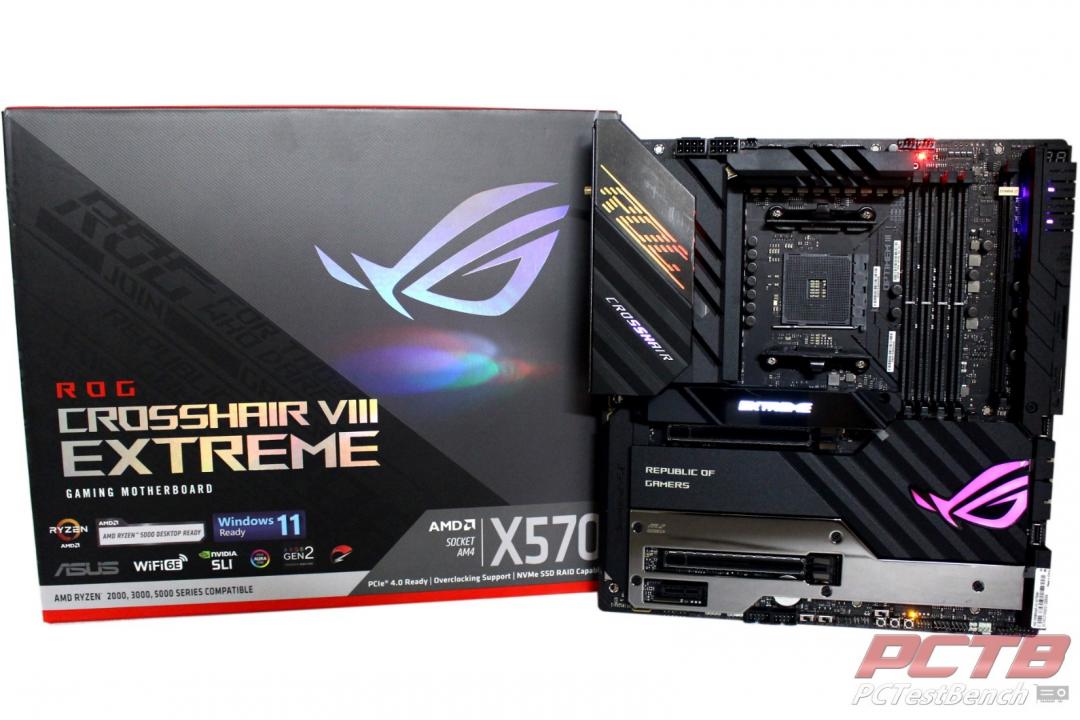
With the annual board refresh that seems to happen during stagnate market periods (like those that happen during a global pandemic), ASUS decided to throw down in a big way with the ultimate Ryzen ready X570 motherboard. The ROG Crosshair VIII Extreme features, well, everything, and then a little more for good measure. For those power users who demand the absolute best with exactly zero compromises, the C8E delivers in every way. Featuring no less than five M.2 gen 4 slots and six SATA ports, storage is more than handled. Networking? how about 2.5Gb Ethernet, 10Gb Ethernet, and Wi-Fi 6E? Dual Thunderbolt 4 ports on the rear and tons of USB round-out connectivity, including a USB 3.2 gen 2×2 20Gbps front port that supports up to 60 watts of power delivery.
Tons of water-cooling and Extreme overclocking features can be found onboard from the integrated water block, temp probe, and flow meter connectors to the Safe Boot and Retry Buttons to ASUS’s Q-Code and Q-LED displays for rapid problem-solving. The massive 2” LiveDash display can walk you through POST and Boot issues, and then can switch over to display important system information or even your own animations. If you are looking for the very best performance, Asus includes their Dynamic OC Switcher so you can have the best Single Thread manual overclock, as well as PBO-powered multi-threaded performance. Given how heavy the board and box already are, Asus chose to forgo the kitchen sink but included everything else you can imagine. Let’s dive in!
ASUS’s take on the ROG Crosshair VIII Extreme:
The ROG Crosshair VIII Extreme combines the best elements of the renowned ROG X570 motherboard lineup into a single beastly package amped to elevate Ryzen-based builds beyond all boundaries.
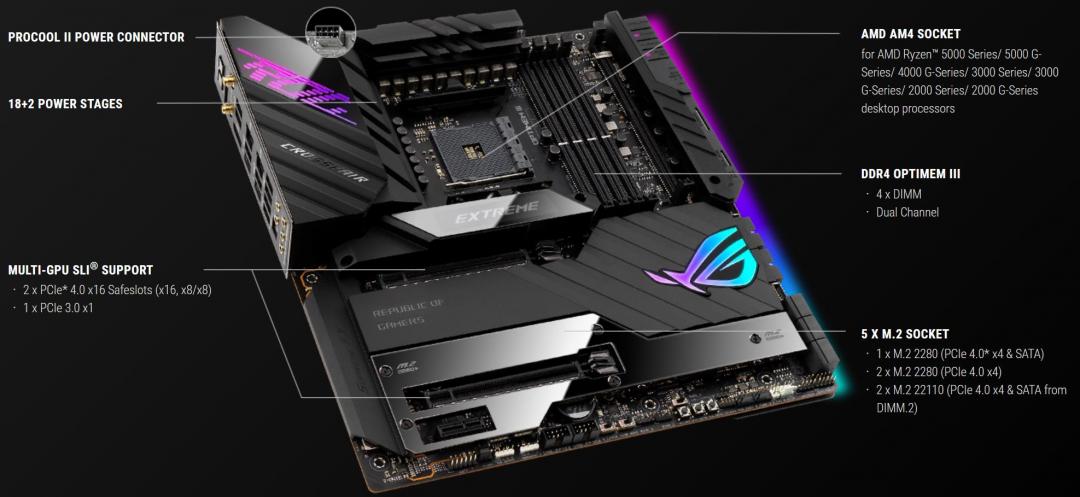
AMD X570 EATX gaming motherboard with 18+2 power stages, five M.2 slots, USB 3.2 Gen 2×2 front-panel connector with PD 3.0 60 W support, USB 3.2 Gen 2 front-panel connector, dual Thunderbolt™ 4, Marvell® AQtion 10 Gb Ethernet, Intel® 2.5 Gb Ethernet, PCIe® 4.0, onboard WiFi 6E and Aura Sync RGB lighting
- AMD AM4 socket: Ready for AMD Ryzen™ 5000 Series, 5000 G-Series, 4000 G-Series, 3000 Series, 3000 G-Series, 2000 Series and 2000 G-Series desktop processors; also supports up to two M.2 drives and features USB 3.2 Gen 2 and AMD StoreMI to maximize connectivity and speed
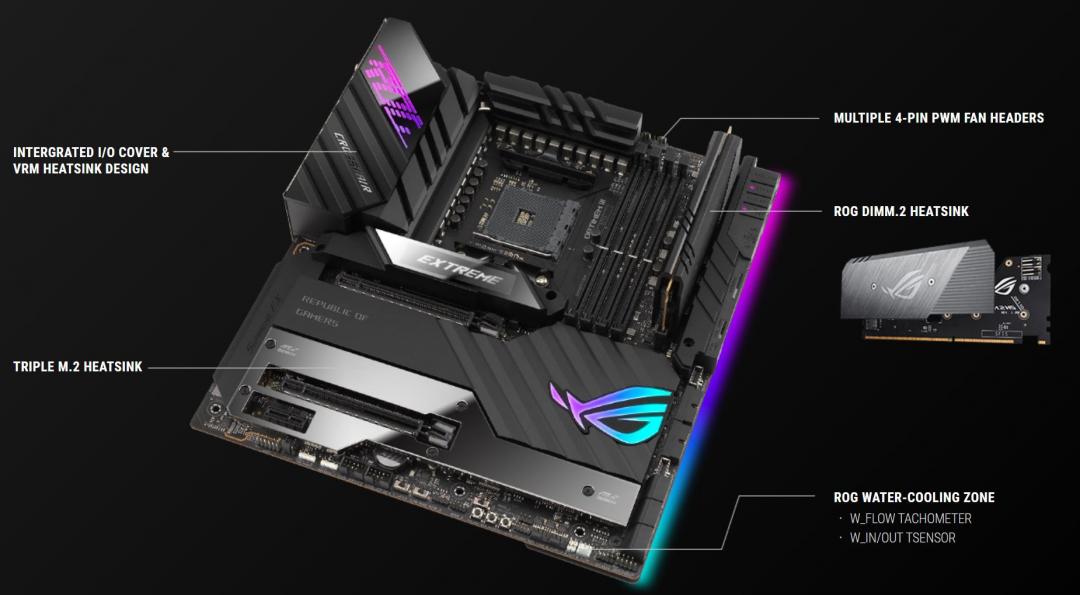
- Comprehensive thermal design: Enlarged VRM heatsinks plus integrated aluminum I/O cover, high-conductivity thermal pad, five M.2 heatsinks with embedded backplates, and ROG Water-Cooling Zone.
- Robust power delivery: 18+2 power stages rated for 90 A, ProCool II power connectors, microfine alloy chokes, and 10K Japanese-made black metallic capacitors
- High-performance connectivity: USB 3.2 Gen 2×2 front-panel with PD3.0 60W fast charging, onboard WiFi 6E, Marvell® AQtion 10 Gb Ethernet, Intel® 2.5 Gb Ethernet, and ASUS LANGuard.
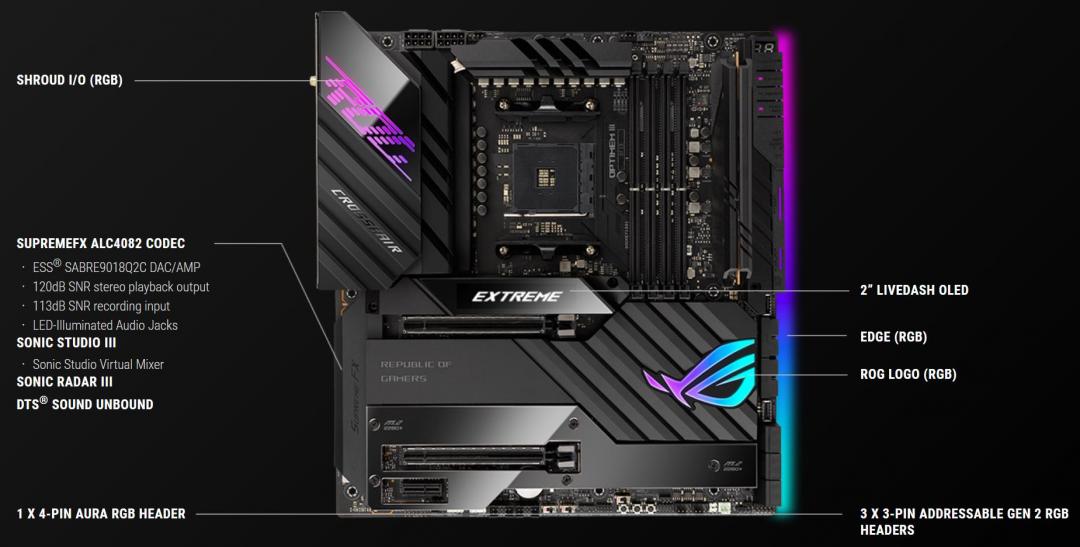
- Industry-leading gaming audio: ROG SupremeFX ALC4082 with ESS® ES9018Q2C DAC and the bundled ROG Clavis USB digital-to-analog converter for high-fidelity sound.
- Unmatched personalization: 2ʺ LiveDash OLED, ASUS-exclusive Aura Sync RGB lighting, including one RGB header and three addressable Gen 2 RGB headers
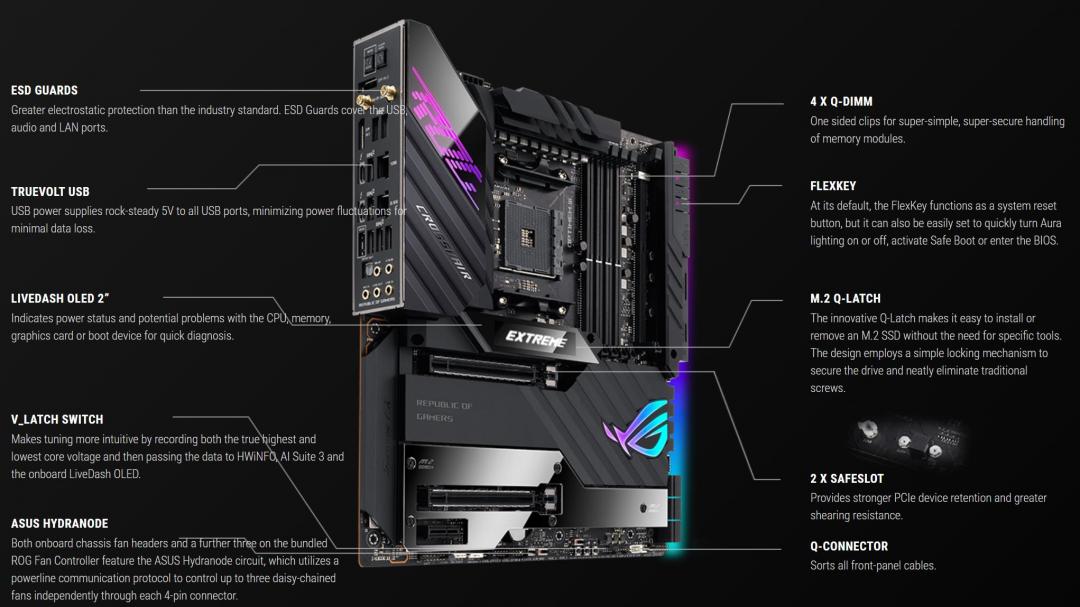
- DIY-friendly design: Bundled ROG Fan Controller, pre-mounted I/O shield, V_Latch switch, BIOS FlashBack™, M.2 Q-Latch, Q-Code, FlexKey, Q-Connector, SafeSlot, and Graphics Card Holder
- Renowned software: Bundled 1-year AIDA64 Extreme subscription
Key Features:
DYNAMIC OC SWITCHER
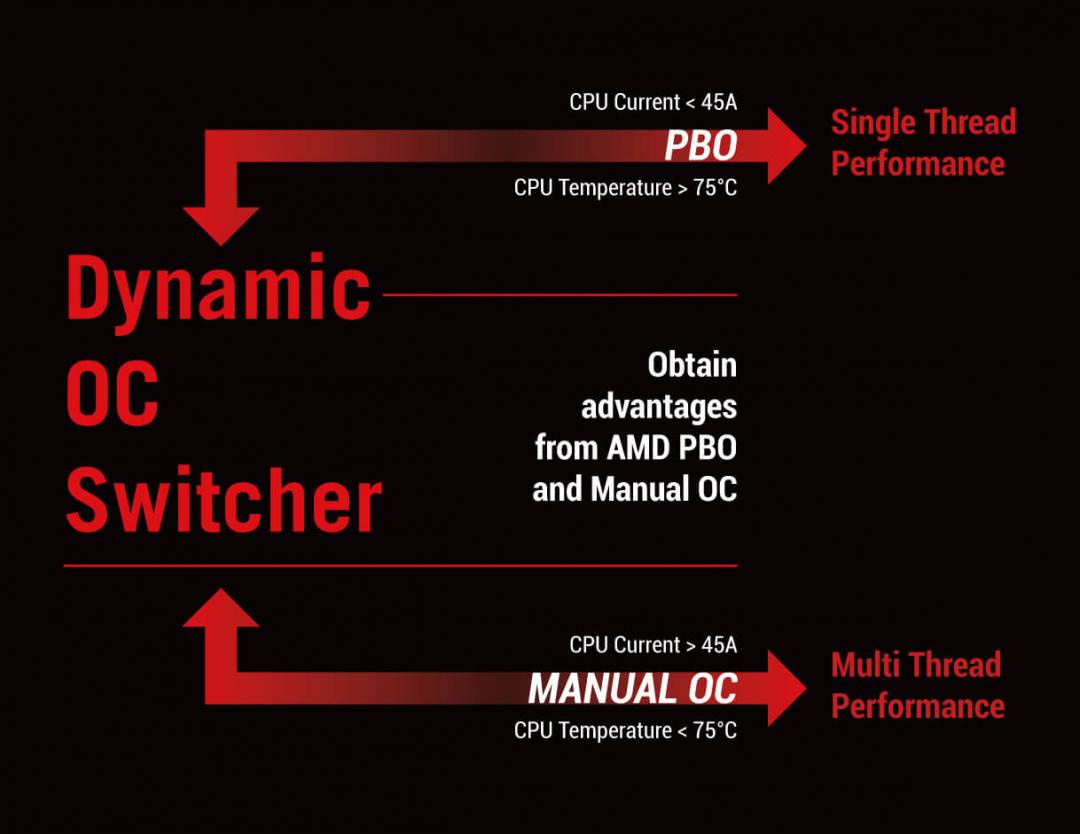
Dynamic OC Switcher gives Ryzen processors newfound agility to crush multi-threaded workloads and slice through single-threaded apps. Simply configure a manual overclock for heavy tasks and then select a current threshold for Dynamic OC Switcher to automatically flip between your profile and AMD Precision Boost Overdrive (PBO).
LiveDash OLED
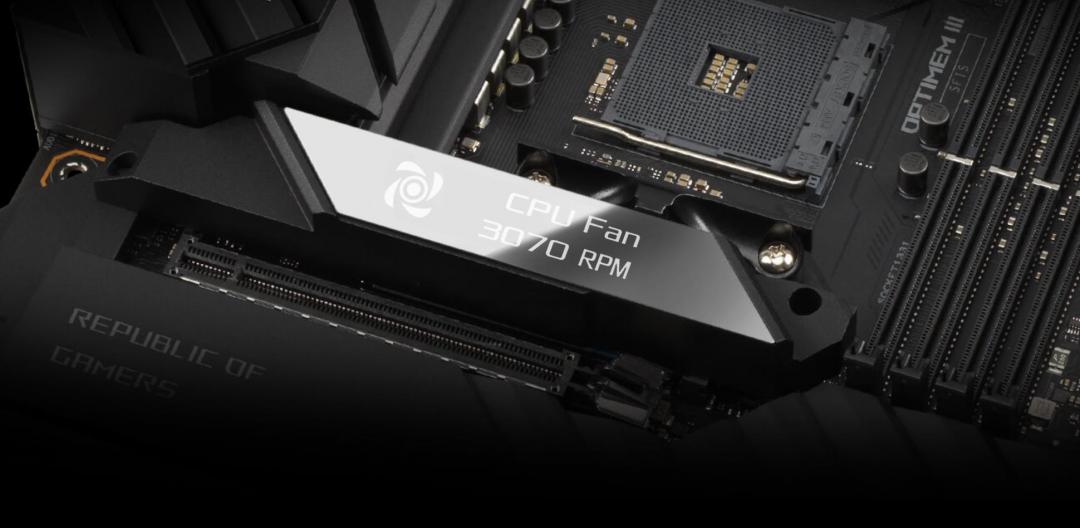
The ROG Crosshair VIII Extreme includes LiveDash, a built-in 2-inch OLED panel that shows useful information and features customizable graphics. During the power-on, self-test (POST) phase, the OLED shows key stats in simple language using traditional POST codes. In normal operation, the panel can be programmed to show CPU frequency, device temperatures, fan speeds, or water-cooling information. You can also personalize the default OLED GIF with a preferred image or animation.
Extreme Power & Performance:
Comprehensive Cooling
Total Gaming Immersion
Full Connectivity
DIY Friendly
Quick Specs:
- CPU
- AM4 Socket
- Digi Power Design
- 18+2-Phase Power
- Supports Ryzen 5000, 5000G, 4000G, 3000, 3000G, 2000, and 2000G-series Desktop Processors.
- Chipset
- AMD X570
- Memory
- Dual-Channel DDR4
- 4x DIMM Slots
- OptiMem III
- 2133-3200MHz and 3400-5000MHz+ Over-Clocked
- 128GB Max Capacity
- Graphics
- 2x Intel Thunderbolt 4 (USB Type-C) support DisplayPort 1.4 and Thunderbolt video outputs
- Nvidia 2-way SLI support.
- Audio
- ROG SupremeFX (ALC4082 Codec)
- 120dB SNR playback and 113dB SNR recording
- ESS SABRE 9018Q2C DAC/AMP
- LED-illuminated Audio jacks.
- Networking
- Marvel AQtion AQC113CS 10GB Ethernet
- Intel I225-V 2.5Gbps Ethernet
- Intel Wi-Fi 6E AX210
- Expansion
- 2x PCIe 4.0 x16 slots – Reinforced Slot
- 1x PCIe 4.0 x1 slot
- Storage
- 6x SATA3 6.0
- 5X M.2
- 1x Hyper M.2 2242/2260/2280 – PCIe Gen4 x4 Only – Connected to CPU
- 2x Hyper M.2 2242/2260/2280/22110 – PCIe Gen4 x4 or SATA – (Dimm.2) Connected to Chipset
- 2x Hyper M.2 2242/2260/2280/ – PCIe Gen4 x4 – Connected to Chipset
- USB
- Rear (10x total ports)
- 8x USB 3.2 Type A
- 2x Thunderbolt 4 (Type-C) with 5V/3A 15W Charging.
- Front (10x total ports)
- 1X USB 3.2 gen 2×2 20Gbps Type-C with PD 3.0 up to 60W
- 1x USB 3.2 gen 2 10Gbps Type-C
- 4x USB 3.2 gen 1 5Gbps ports
- 4x USB 2.0 480Mbps ports
- Rear (10x total ports)
What’s in the box?
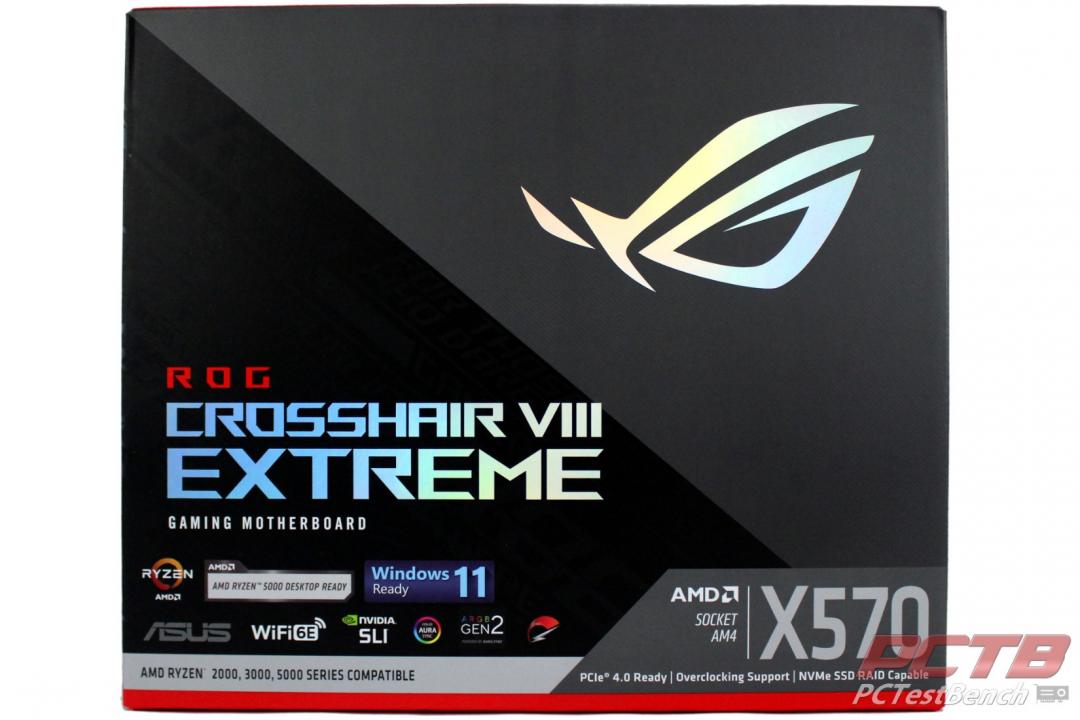
ASUS uses its standard dark theme packaging on the ROG Crosshair VIII Extreme.
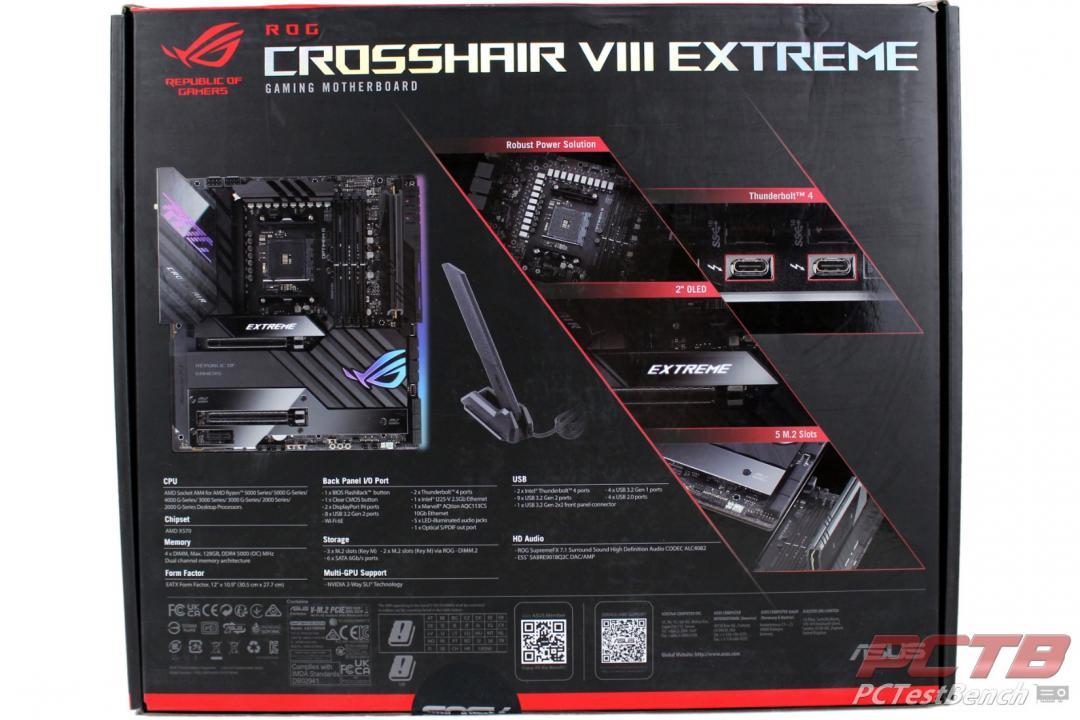
The rear of the box highlights a few of the many features as well as lists some basic specs.
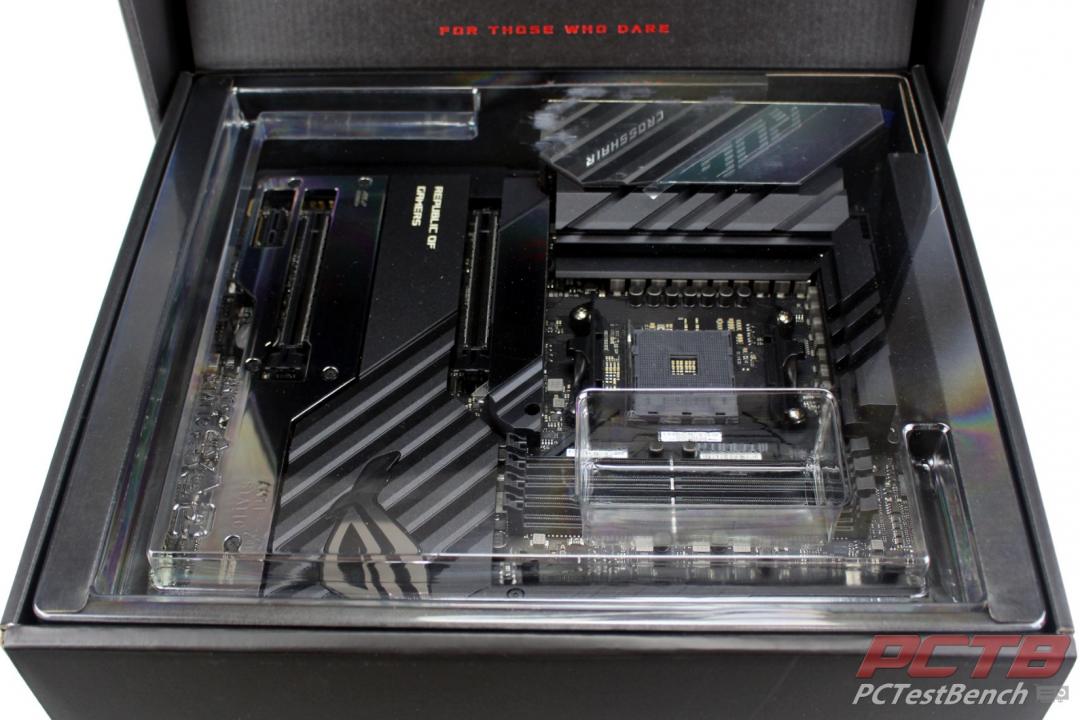
When you open the box you are immediately greeted with a panoramic view of the Crosshair VIII Extreme under a clear cover. The slogan ‘For Those Who Dare’ is embossed in red on the lid.
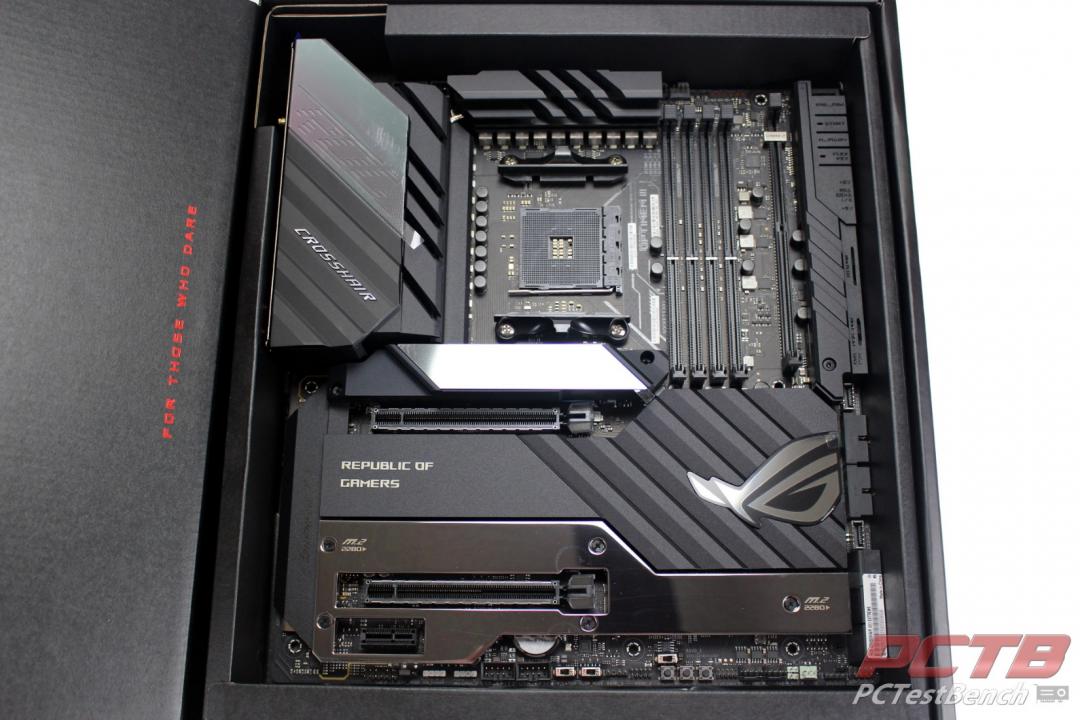
The clear lid just lifts off the top tray to access the board. There was some scuffing on the clear cover and the rear I/O scratch protection film from vibrations during shipping, but no damage.
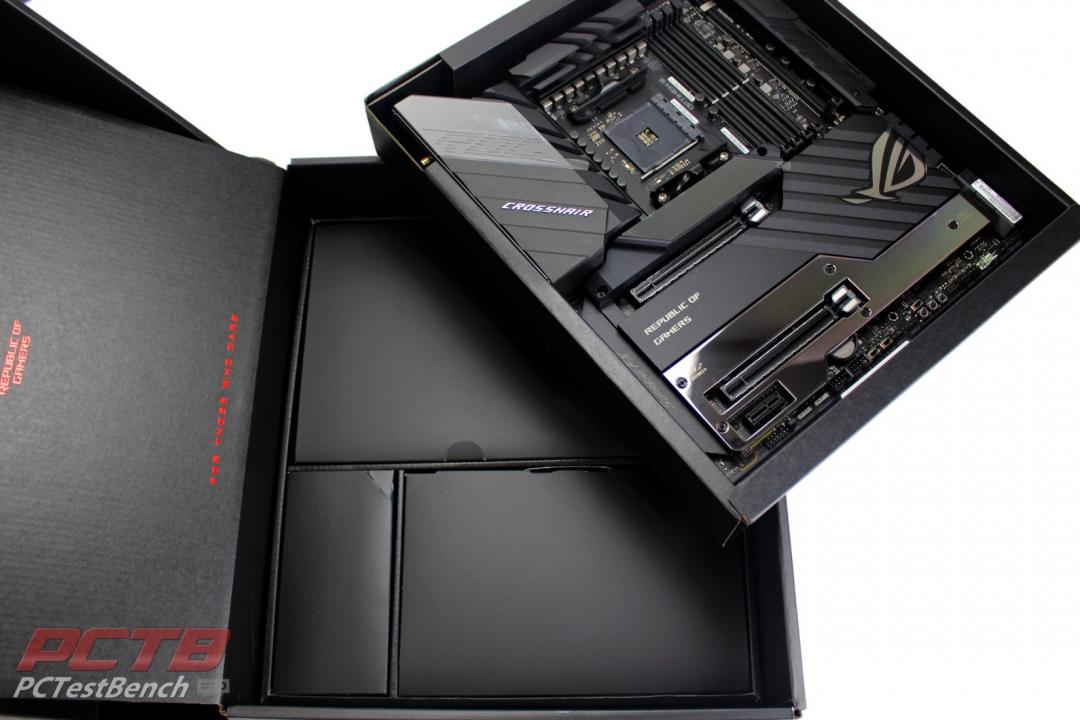
The motherboard tray lifts out to access the lower half of the box where all the included goodies hide.
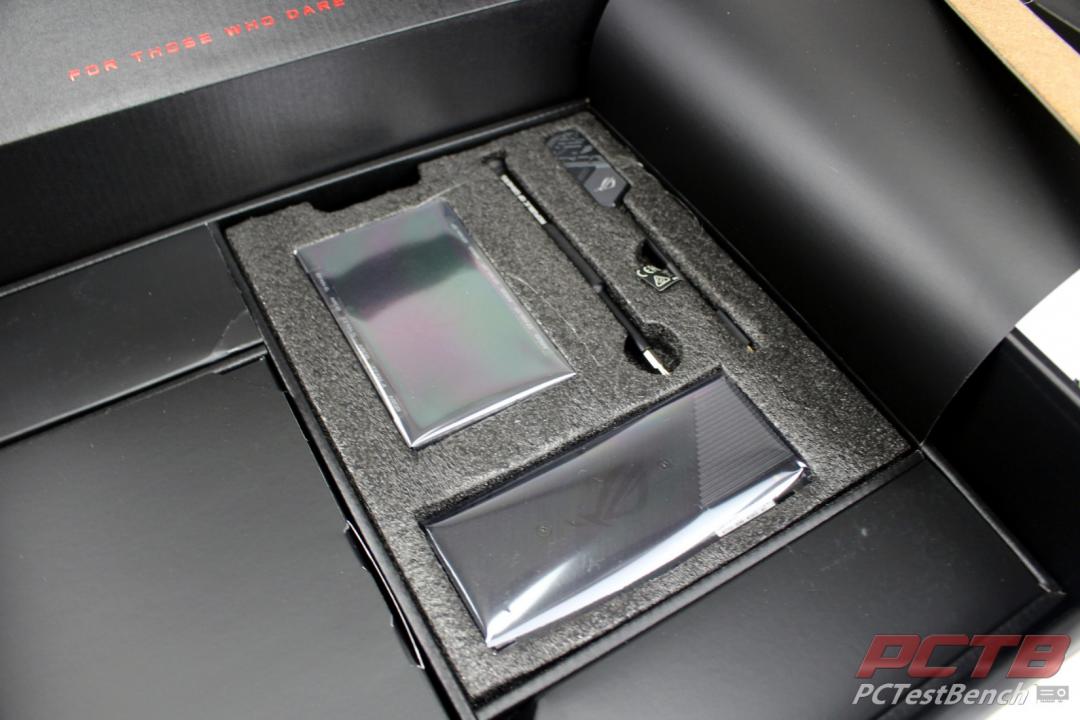
The biggest compartment opens to reveal a foam block cradling several important accessories.
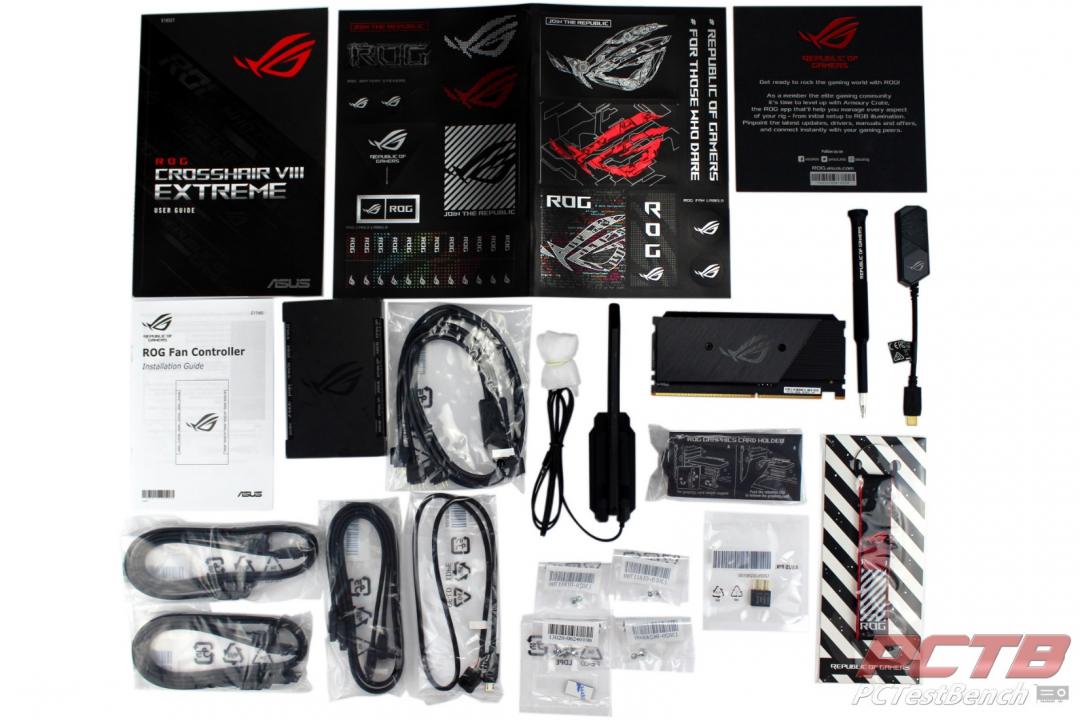
Given the ‘Extreme’ nature of the board, the list of inclusions is extensive.
- Cables:
- 1X 1-to-3 ARGB splitter
- 2X 1-to-4 fan splitter
- 1X RGB extension
- 6X ROG weave braided SATA cables
- 1X 3-in-1 Thermistor cables pack
- ROG Fan Controller:
- ROG Fan Controller
- Power Cable
- ARGB Input Cable
- USB Input Cable
- 3M Mounting tape
- ROG Dimm.2:
- ROG DIMM.2 with Heatsink
- 2 Thermal pad
- 2X M.2 Screw package
- ROG Clavis DAC
- Wi-Fi Antenna
- 2X M.2 Screw packages
- Q-Connector
- ROG keychain
- ROG GPU Holder
- ROG Screwdriver
- ROG USB Drive with utilities and drivers
- Documentation
- User Manual
- ROG Thank you card
- Clavis DAC Manual
- ROG Fan controller manual.
- ROG Stickers
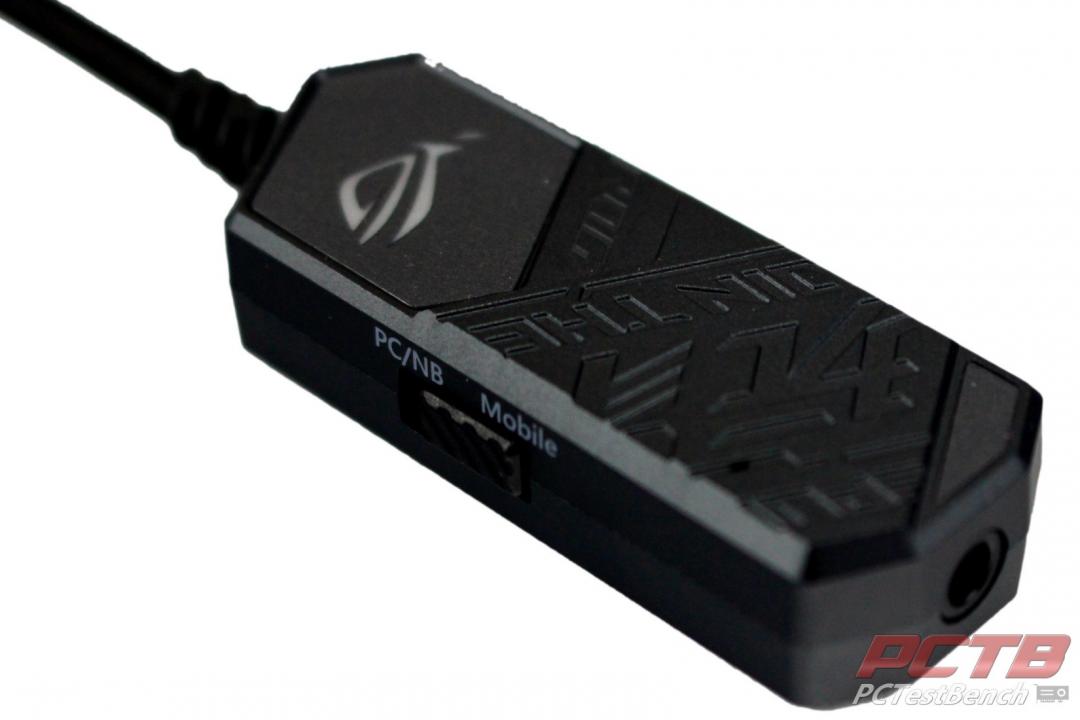
One special inclusion if the ROG Clavis DAC. The ROG Clavis is a USB Type-C based DAC with Ai Noise-Canceling mic and is based on the ESS 9281 QUAD DAC. A switch on the side changes between PC/notebook mode, and Mobile/Phone/Gaming console mode. The ESS 9281 DAC features QUAD DAC technology to provide lossless audio processing. Each of its four DACs devotes processing power to a subset of the audible frequency range, across lows, mids, highs to ultra-highs. The four signals are then combined to produce clearer sound with an impressive 130 dB signal-to-noise ratio, and an integrated amplifier supports up to 300 ohms of impedance.
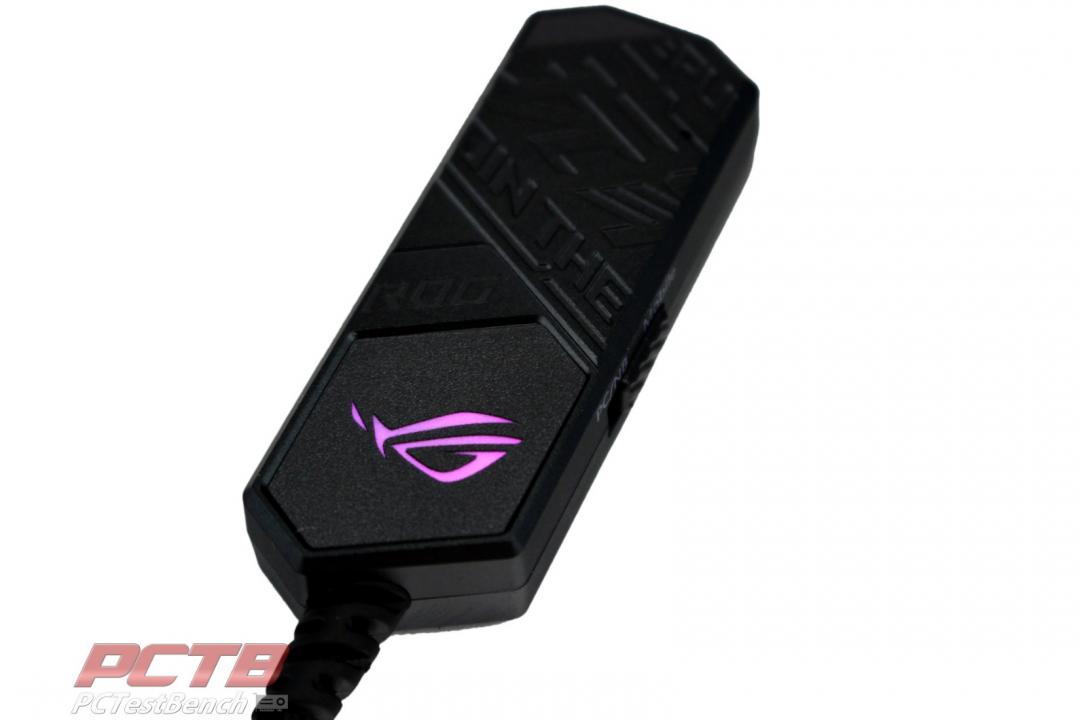
And yes, it also includes ASUS Aura Sync RGB Lighting.
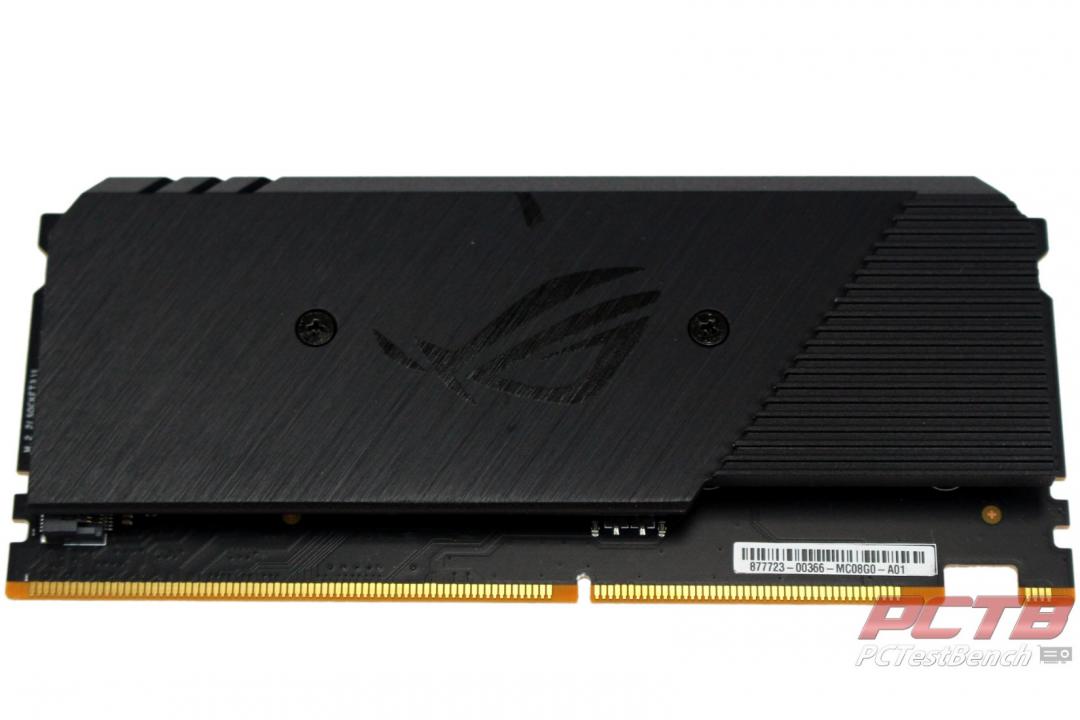
Another special inclusion is the ROG DIMM.2 Module. The DIMM.2 Module allows easy connection of two NVMe or SATA M.2 drives up to 110mm in length through a special DIMM slot on the ROG Crosshair VIII Extreme.
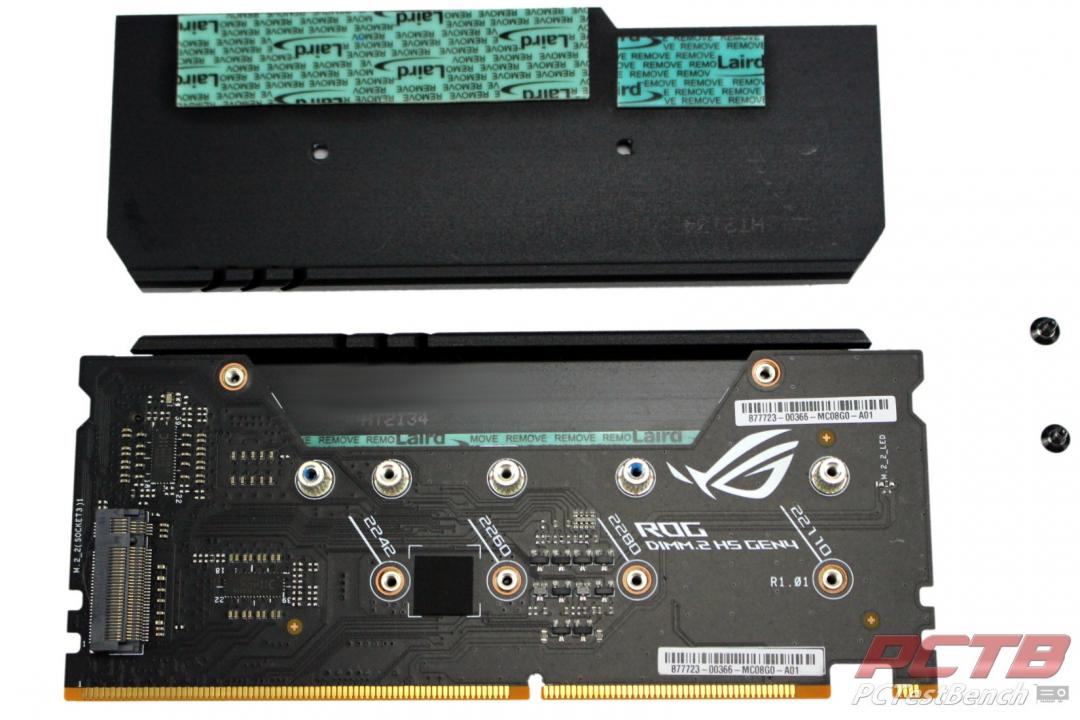
Both slots sink heat to the exterior shell of the DIMM.2 module and support pretty much any M.2 drive on the market.
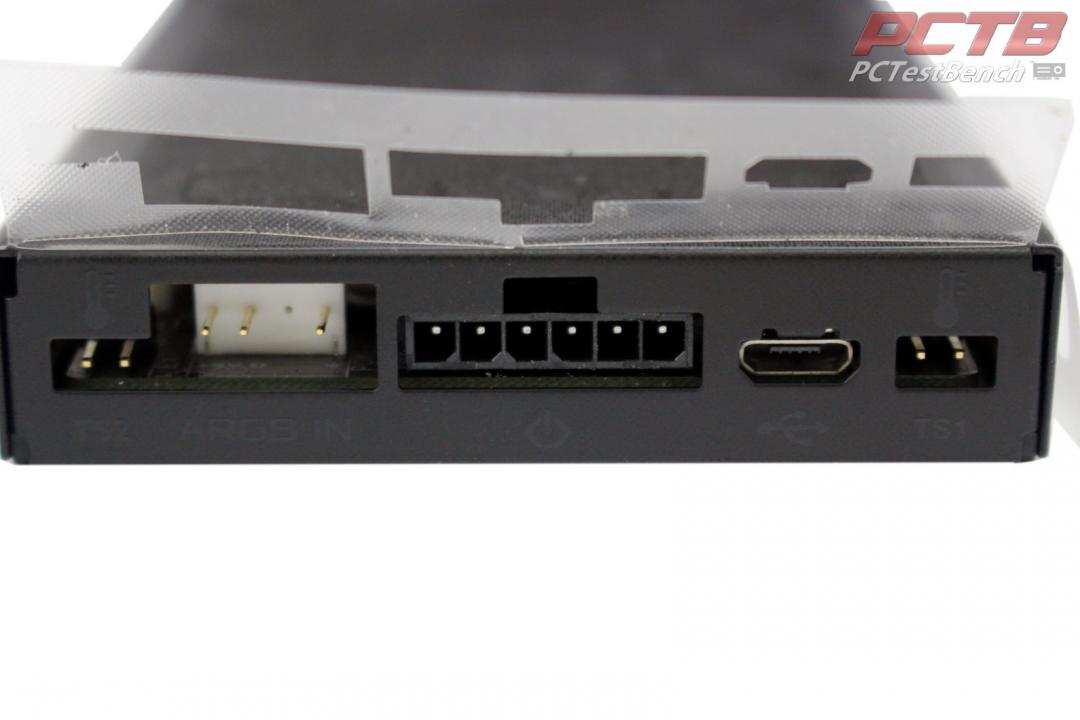
The next inclusion is the ROG Fan controller. This device mounts in your case in an empty 2.5” drive tray and provides 6 ARGB lighting headers, two thermal probe connections, and 6 fan headers.
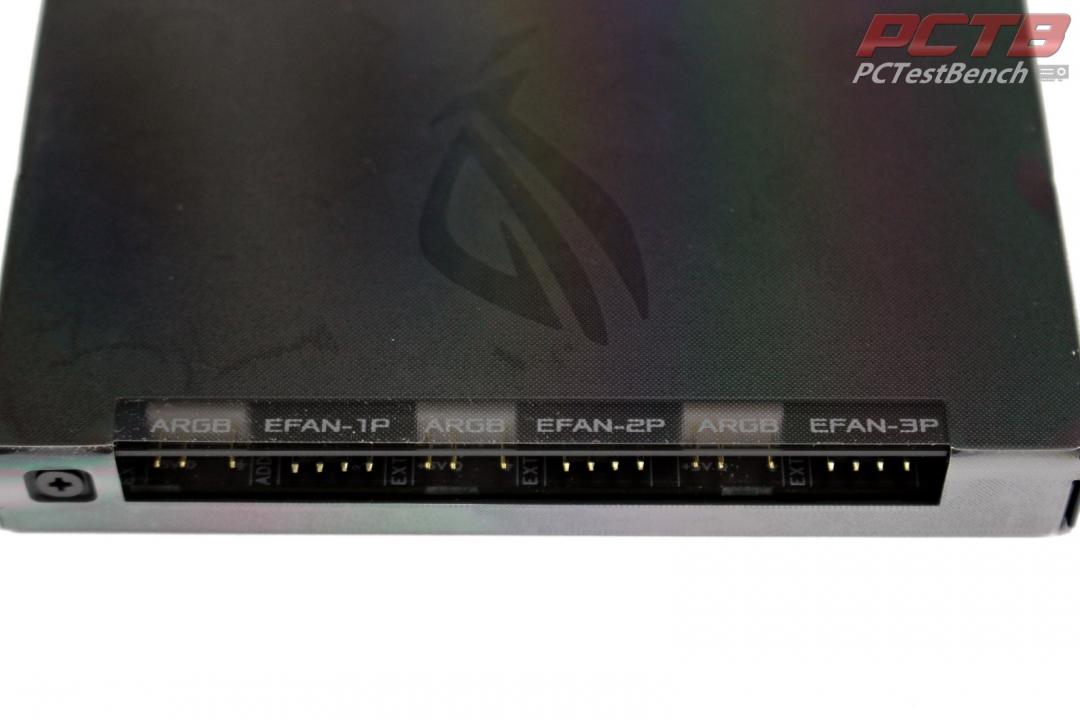
The first three fan ports support ASUS’s HydraNODE fan strings as well as independent ARGB channels for each.
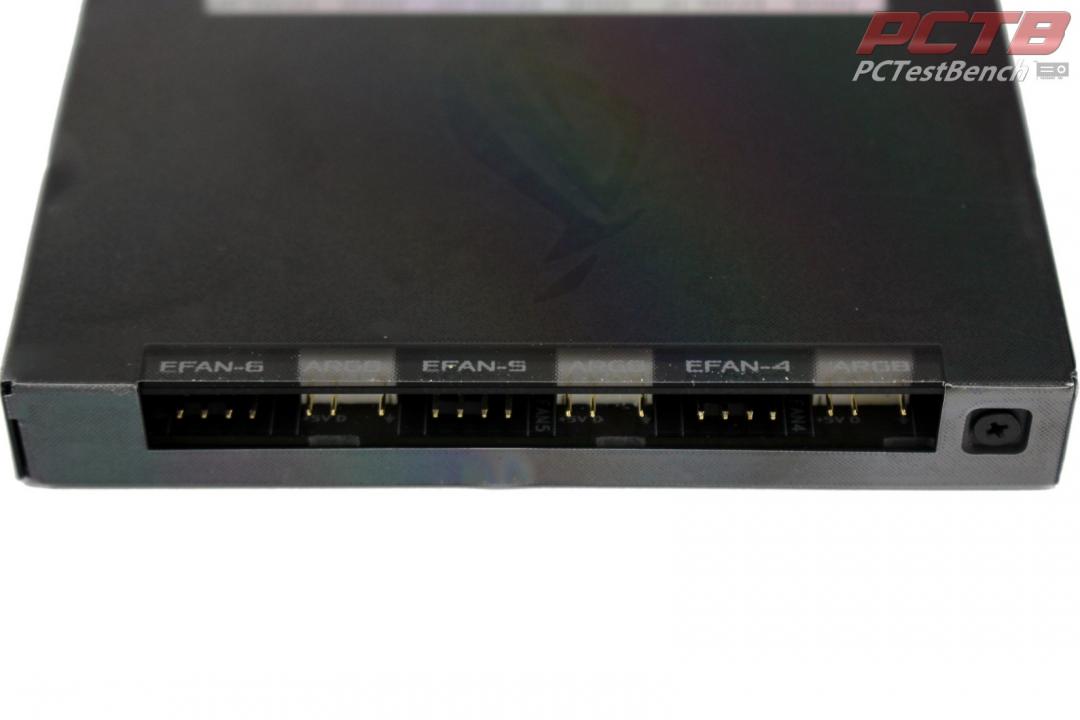
The other side provides 3 more normal fan headers and an additional three ARGB ports.
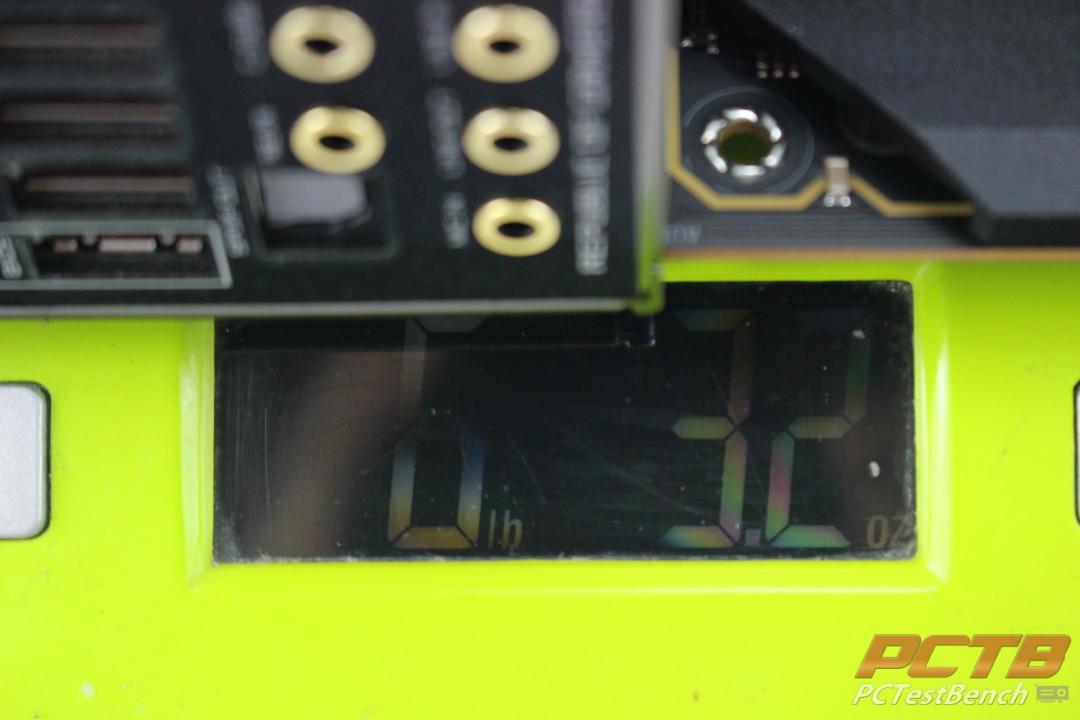
One of the first things you’ll notice about the ROG Crosshair VIII Extreme is its weight. The board alone weighs in at almost 6¼ pounds or a touch over 2.8kg.
A Closer Look
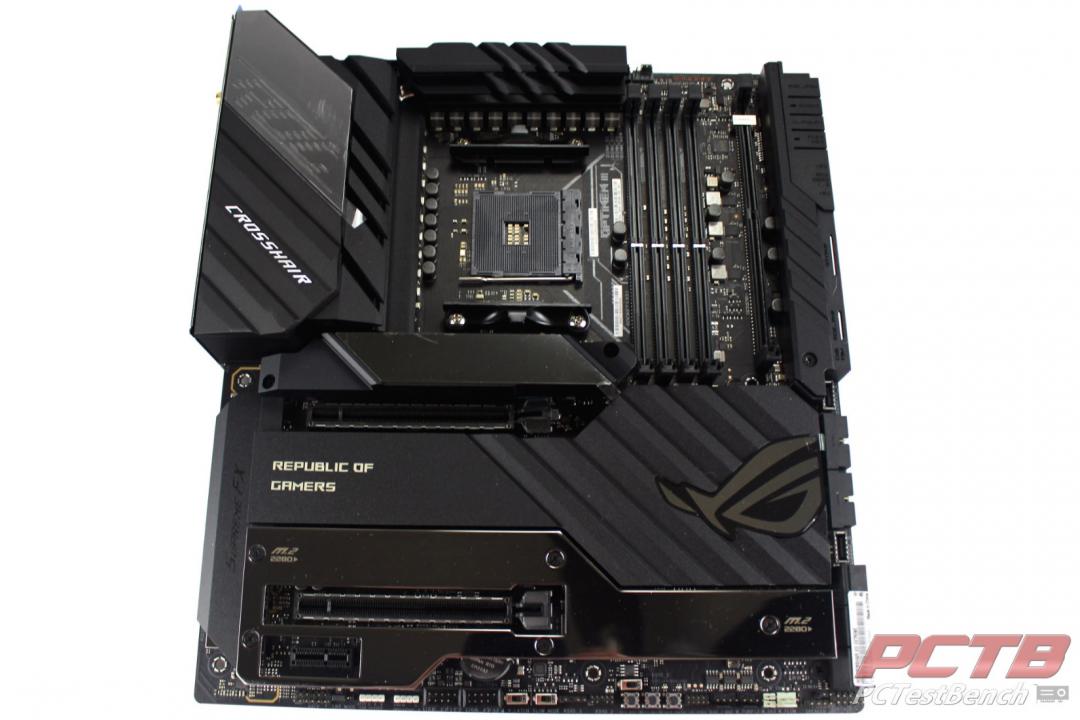
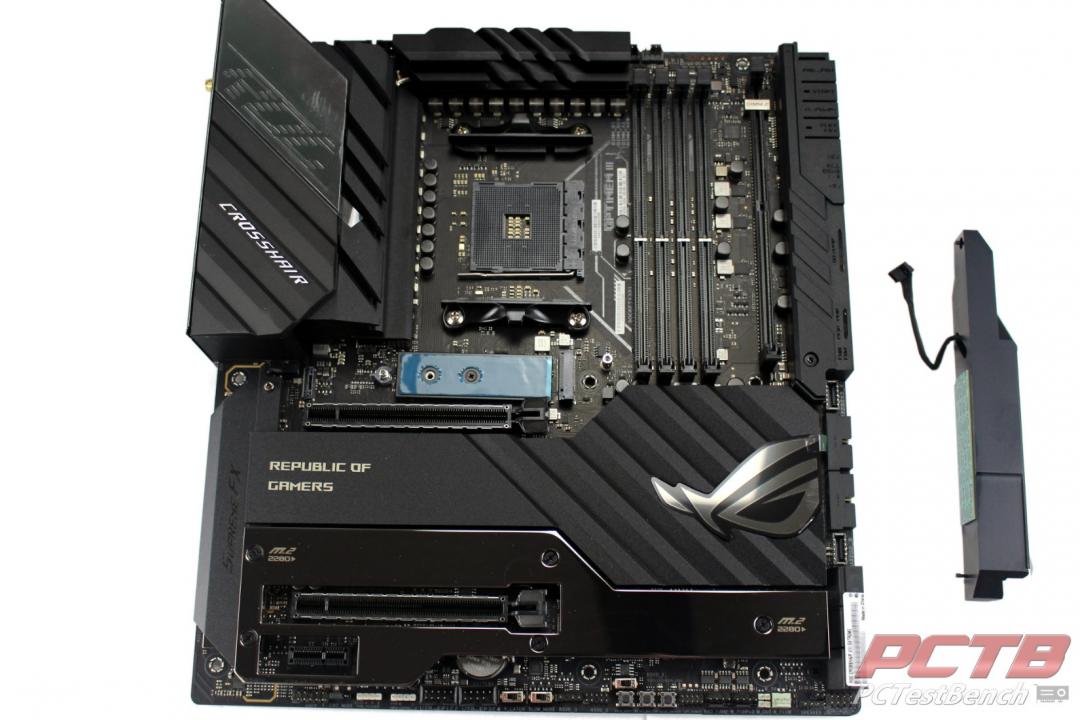
ASUS’s ROG Crosshair VIII Extreme is a monster E-ATX board that is almost entirely covered in Aluminum heatsinks. It uses a dark color scheme with the main heatsinks black with a media blasted texture and the lower M.2 drive cover using a polished black nickel finish to give some contrast.
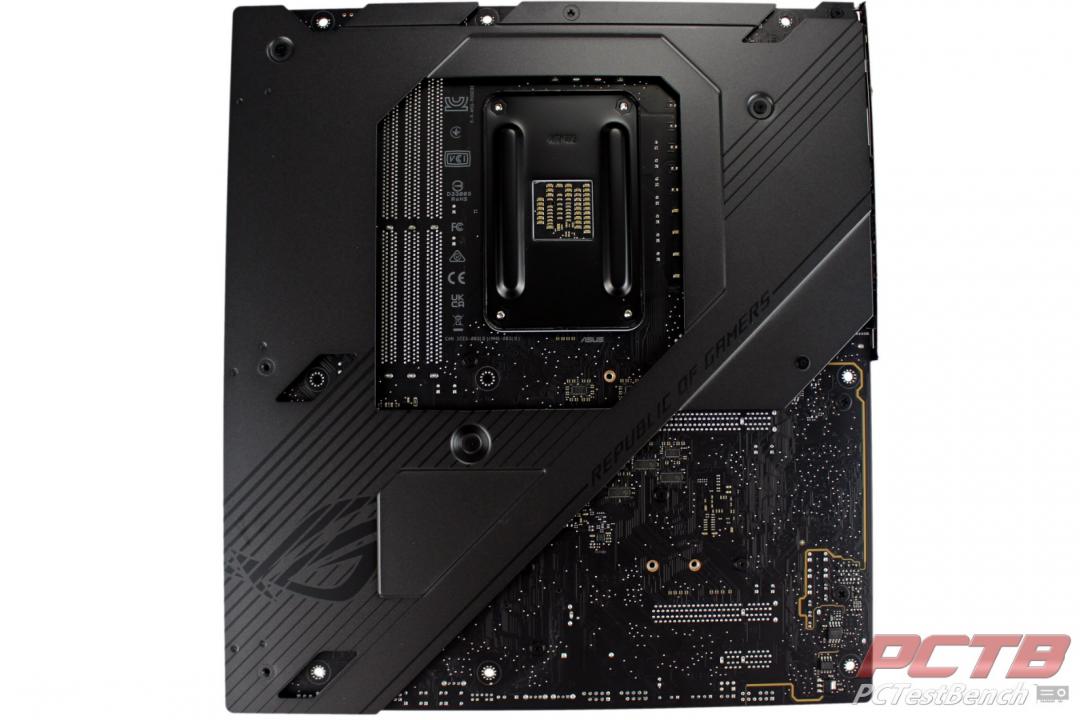
The rear of the board is mostly covered with a large backplate that provides protection, rigidity to the entire board and even helps dissipate heat from the VRM and Chipset.
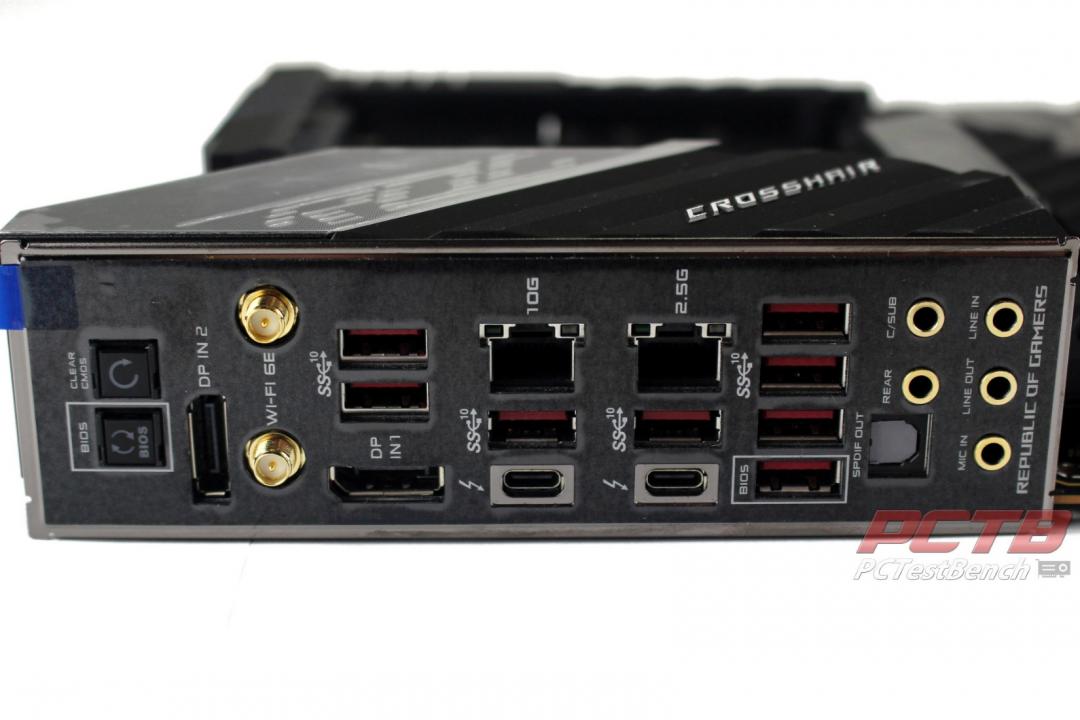
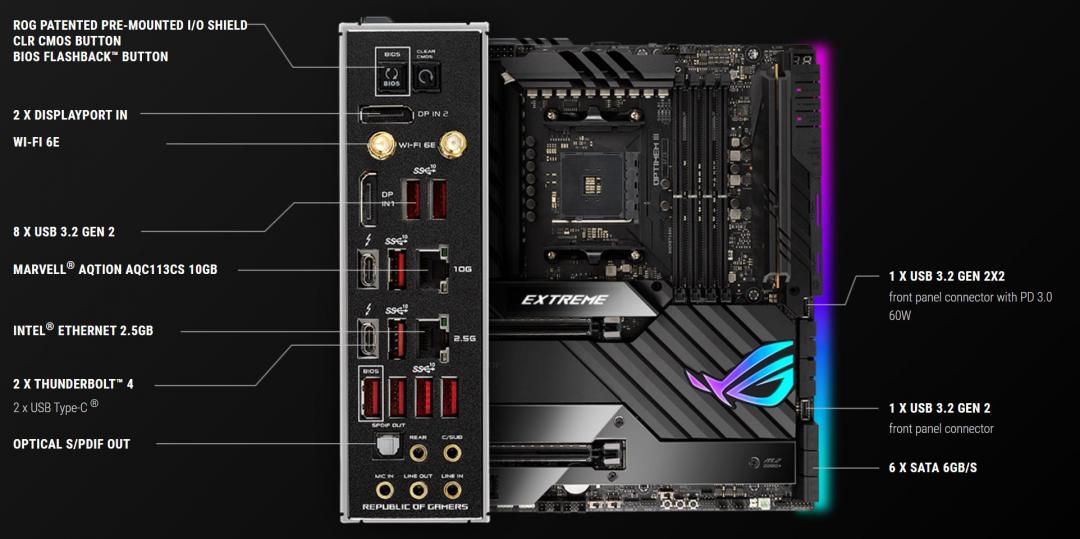
Rear I/O Is extensive on the Crosshair VIII Extreme. You get ROG’s usual Clear CMOS and USB BIOS Flashback buttons, Two antenna connectors for Wi-Fi and Bluetooth, eight USB 3.2 gen2 10Gbps Type A plugs, Two Thunderbolt 4 connections using Type-C, SPDIF optical audio output, and the usual 3.5mm surround sound analog audio outputs.
Also on the rear are two full-size DisplayPort inputs for Thunderbolt passthrough. These are input only and can not be used for video output from a Ryzen APU, but APU video output can be obtained from the Thunderbolt 4 outputs if needed.
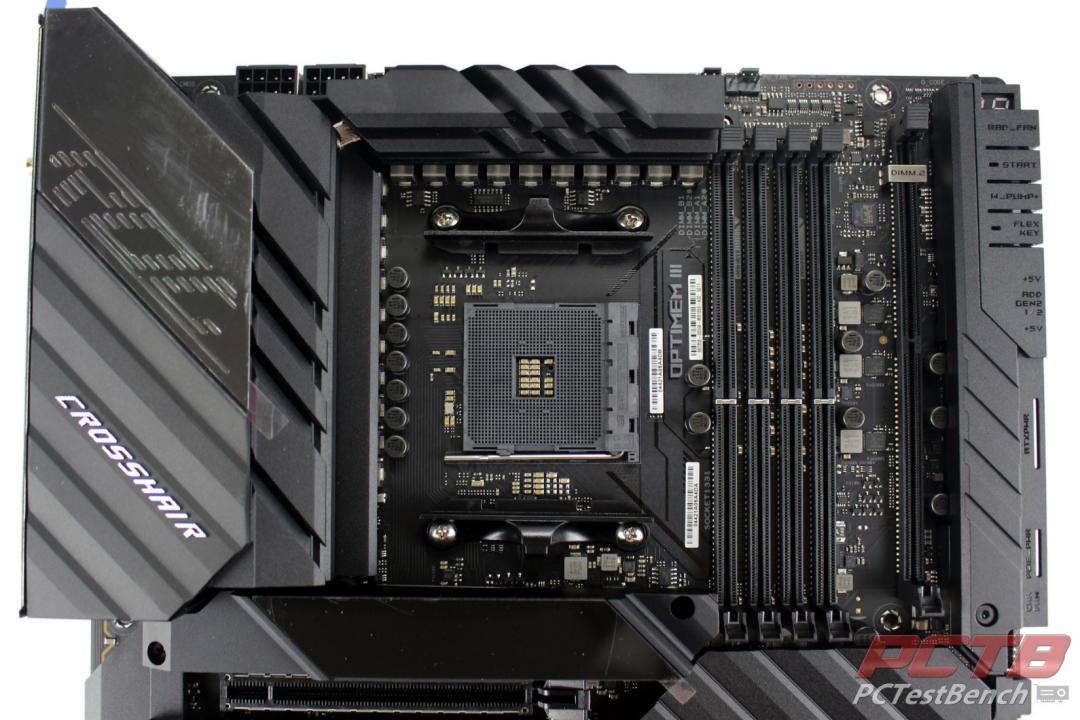
The top half of the board is centered around AMD’s AM4 socket with four DDR4 DIMM slots flanking one side. further out, ROG’s DIMM.2 slot allows connection of two PCIe 4.0 x4 NVMe or SATA M.2 drives in 2242,2260,2280 or 22110 sizes. PCIe 3.0 type drives are also supported on both sides. The top right corner has a 2-digit readout as well as power and user programable Flexkey button that by default is set to act as a system reset button. The main CPU-connected M.2 slot hides under the LiveDash display embedded heatsink just under the socket.
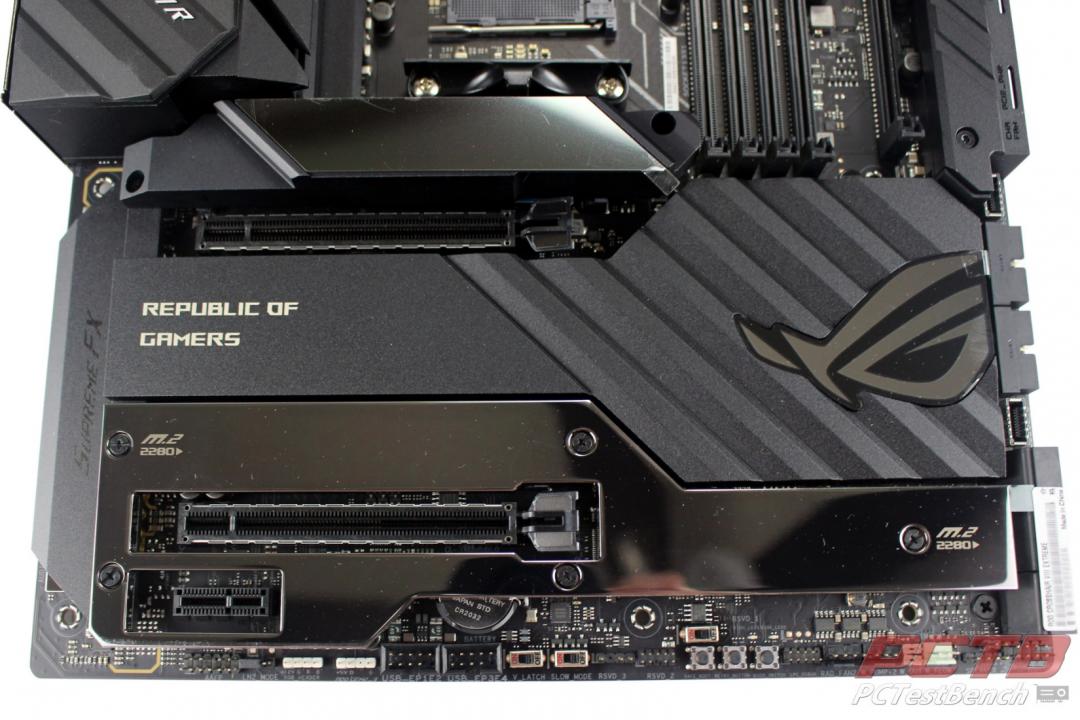
The lower half of the board has two CPU-connected PCIe x16 slots as well as a single Chipset connected PCIe x1.
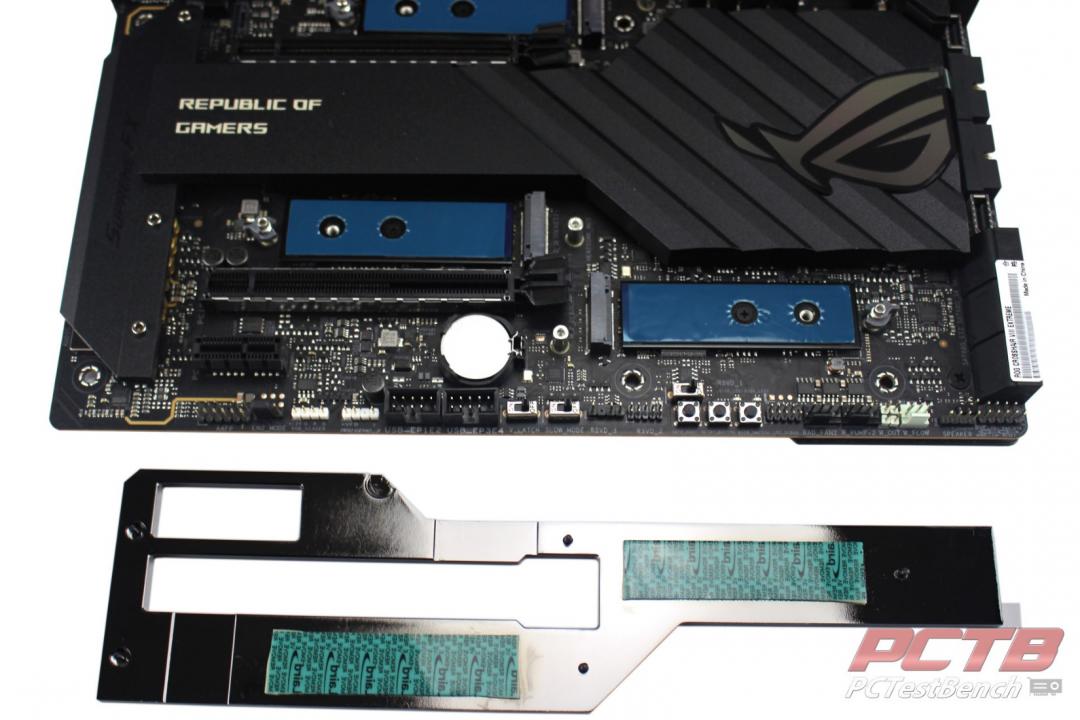
Two more m.2 drives hide under the polished cover, bringing the total up to five.
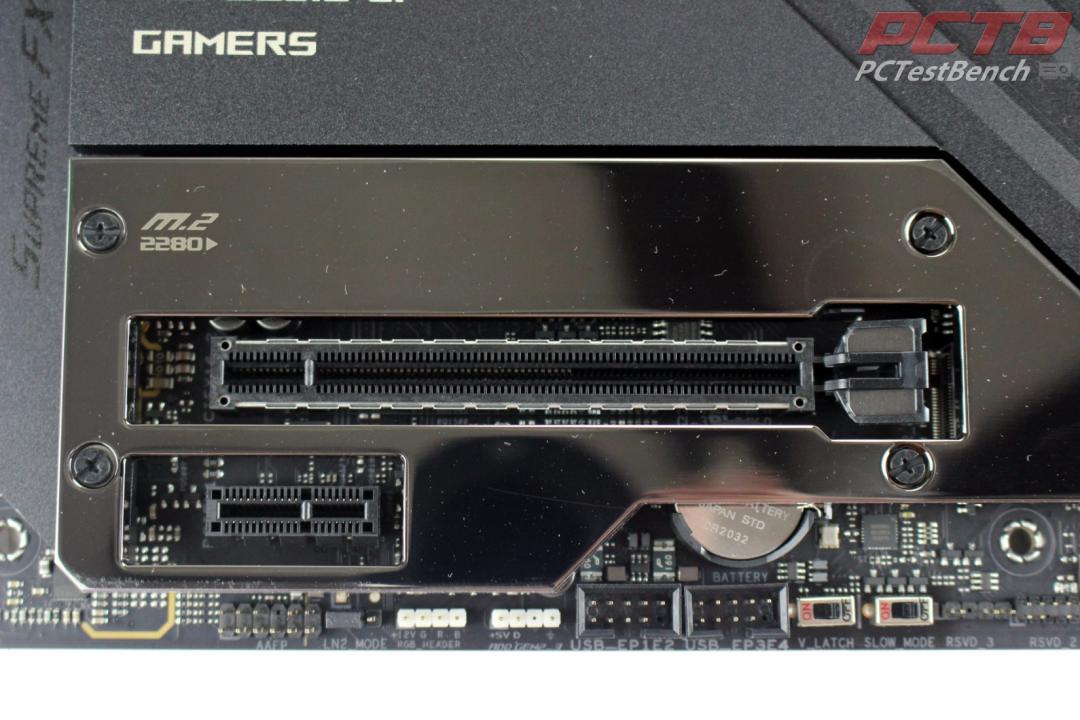
Almost every inch of the edges of the board has connections. On the lower rear corner, we have a front panel audio header, LN2 Mode Jumper, a 12V RGB header as well as 5V ARGB header, two USB 2.0 headers, and two switches. The rightmost is the Slow_Mode switch, used for locking the CPU at the lowest speed during extreme LN2 benchmarking. The leftmost is the V-Latch Switch that ASUS describes as:
“The V_Latch switch is used for enthusiasts interested in viewing the onboard voltage regulation. When V-Latch is set to enabled, it will record both the True highest and True lowest voltages of the Vcore”
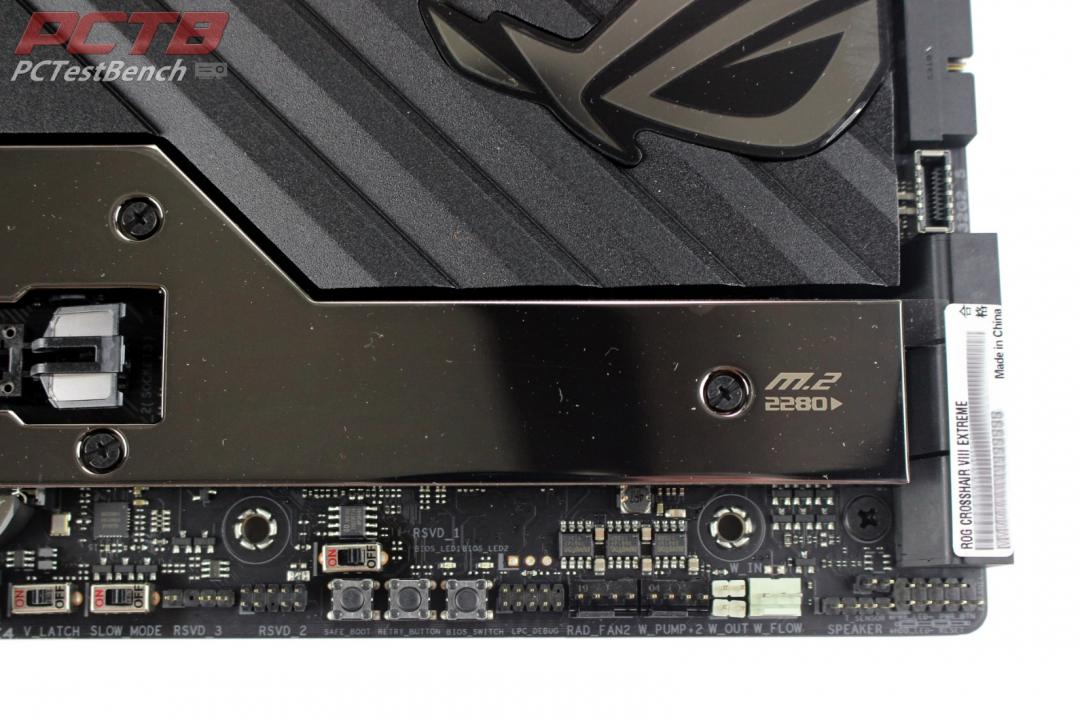
Three pushbuttons are next, Safe_Boot, Retry_Button, and BIOS_Switch. Next is a debug header, Two Fan headers, and connections for water-cooling sensors like thermal probes and a water flow meter. The corner has the usual Front Panel I/O headers.
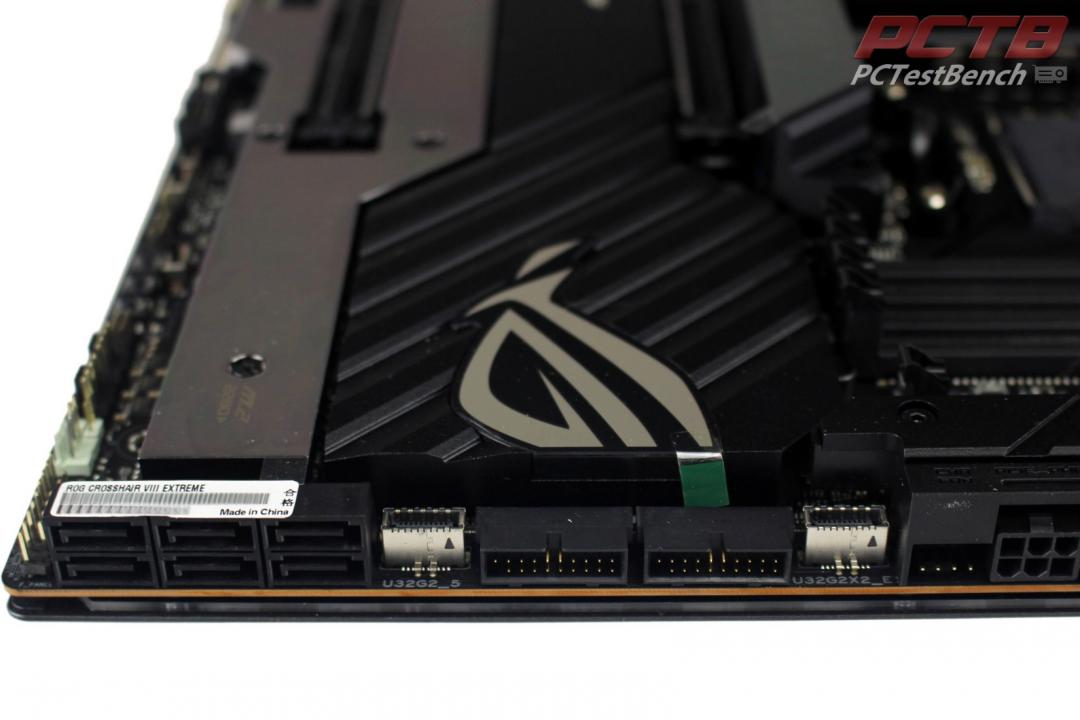
Going up the front edge starts with six SATA-III 6.0 Gbps ports, a USB 3.2 gen 2 Type-C front panel port, and two USB 3.0 headers. Next is a USB 3.2 gen2x2 20Gbps front panel Type-C header that also supports up to 60W of power delivery while the system is powered on, or 10W of PD while the system is off or suspended.
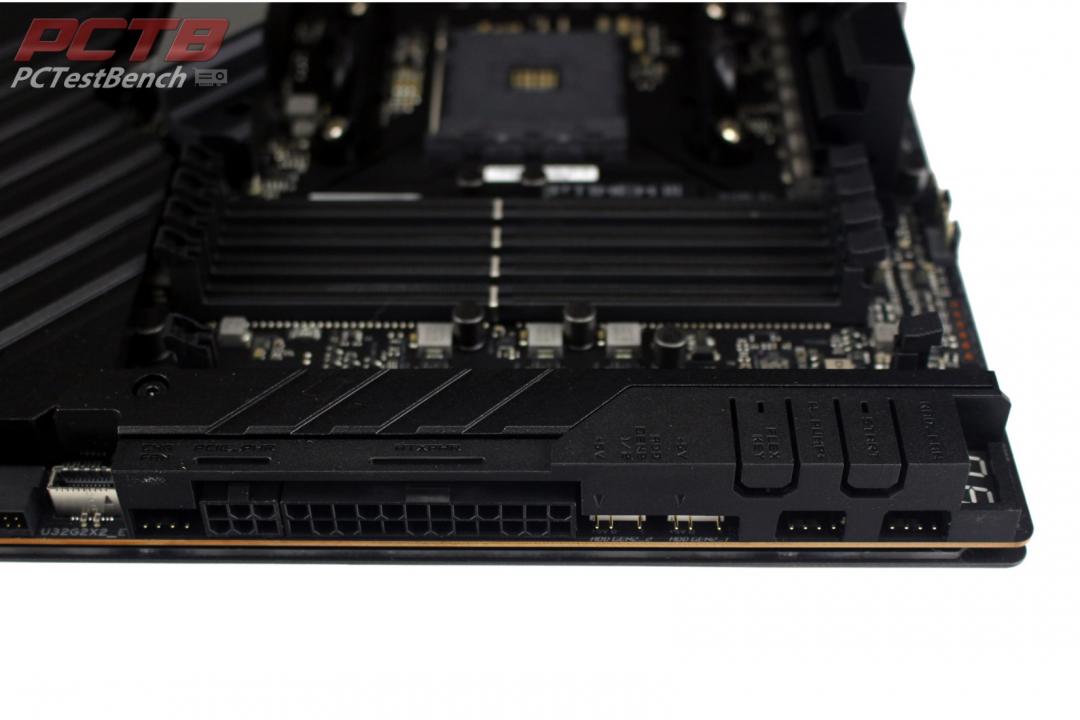
Next is the ASUS HydraNode enabled rad fan header that can support up to 4 fans. Next is the 6-pin PCIe power connector that is used to supply the power for the Type-C Power Delivery enabled front panel connection as well as provide supplemental power to the PCIe slots, followed by the main 24-pin power connection. Followed by two ARGB headers and two more fan headers.
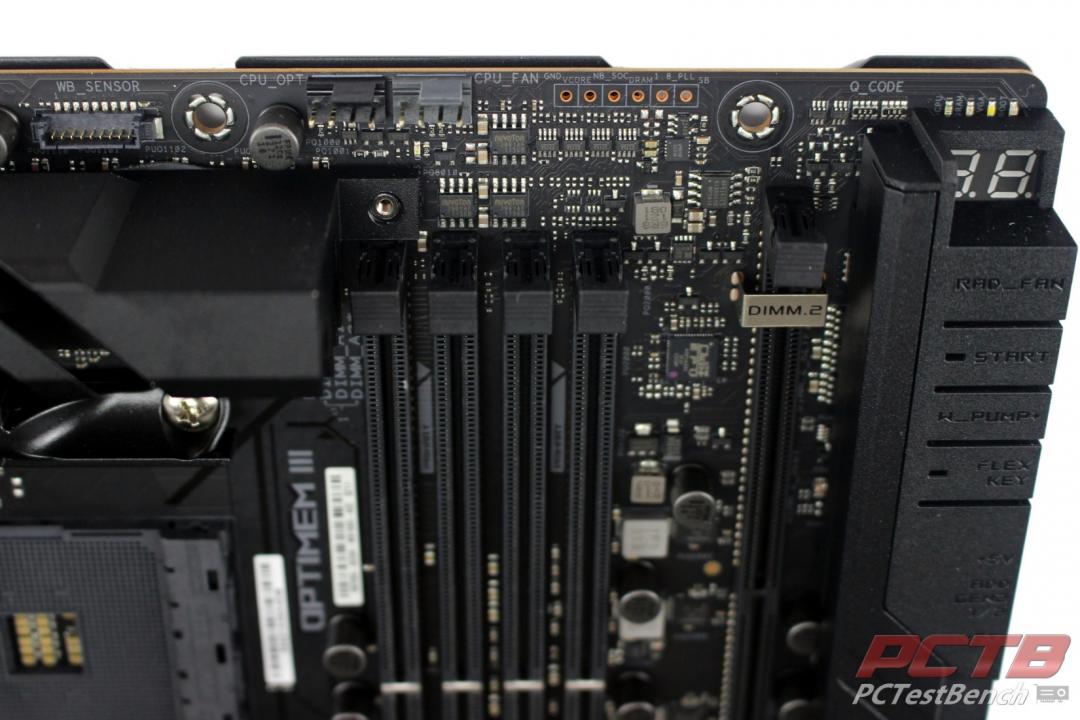
The top front corner is busy with power and FlexKey buttons, ROG Q-code readout, and Q-LEDs for quick diagnostics. The LEDs quickly detect what subsystem is having issues. CPU issues light up red, memory: yellow, and VGA: White. Green indicates Boot Device. Next are Probelt voltage probe points for overclocking, as well as main and optional CPU fan headers. Asus also includes a water block header that can integrate with 3rd part aftermarket cooling systems to detect temps, flow, and coolant leaks.
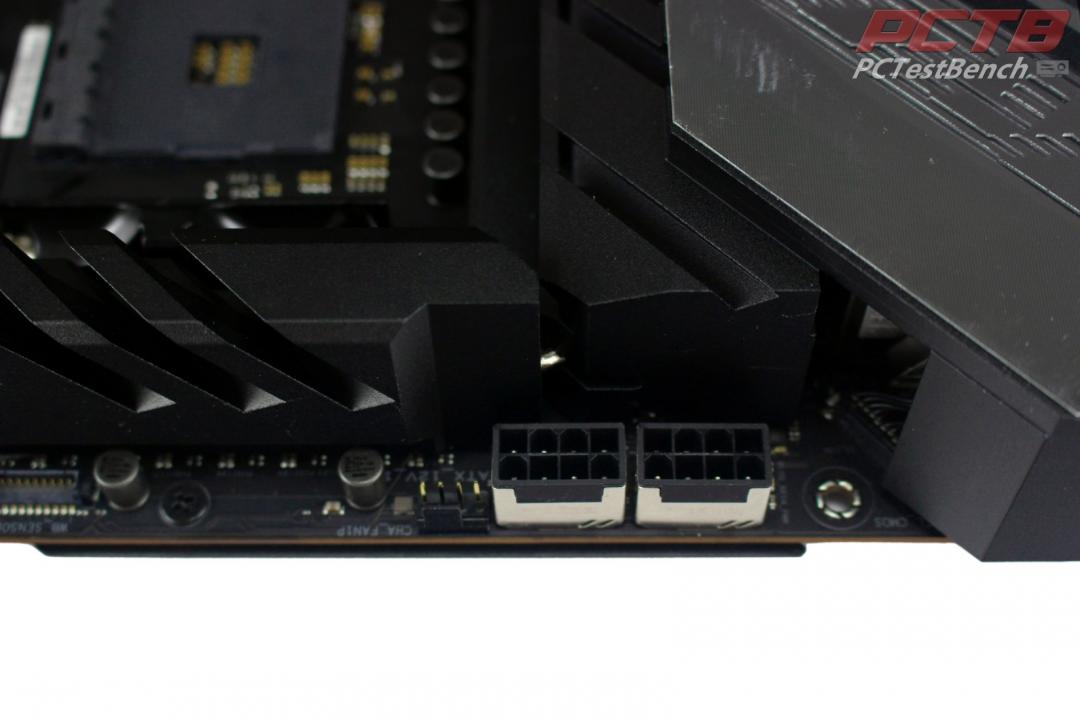
Near the rear on top are the twin 8-pin EPS power connectors and the other HydraNode enabled fan header.
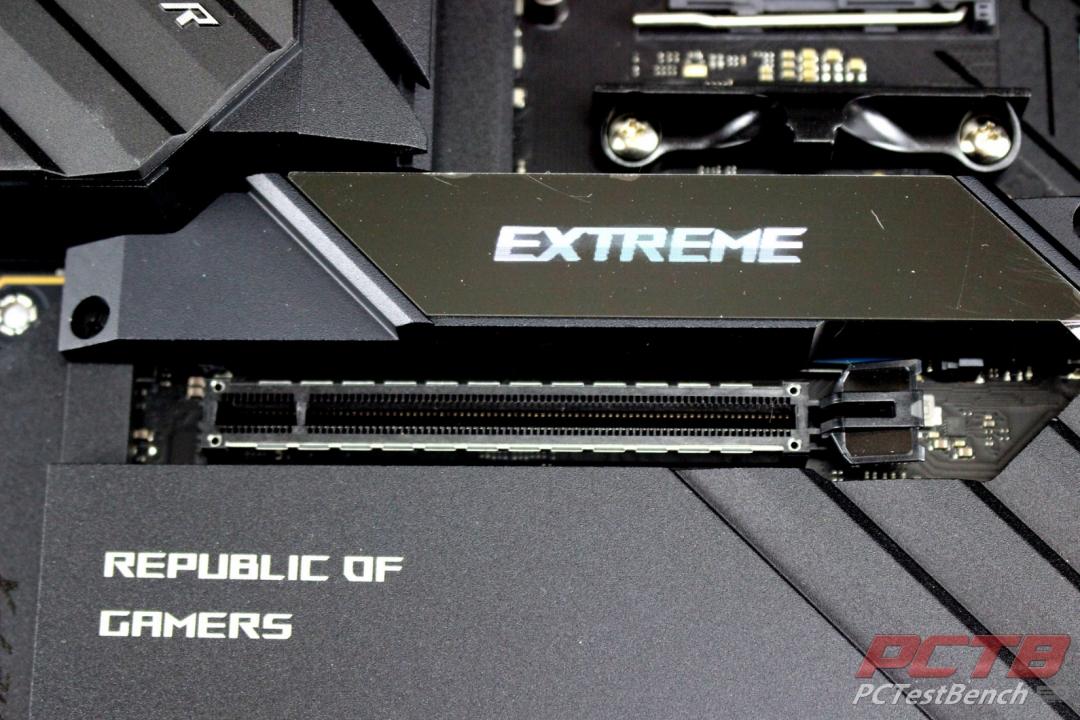
Just above your top PCIe slot is ASUS’s 2” LiveDash OLED display. This can display system parameters such as CPU frequency or temperature, or static or animated gifs of your choice.
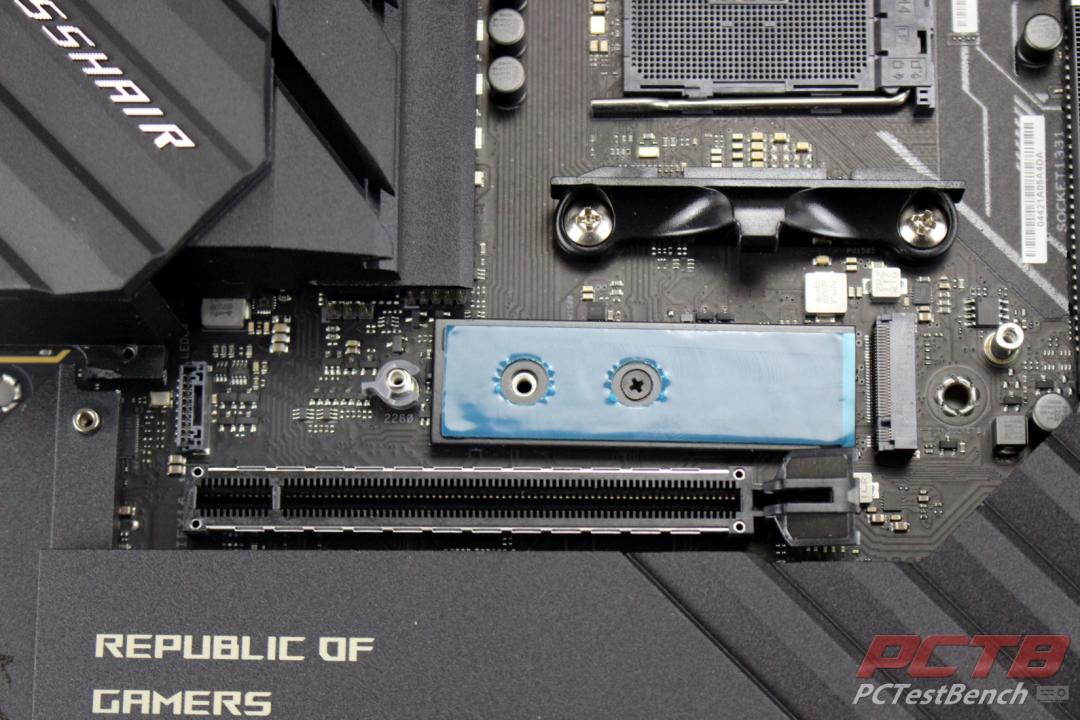
Under it is your primary storage slot that connects to the dedicated lanes of most Ryzen processors.
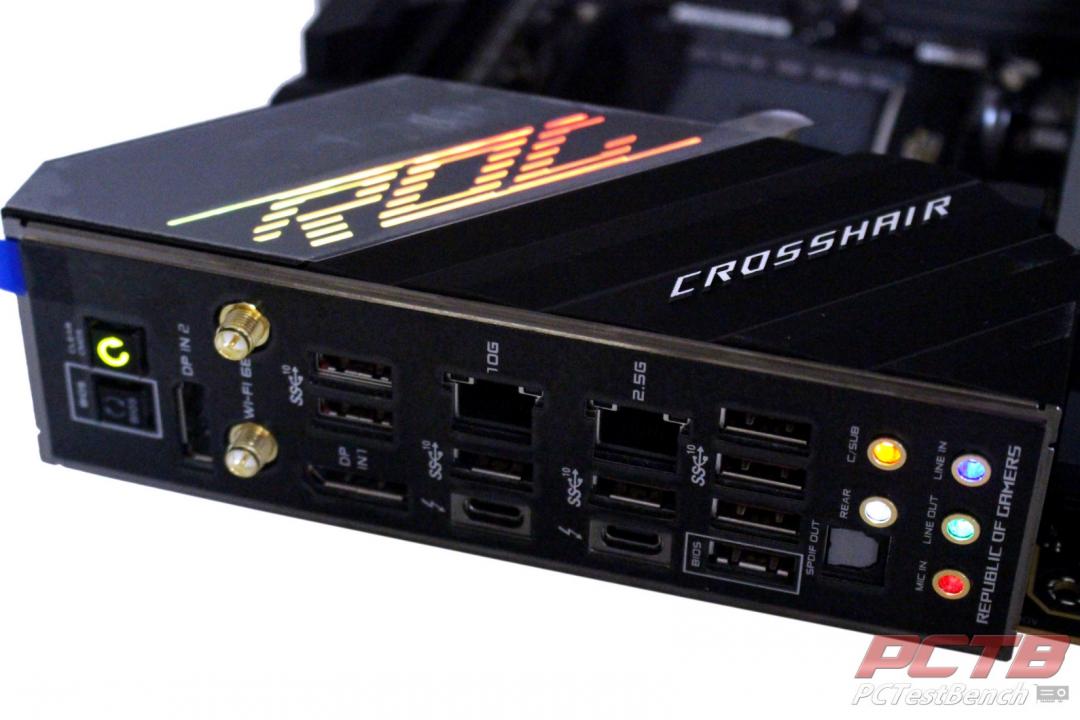
When powered on, the ROG logo on the rear I/O cover lights up. This is user-configurable with software. Each audio port light’s up its respective color to enable you to easily connect your audio devices even in total darkness.
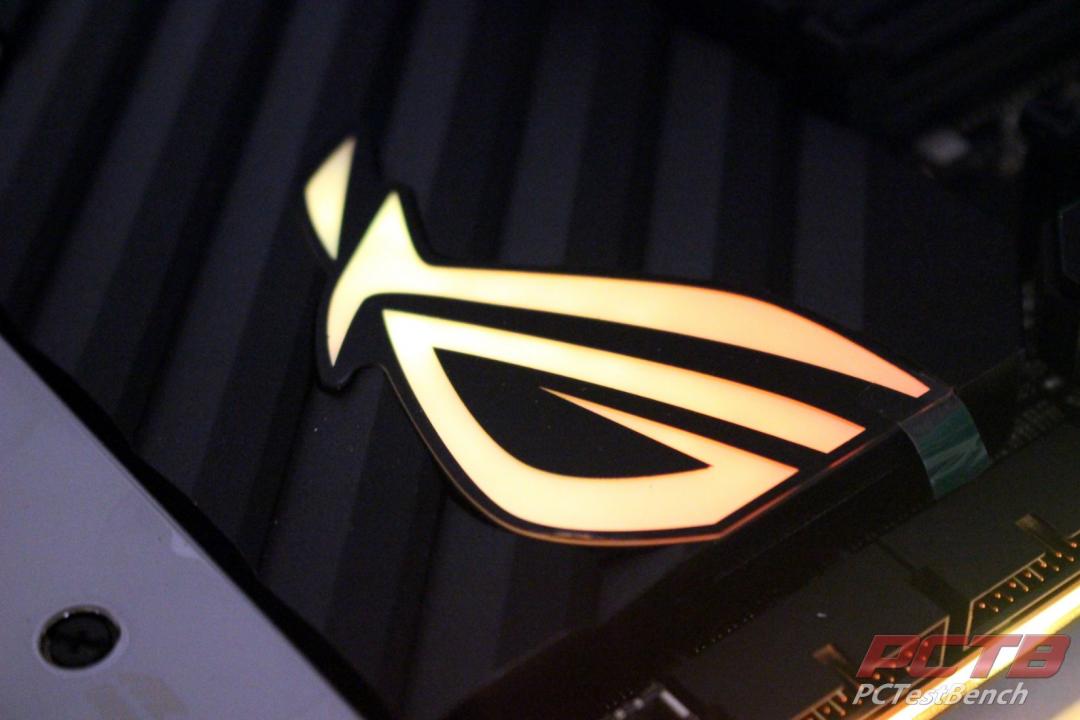
The ROG Eye logo also lights up as well as the front edge of the board. Both can be configured to your liking from within ASUS’s software suite.
Under the Hood
With all of the stuff crammed under the hood of the ROG Crosshair VIII Extreme, it takes a lot to make it tick, let’s take a closer look at what all is hidden under the covers.
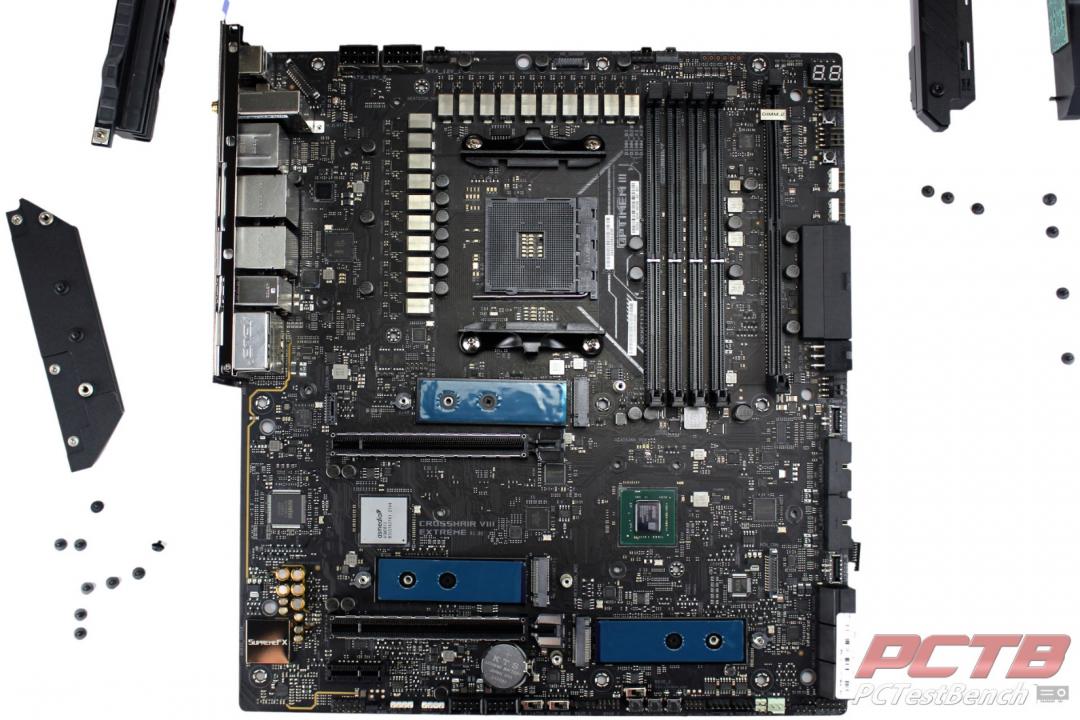
It takes quite a few screws removed to disassemble the massive all-metal covers that Asus uses.
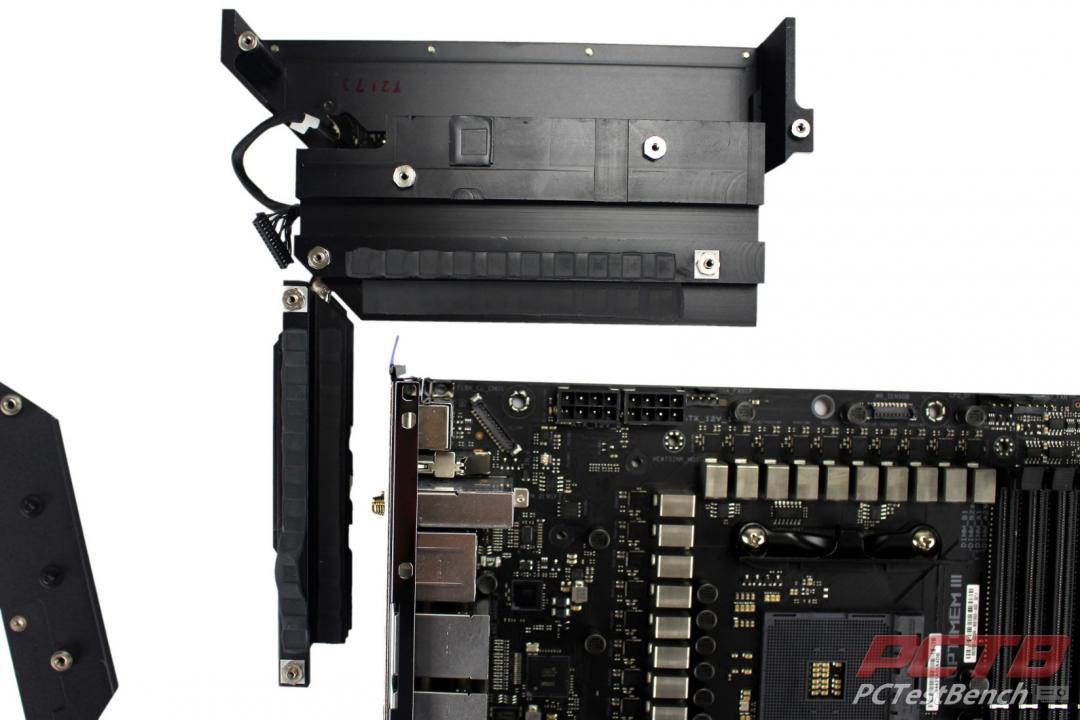
The entire Rear I/O Cover and VRM heatsink assembly is effectively one piece with a large heat pipe tying the two sides together. The thermal pad for the top edge VRM assembly was slightly skewed out of position so we’ll adjust that back in place before we reinstall.
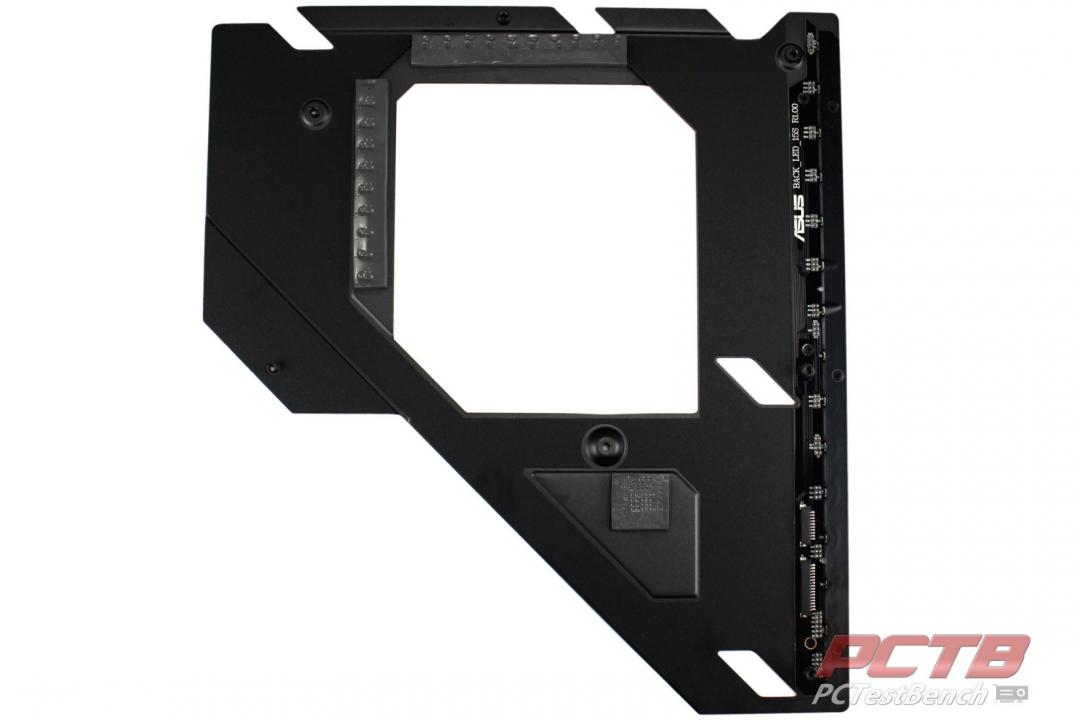
The backplate of the Crosshair VIII Extreme is there for more than just show. Thick thermal pads help dissipate heat from the VRM as well as the chipset through the rear of the board. The front-facing right edge lights up with 15 RGB LEDs.
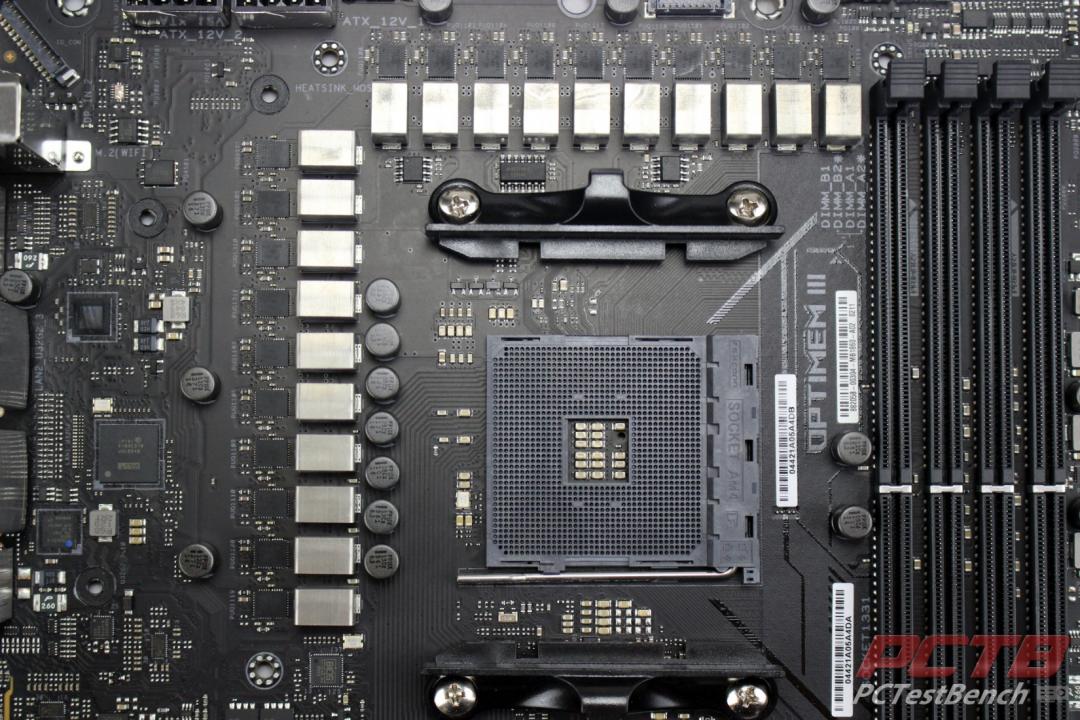
ASUS uses an 18+2 configuration for the CPU VRM.
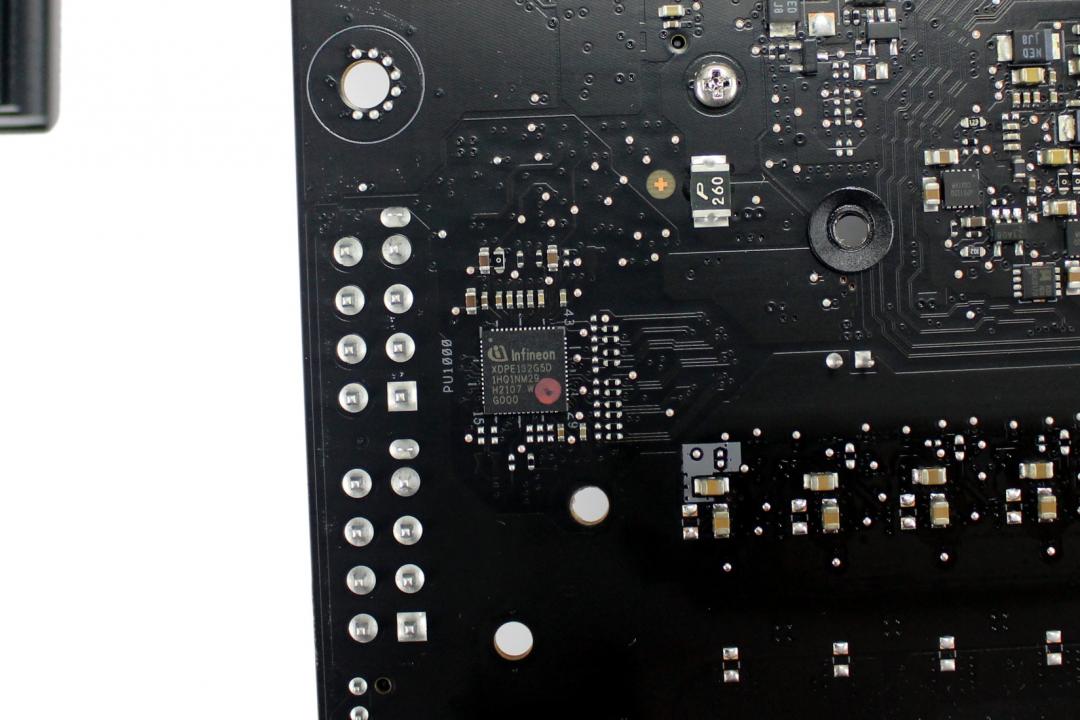
Infineon’s latest monster, the XDPE132G5D is a true 16-phase VRM controller and is single-handedly responsible for the CPU’s V-core rail control.
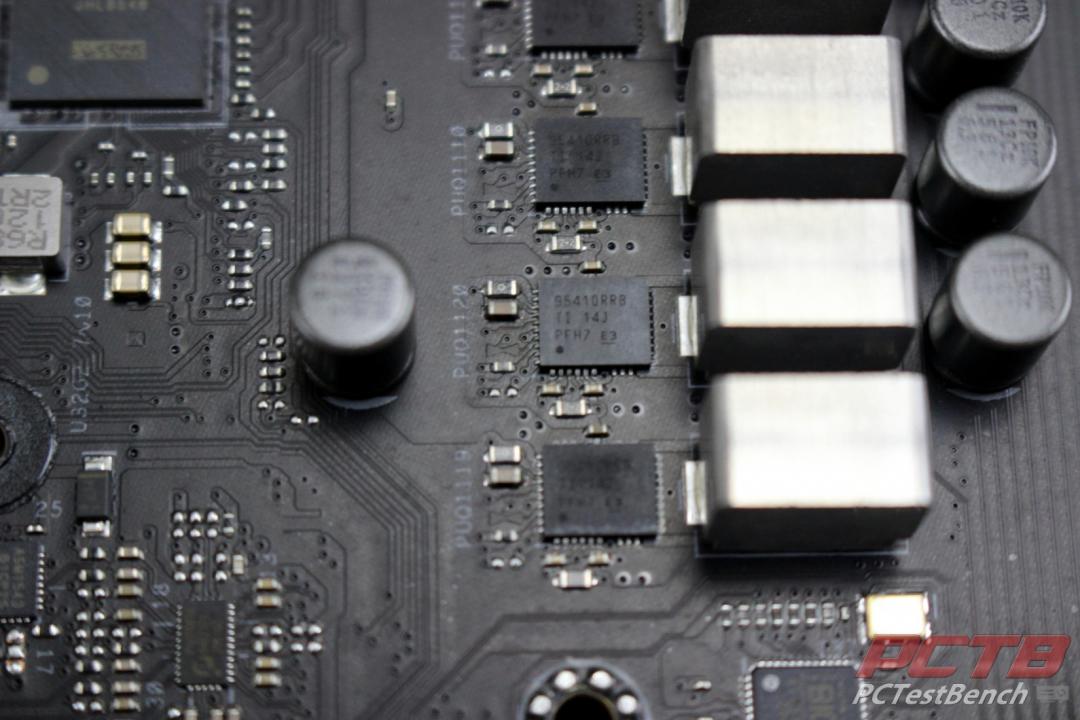
Primary CPU power is provided by eighteen of the Texas Instruments “Dr.Mos” 95410RRB 90A power stages, 16 for the V-core and 2 for the SoC rails. Output from these passes through individual microfine alloy chokes and 10K Japanese-made black metallic capacitors for heavy filtering.
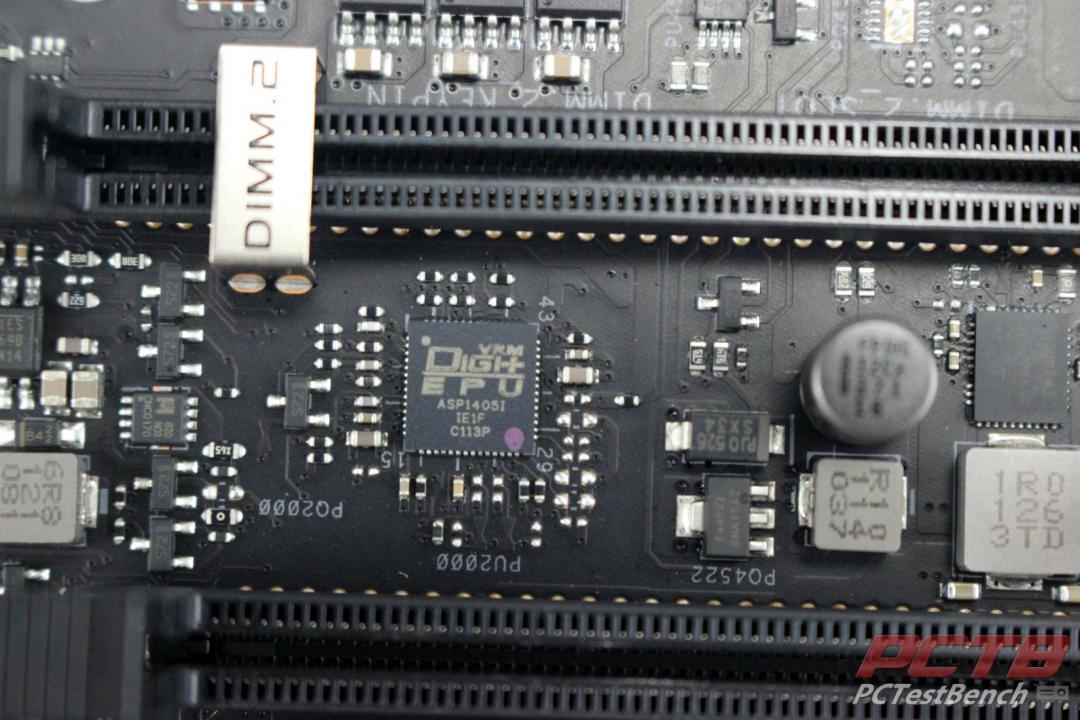
An ASP1405I VRM controller handles other minor rails on the board such as the DDR4 memory.
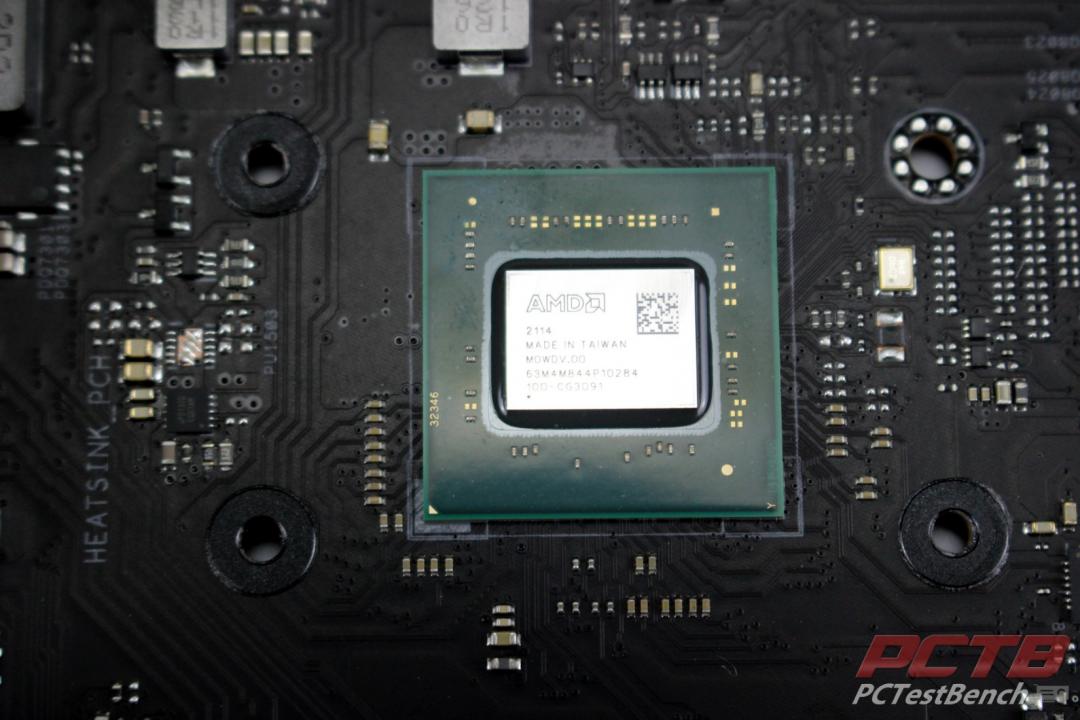
AMD’s X570 chipset is hidden under a massive slab of aluminum. Asus has enough heatsink to dissipate the several watts this chipset can make, negating the need for the noisy, miniaturized active cooling solution many vendors are using on their X570 chipsets.
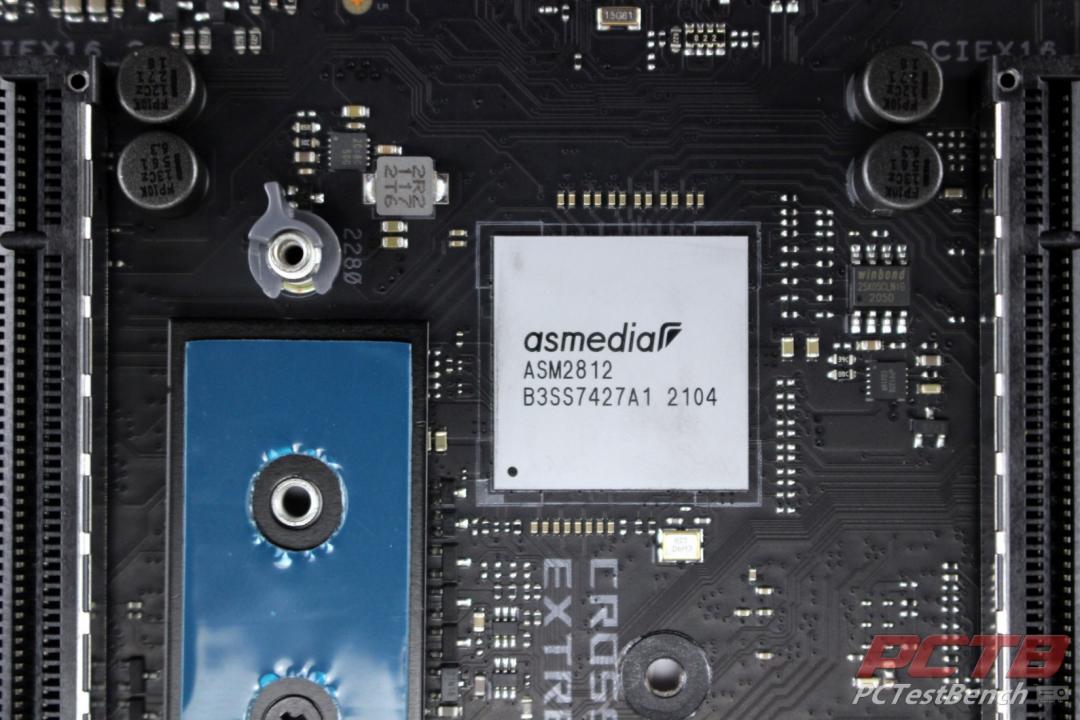
ASMedia’s s PCIe 3.0 Switch handles Chipset PCIe lane distribution to a lot of the on-board systems. It is a 12-lane PCIe Gen3 switch.
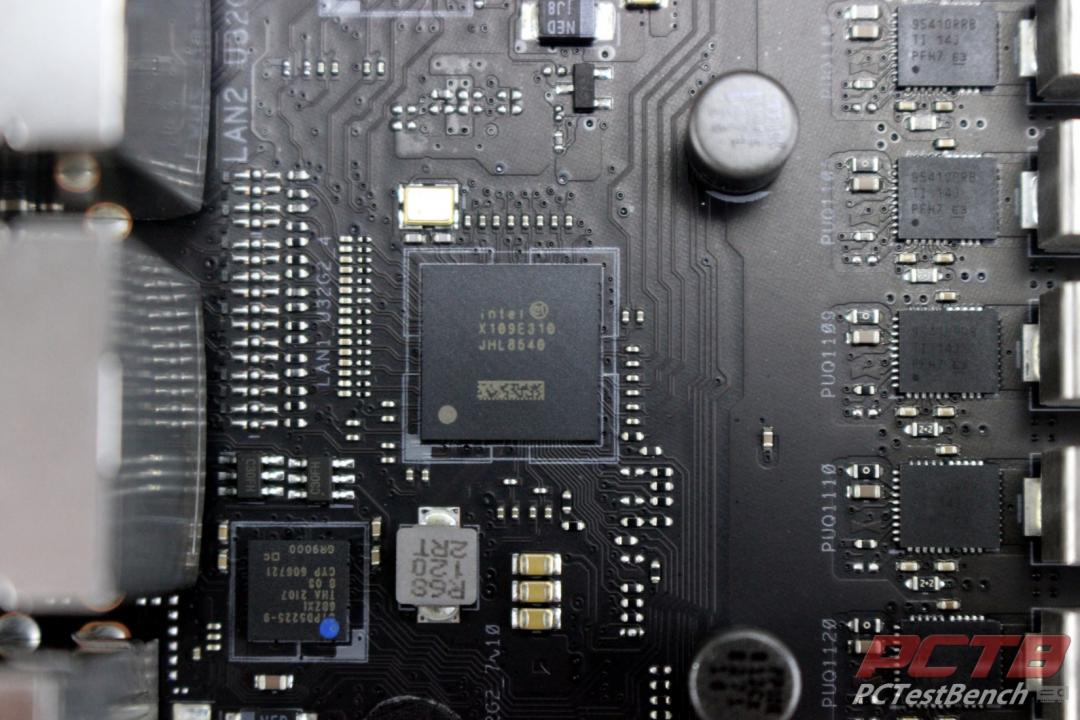
Intel’s JHL8540 ‘Maple Ridge’ Thunderbolt 4 controller handles both Thunderbolt 4 ports on the rear I/O.
Below is the Cypress CYPD5225-96BZXI USB Dual Port USB Type-C and Power Delivery controller.
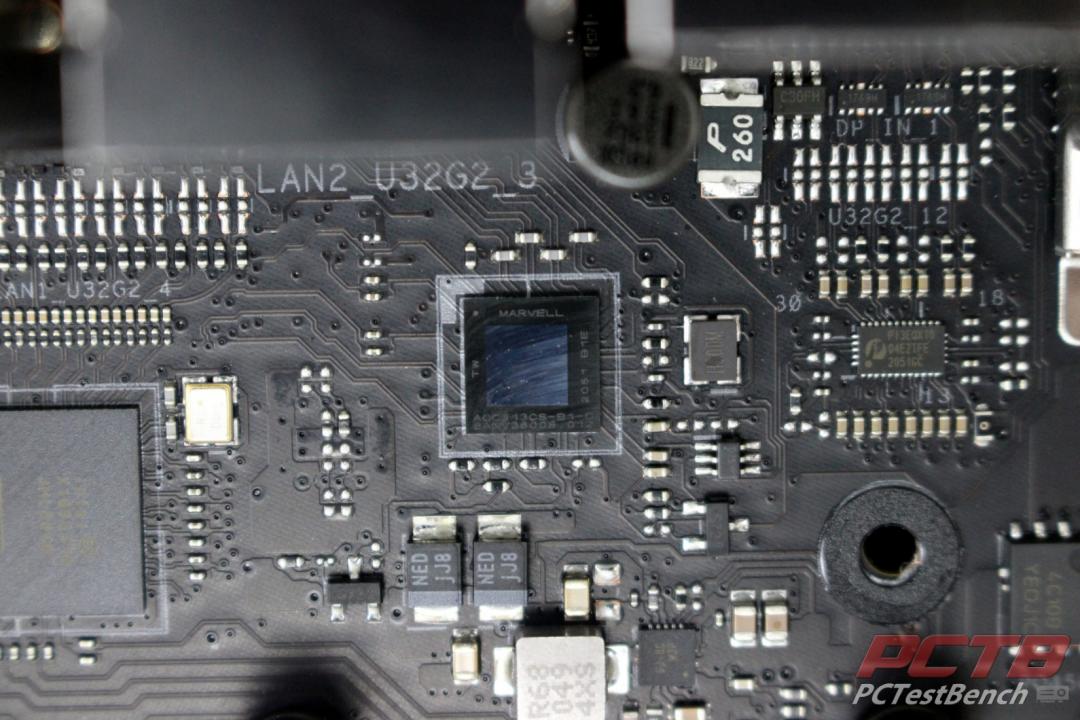
Marvell’s Scalable mGig AQC113CS PCIe 4.0 Ethernet controller hides behind the Rear I/O and is actively cooled by the VRM and rear I/O Cover assembly. It handles 10GbE, 5GbE, 2.5GbE & 1GbE as well as 100mbps and 10Mbps Ethernet speeds.
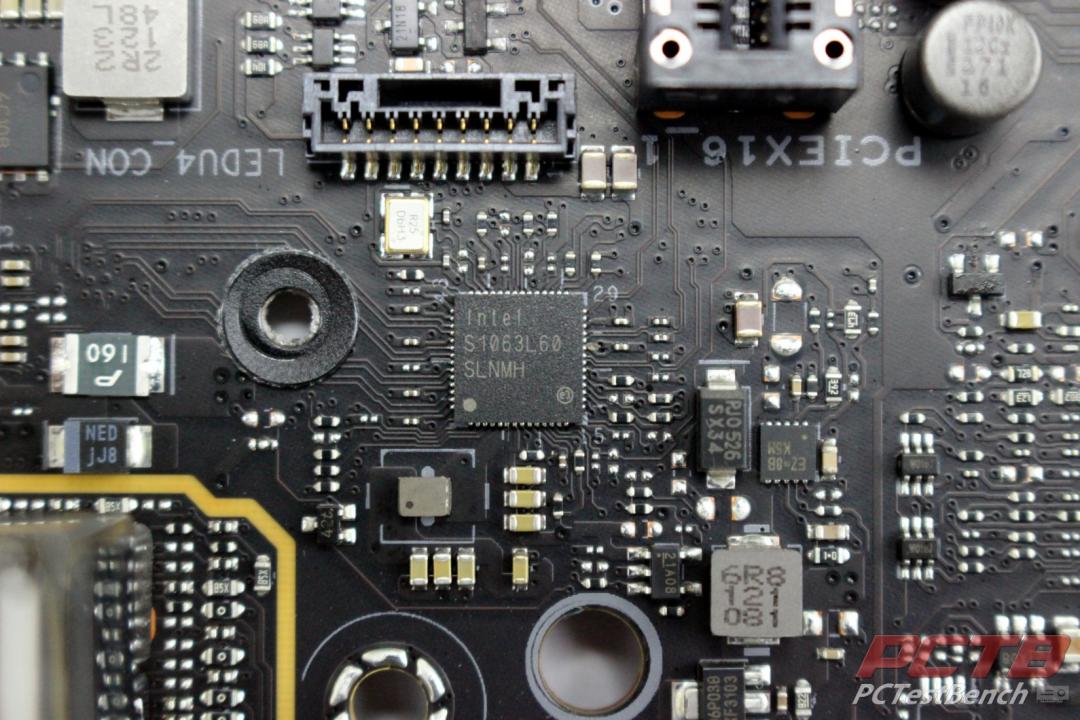
A little lower down the side is Intel’s I225-V 2.5Gb Ethernet controller.
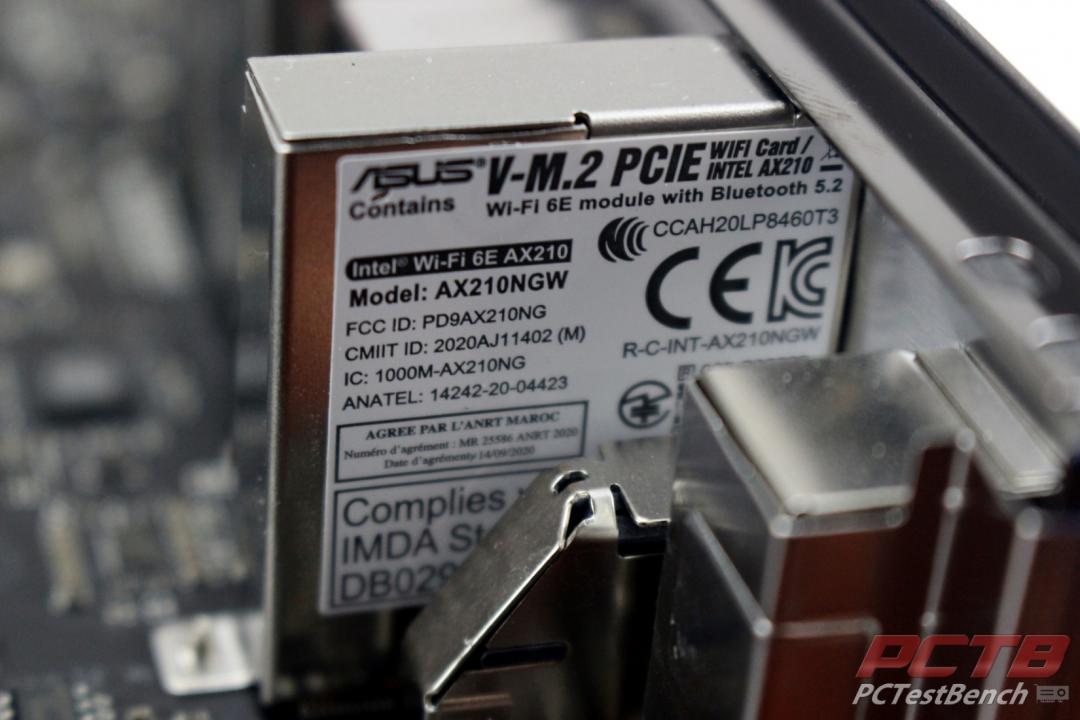
Onboard WiFi is courtesy of Intel’s Wi-Fi 6E AX210 (Gig+) Module that provides Wi-Fi connectivity in the 2.4GHz, 5GHz, and 6GHz bands as well as Bluetooth 5.2 connectivity.
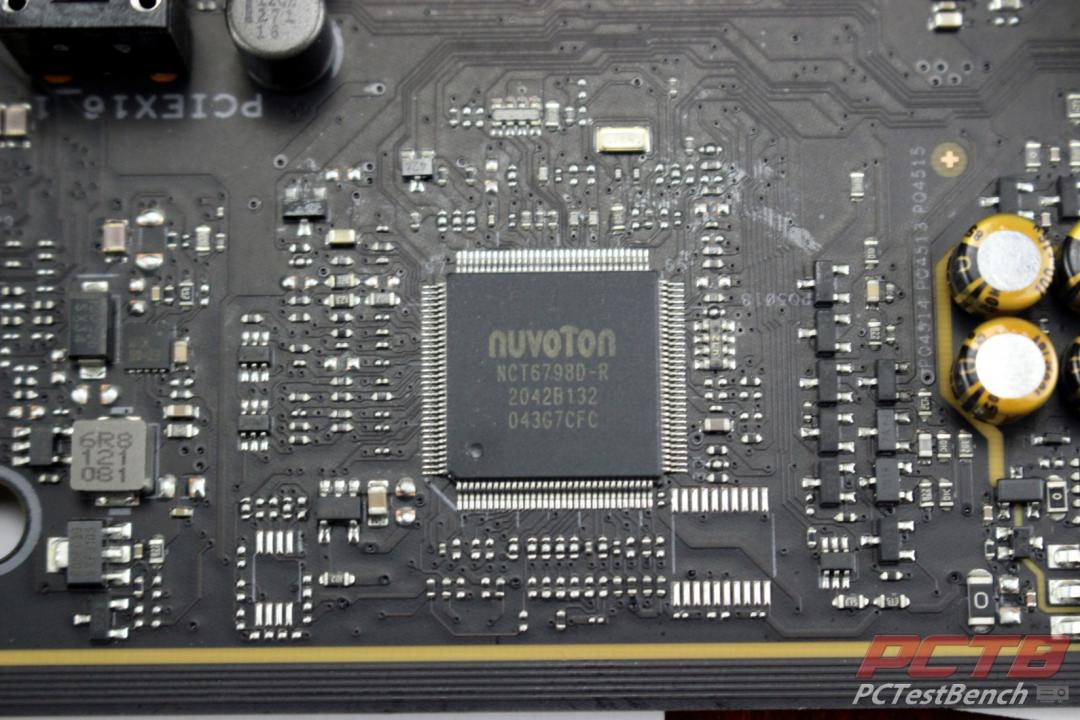
Below the Rear I/O is NuvoTon’s NCT6796D Super I/O Controller. This handles a lot of the Voltage monitoring, Debug diagnostics, and similar low-level functions of the board.
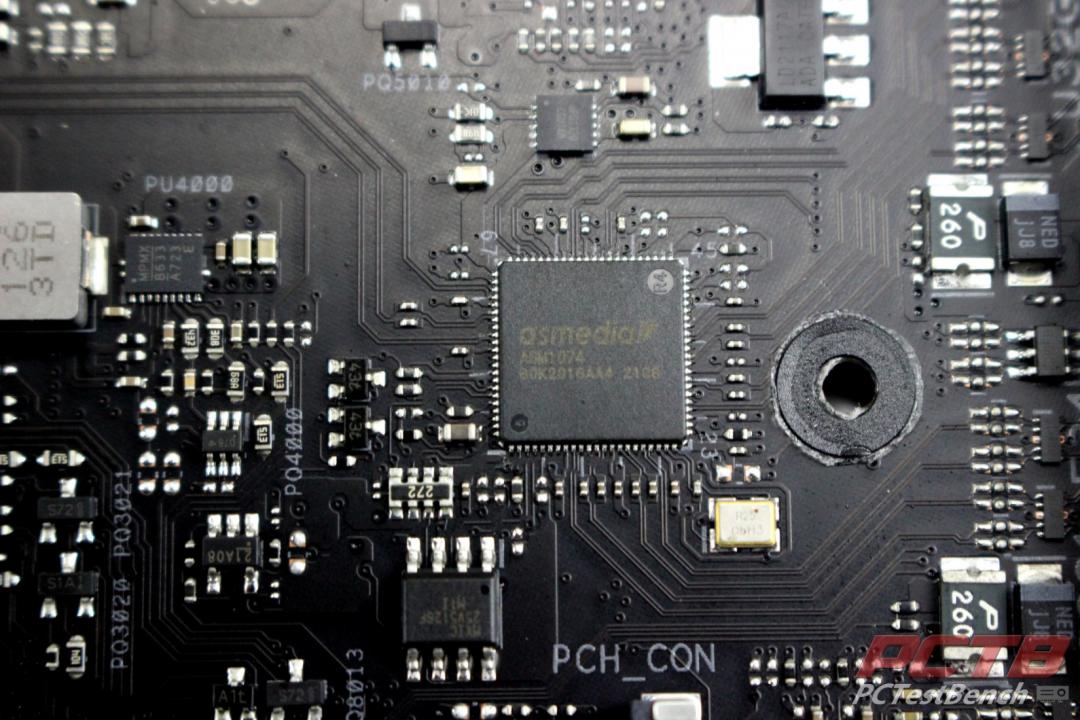
Asmedia’s ASM1074 4-port USB 3.2 gen1 Hub provides ports for the front USB 3.2 5Gbps headers
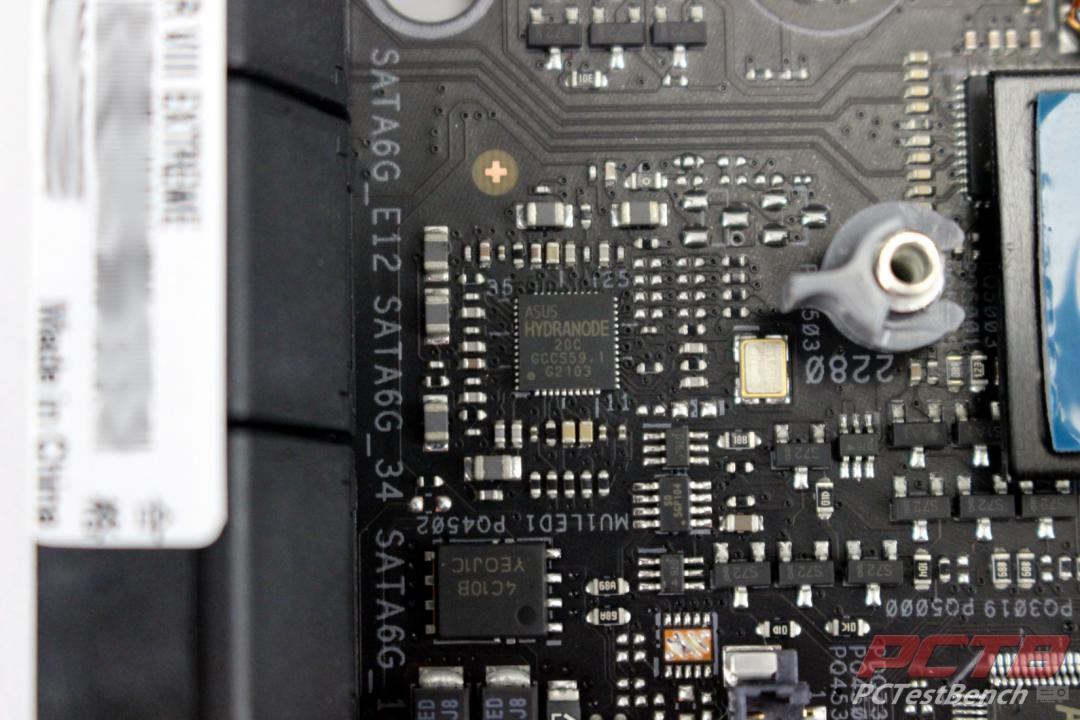
One interesting feature of the ROG Crosshair VIII Extreme is the Asus HYDRANODE fan headers. Two headers support this feature, CHA_FAN1P, located next to the CPU power connectors, and CHA_FAN2P located next to the auxiliary PCIe power connector. Asus has this to say about Hydranode:
“This ingenious feature lets you connect as many as three fans to one fan header using an off-the-shelf splitter, but unlike with older PWM headers, HydraNode still gives you full control and monitoring of each one—a perfect scenario for huge cases or complex liquid cooling setups. HydraNode control is fully integrated into our Fan Xpert 4 control panel and offers handy information that you can’t get from traditional PWM headers, like each connected fan’s model name and the number of power-on hours it’s logged. We’ve already teamed up with cooling luminaries SilverStone and BitFenix to build HydraNode-compatible fans, and you can expect more with support for this unique technology soon.”
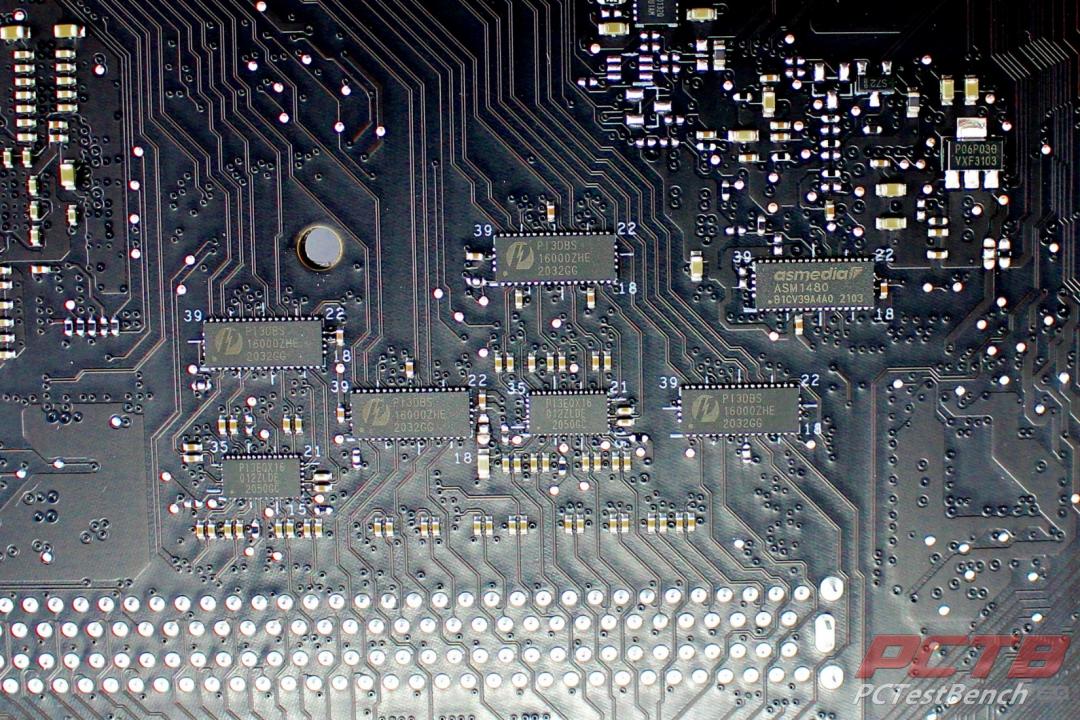
CPU PCIe lanes are delivered to the two main PCIe slots in either x16/x0 or x8/x8 mode. With two cards installed, eight PCIe 4.0 lanes are diverted to the second slot via four Pericom PI3DBS12412A 2-lane Mux/DeMux chips. To maintain PCIe gen4 signal integrity, the second slot lanes run through Pericom PI3EQX16621 PCIe ReDrivers.
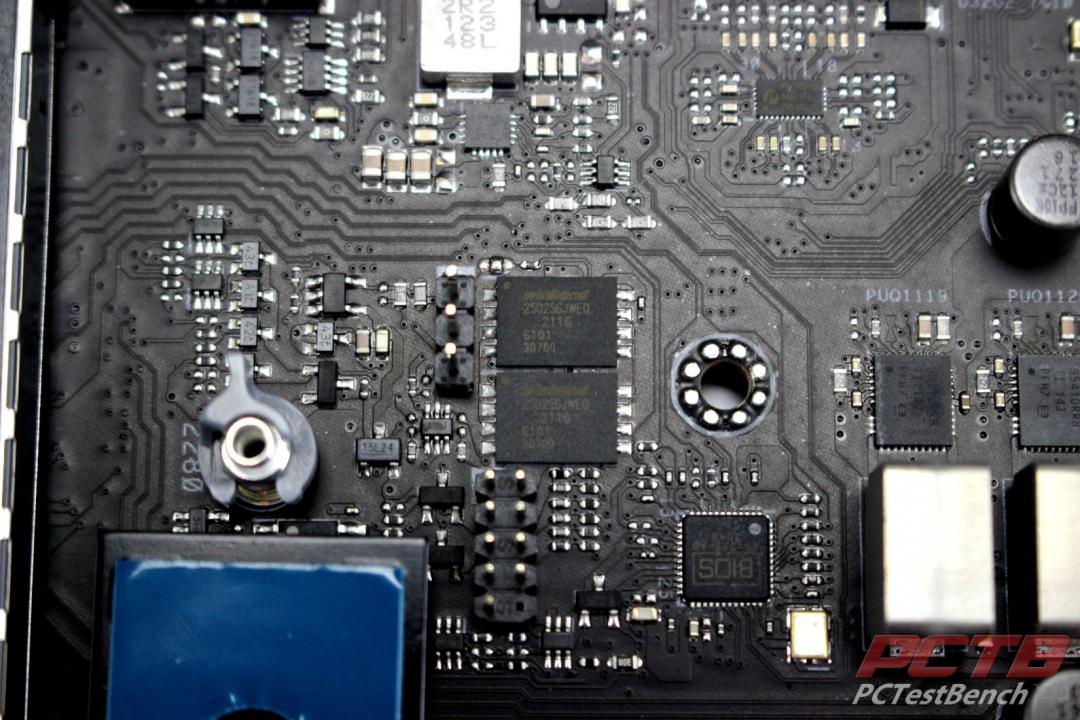
Dual Winbound 256Mb NOR flash storage chips handle user-switchable main and backup BIOS’s. either one can be blindly flashed with a USB stick thanks to ASUS’s USB BIOS Flashback built into the Crosshair VIII Extreme.
System Configuration & BIOS
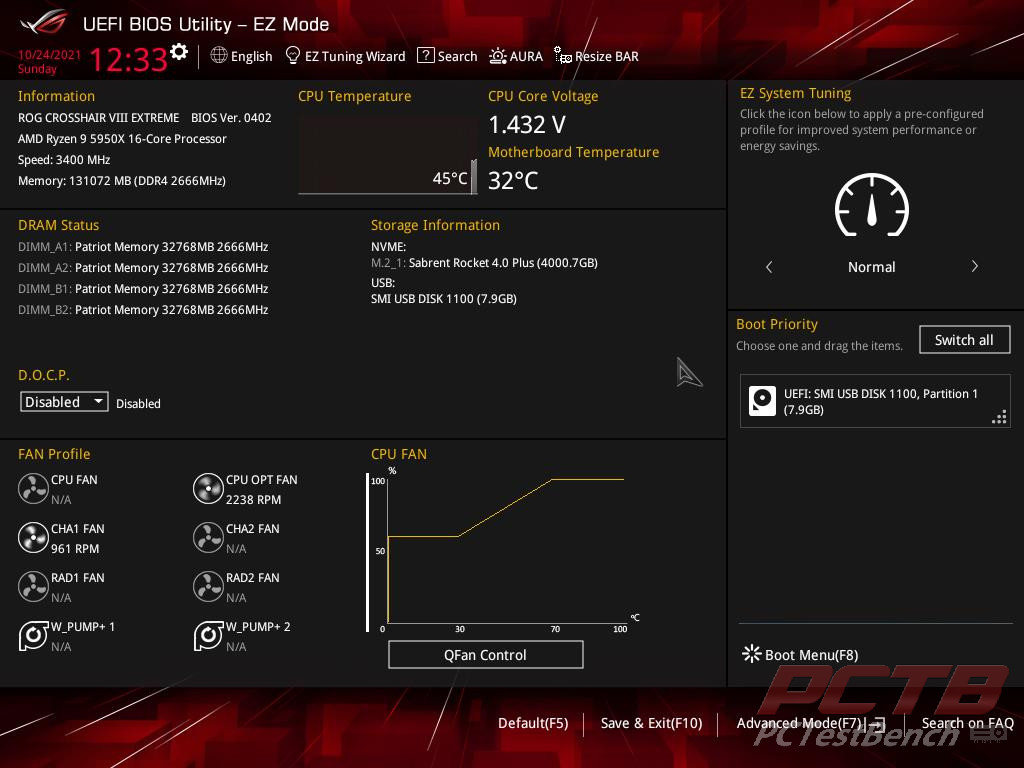
If you don’t need an overload of options, the EZ Mode screen lets you do quick things like set system tuning, enable XMP/D.O.C.P., adjust fans, and select boot device all from one screen and go on with life.
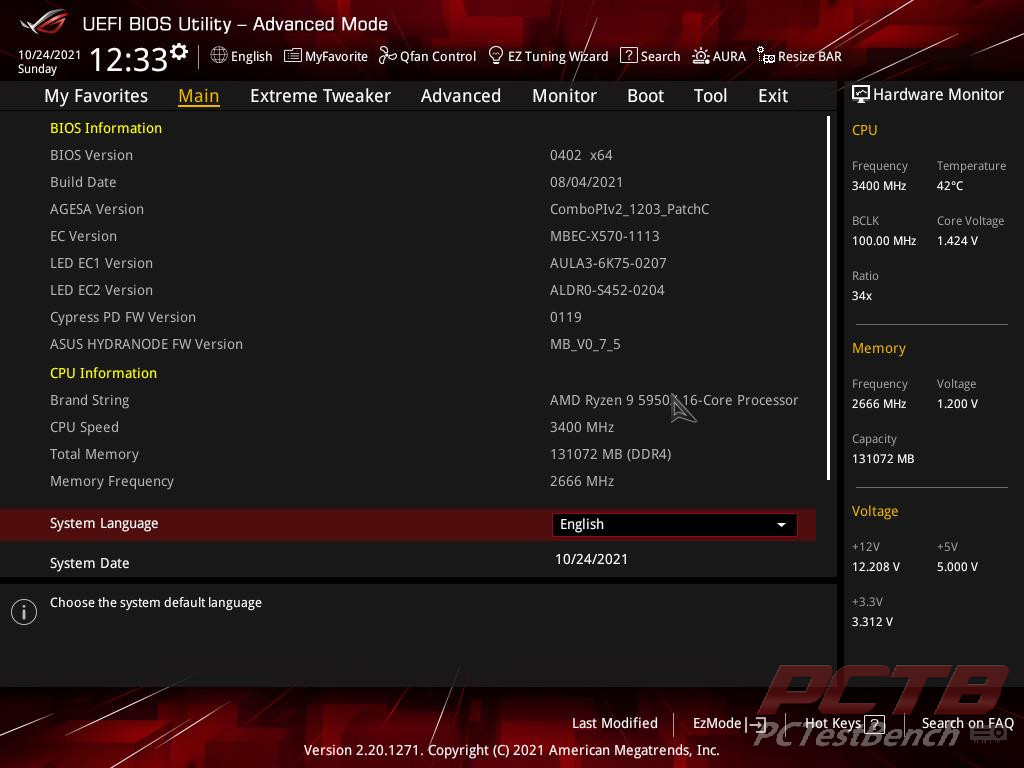
If you do need to dig a little deeper, flip over to Advanced Mode. The main screen gives a quick overview of your system.
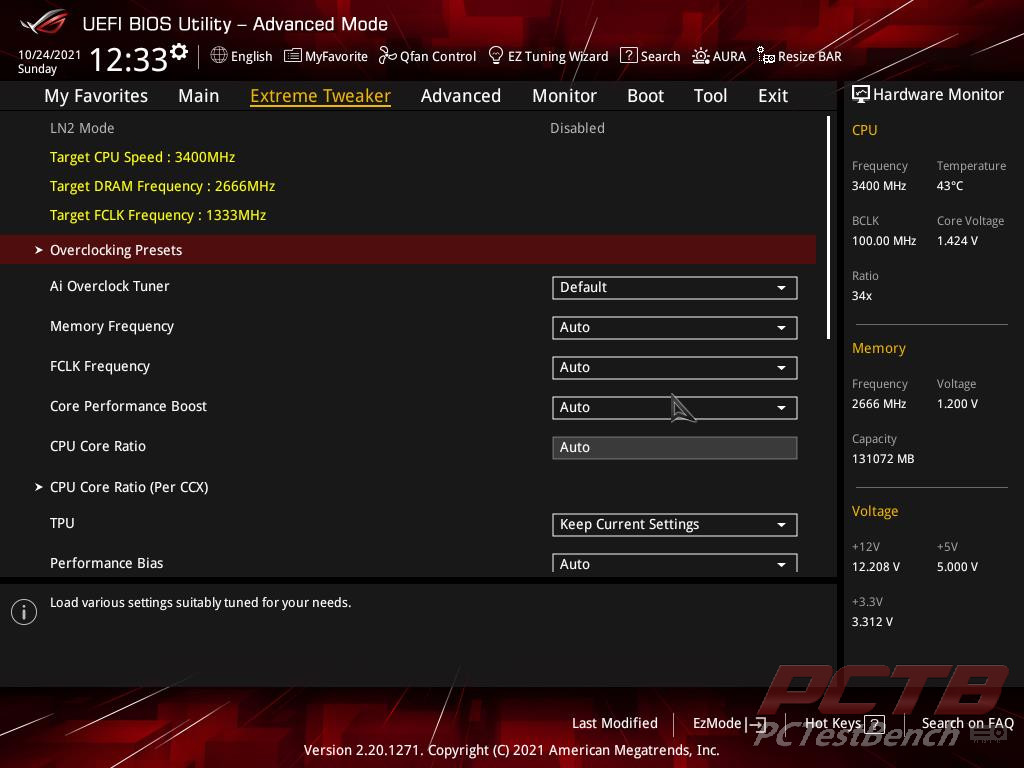
The Extreme Tweaker tab contains a lot of main performance tuning parameters.
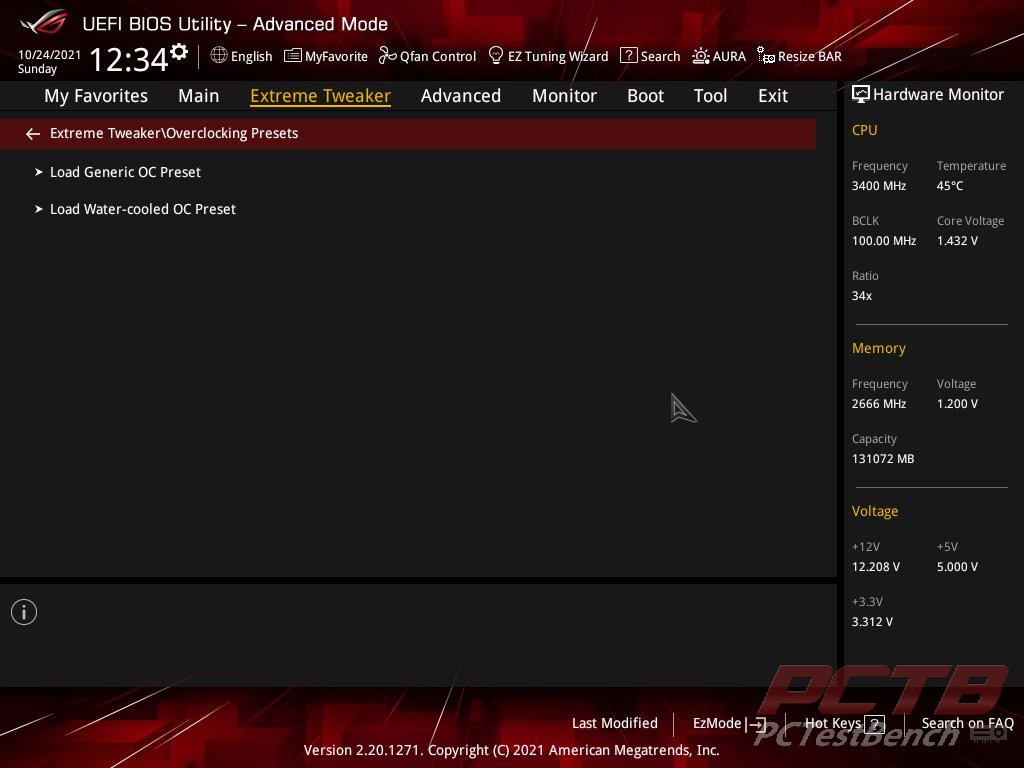
Asus makes it easy with a couple of pre-compiled presets for both air cooling and water-cooled builds.
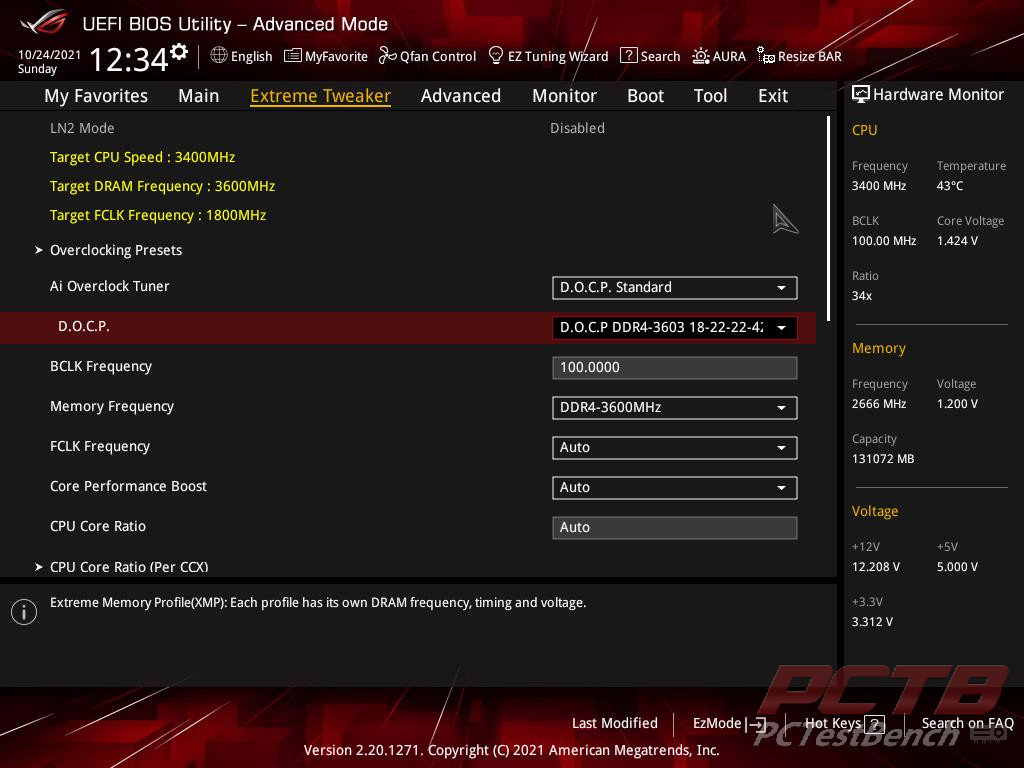
One thing we want to do while here is enable D.O.C.P. to load the XMP profile.
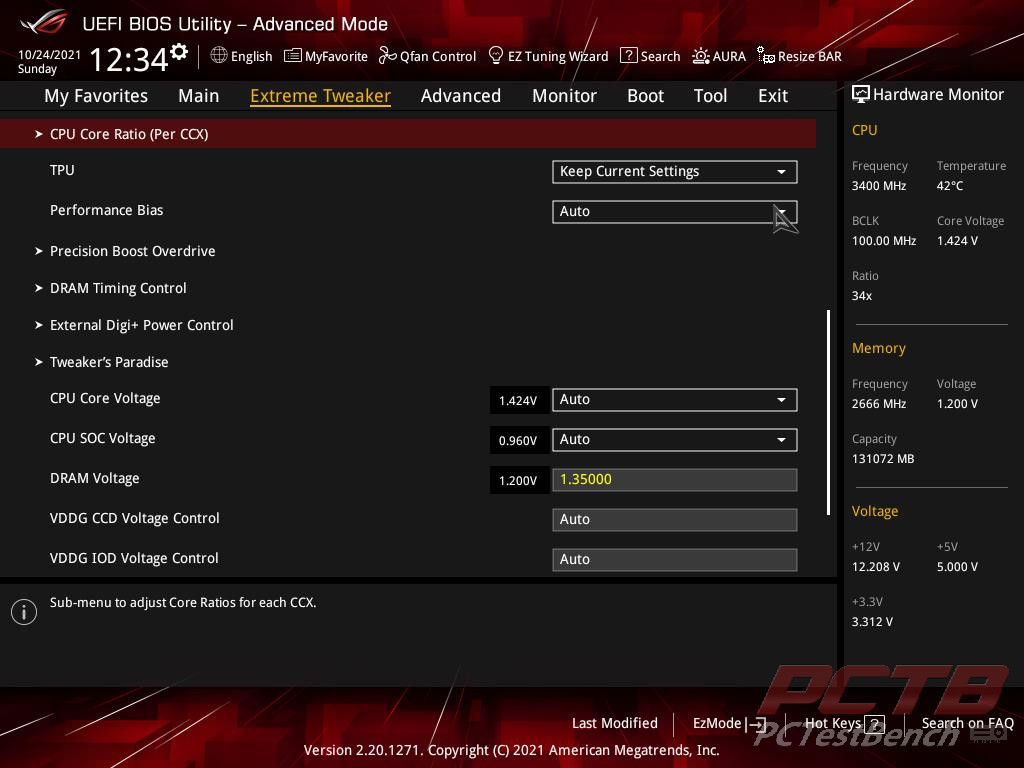
Further down you get things like DRAM timing control, Voltage control, and more.
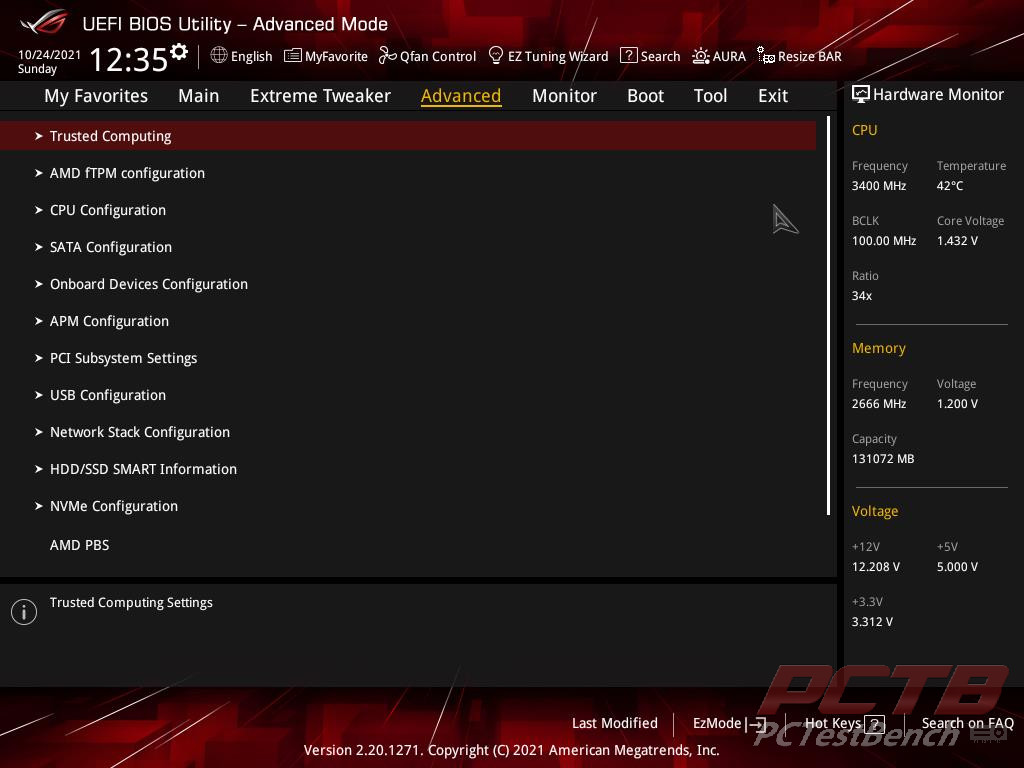
Flipping over to Advanced, everything is categorized into sub-sections.
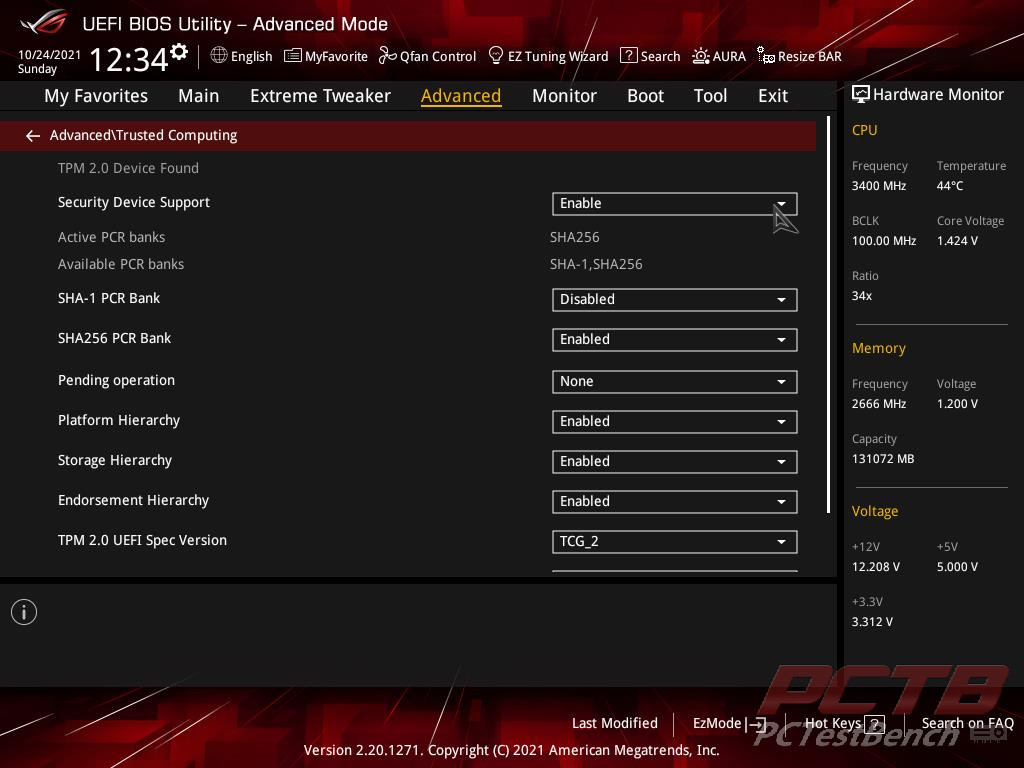
The latest BIOS version of the Crosshair VIII Extreme has all of the needed trusted Computing settings enabled for Windows 11 compatibility.
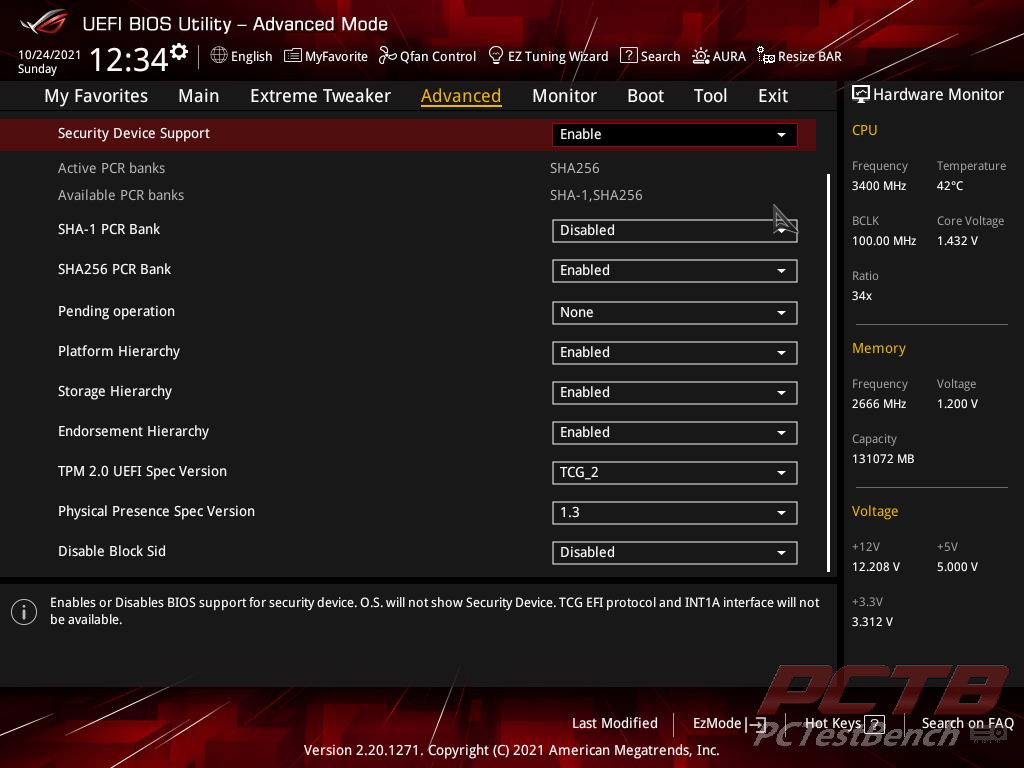
If you are not on the latest BIOS, you may need to come in here and enable things appropriately.
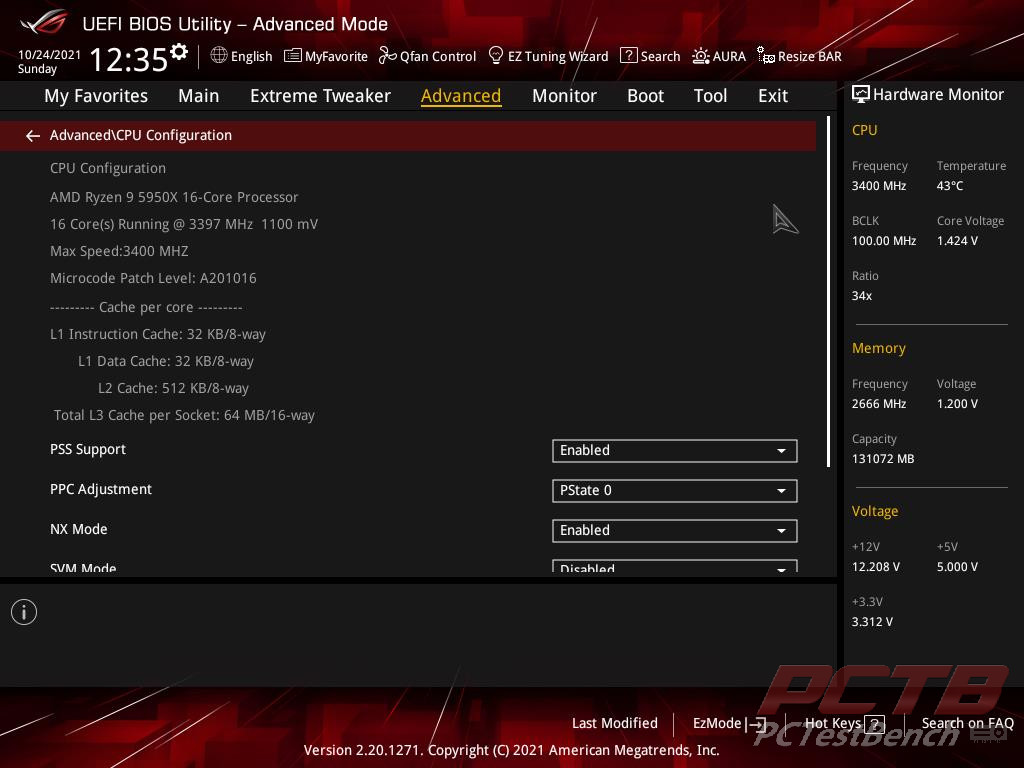
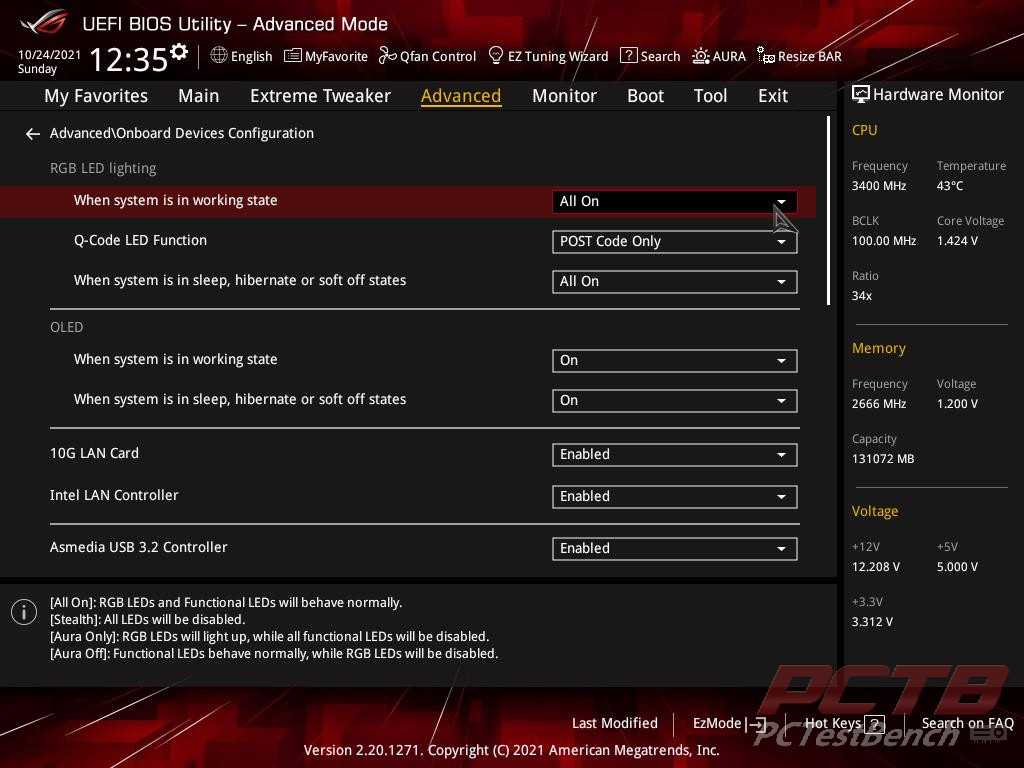
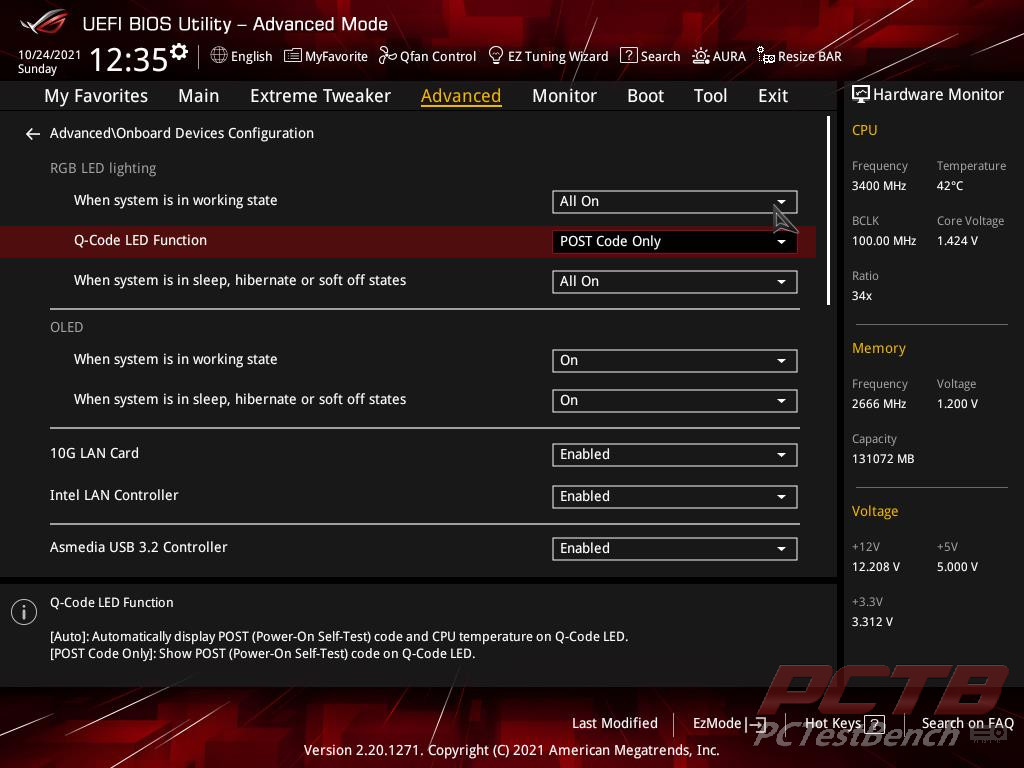
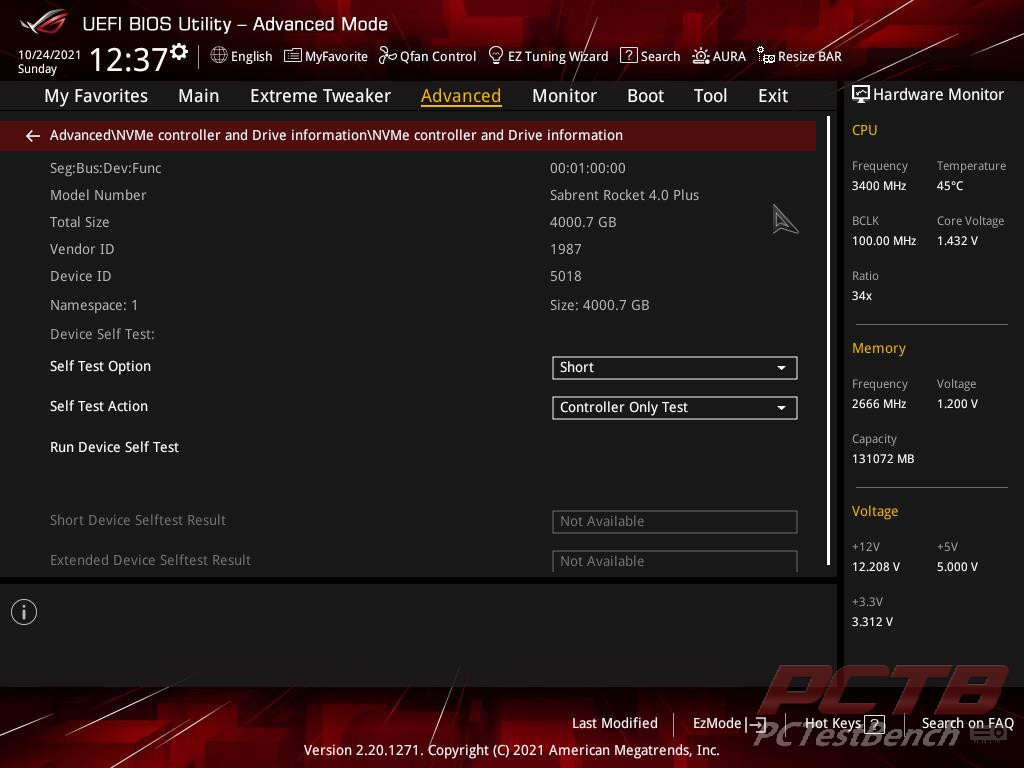
There are tons of settings in here for adjusting lighting, NVMe storage, and even more advanced CPU configuration.
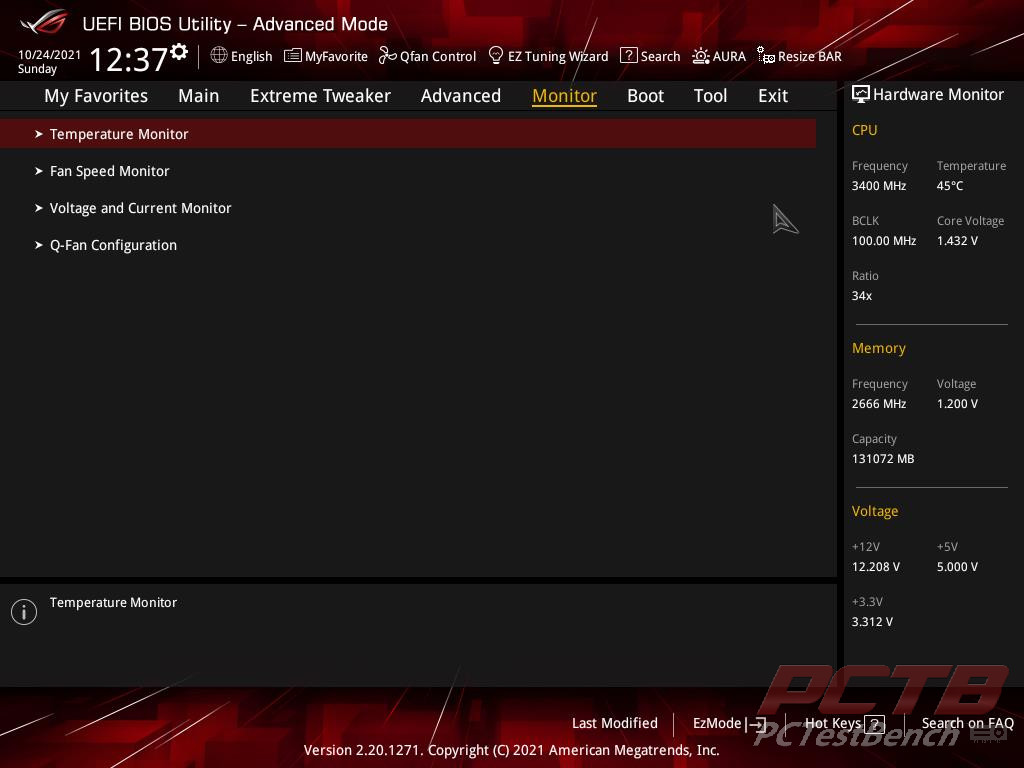
The Monitor tab is broken down into temps, fan speeds, and power sections.
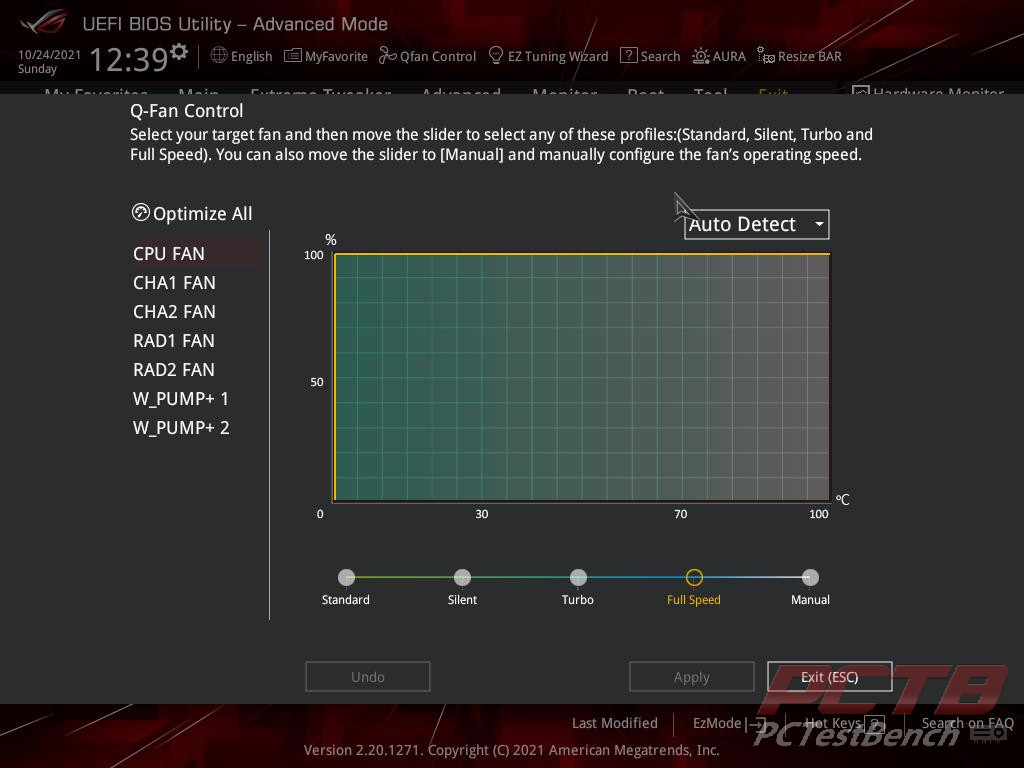
Q-fan can be accessed from here or directly from any screen by clicking the icon at the top. You can pick individual profiles for each fan header, or you can create your own.
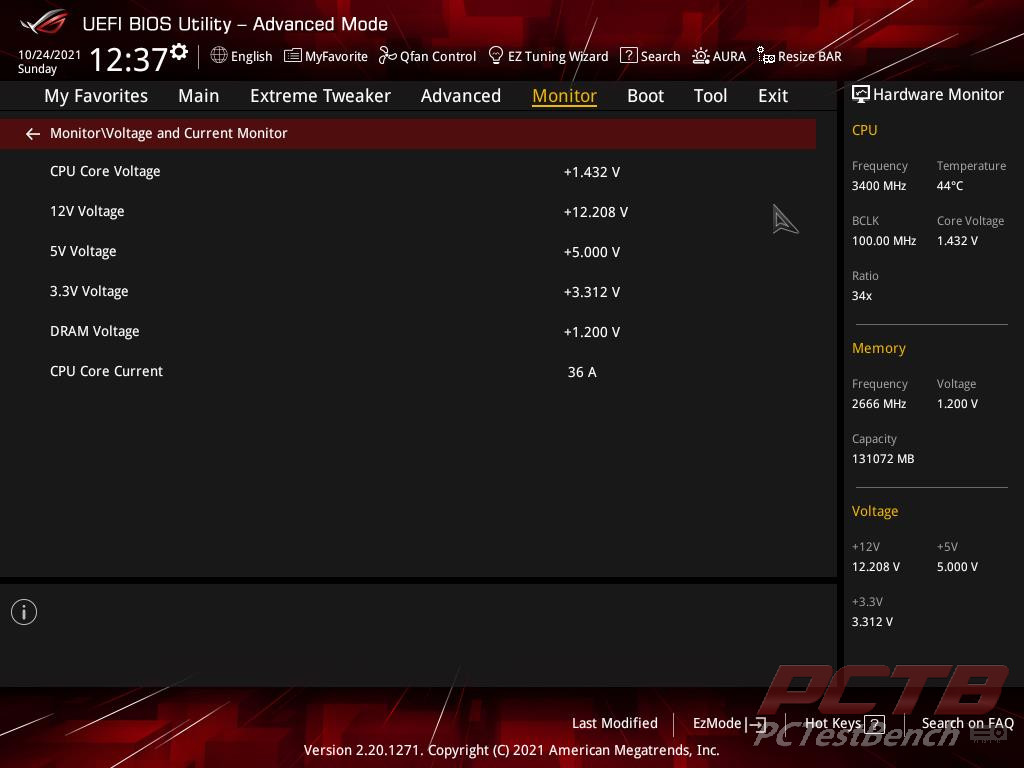
One interesting feature is the ability to monitor CPU Core Current. This is needed for Dynamic OC Switcher as that is what is used as the threshold between OC and stock profiles.
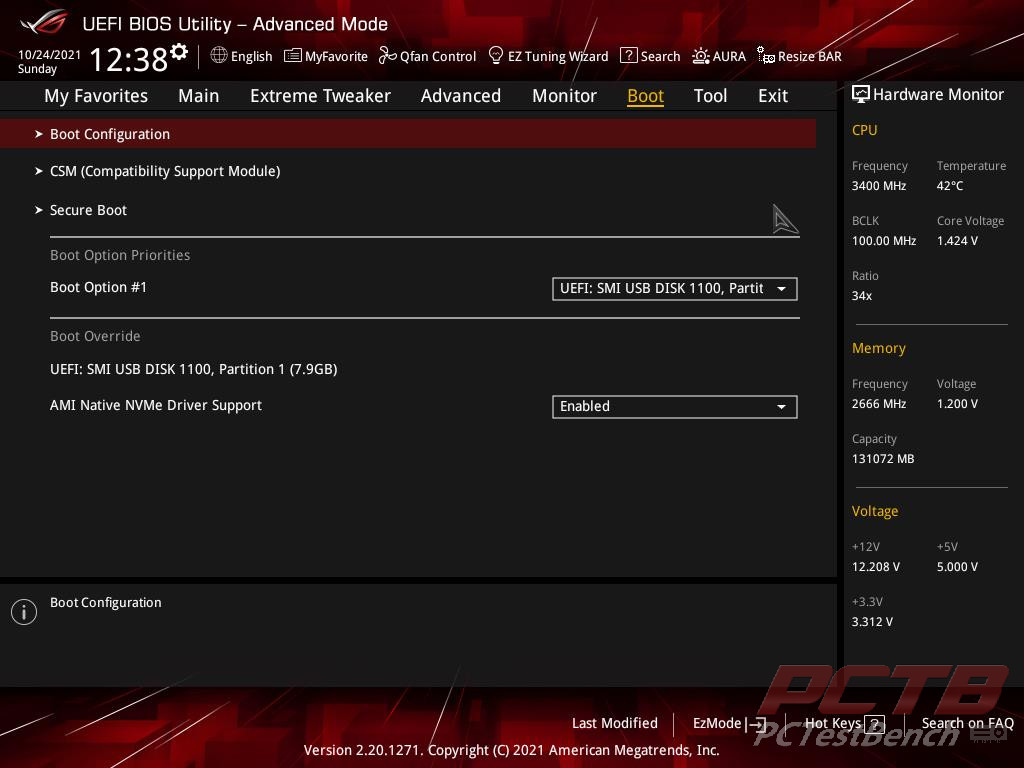
The BOOT tab is pretty self-explanatory. Everything is set up for secure and fast boot for Windows 11 compatibility. Our AMD Test drive is set up in legacy mode, not UEFI, so we’ll enable CSM while in here. It’s best to leave this off and install Windows in full UEFI mode if you can.
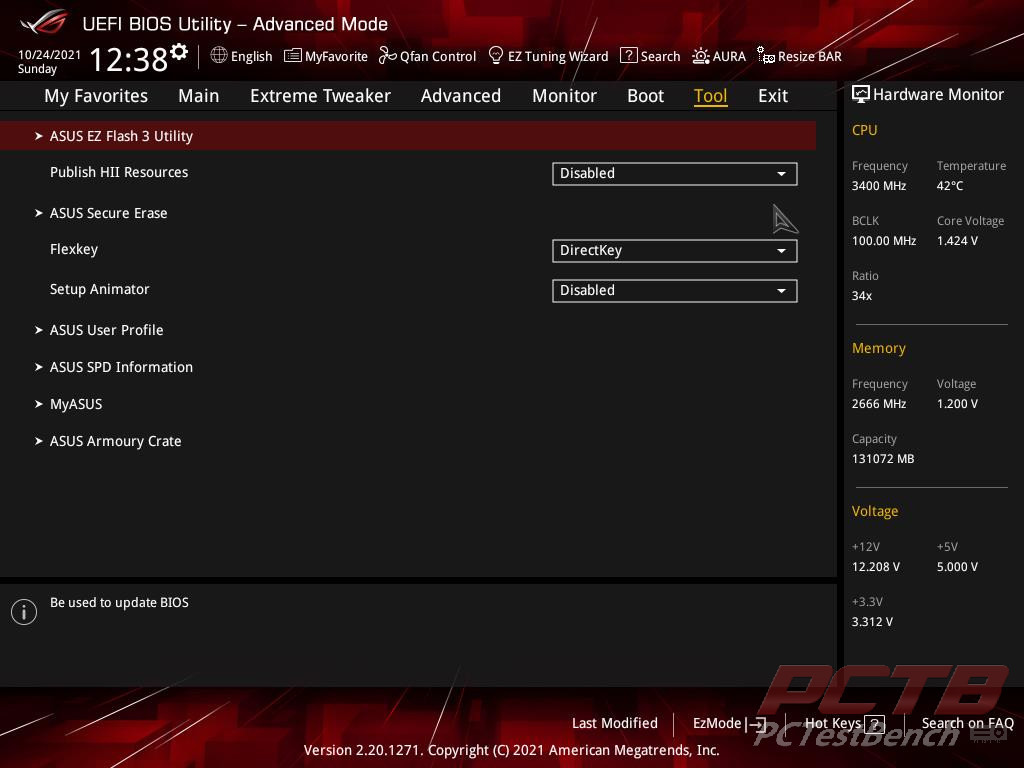
The tools menu has a lot of good things. We used the EZ Flash utility right out of the gate to load the latest BIOS before we started testing.
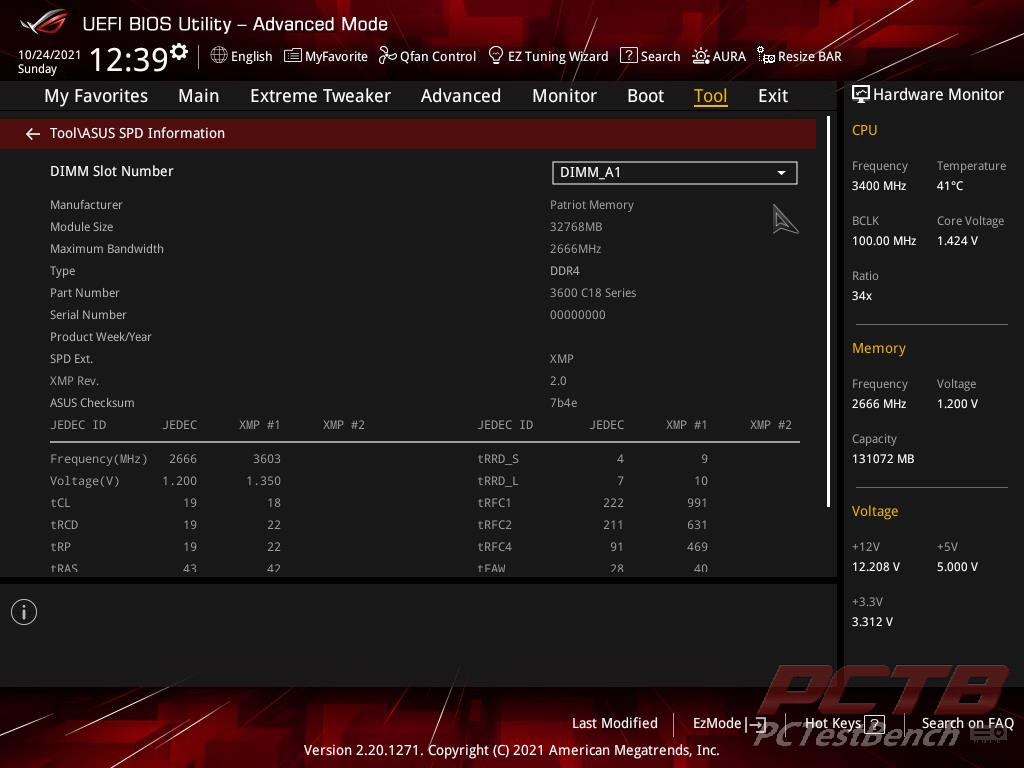
The SPD tool shows a lot of information for your installed ram kit.
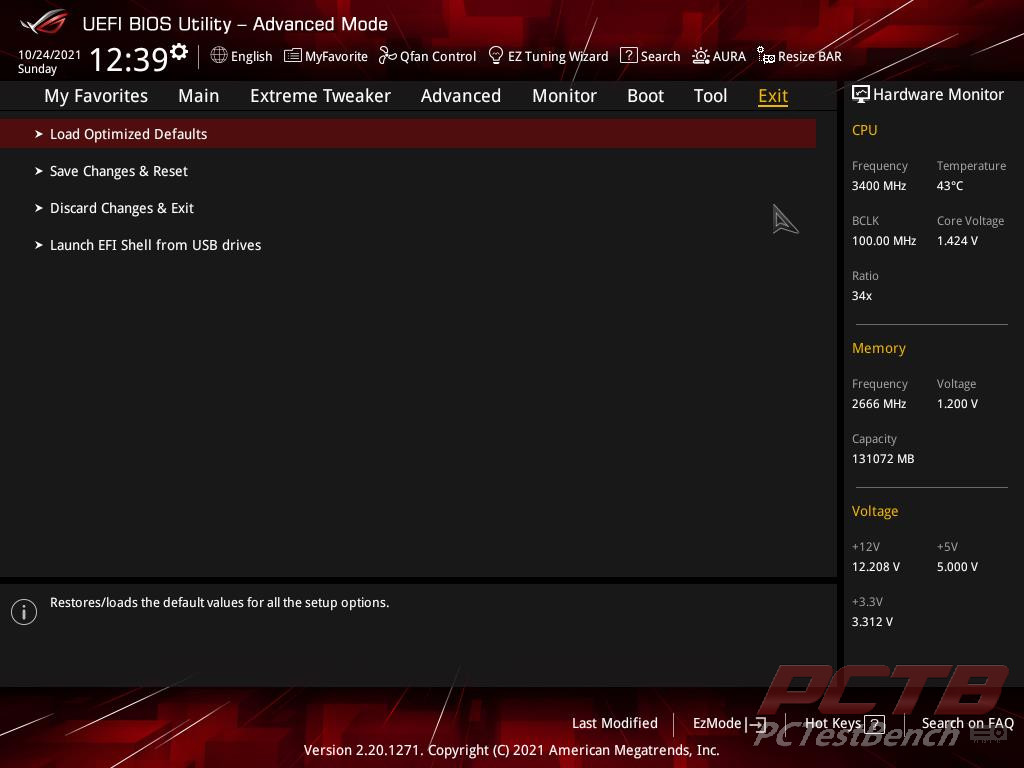
The Exit tab lets you save changes or load defaults, or even discard any accidental changes.
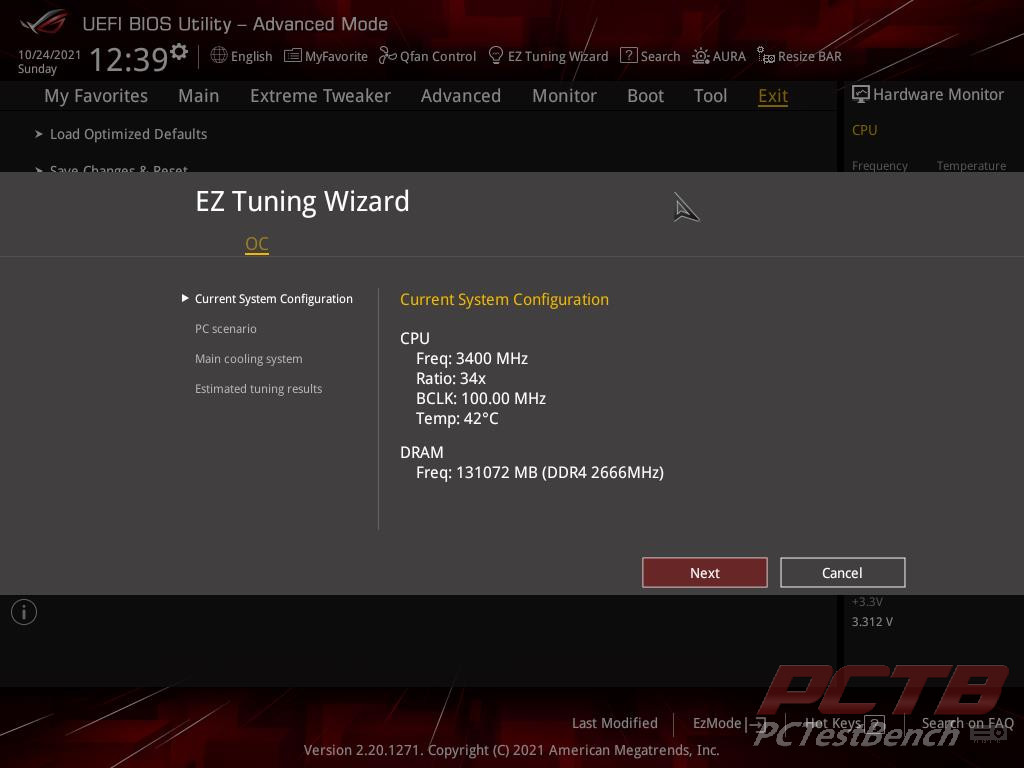
ASUS’s EZ Tuning Wizard can be accessed from the top toolbar. This lets the system tune itself for maximum performance based on your specific hardware and cooling capabilities. It usually does a great job and negates the need for manual tuning for all but the most enthusiastic over clockers.
Software
AI Suite 3
AI Suite 3 has two functions – one is to monitor the system status, the other is to integrate ASUS software so that it is easy to access the ASUS software through AI Suite 3. More Details HERE
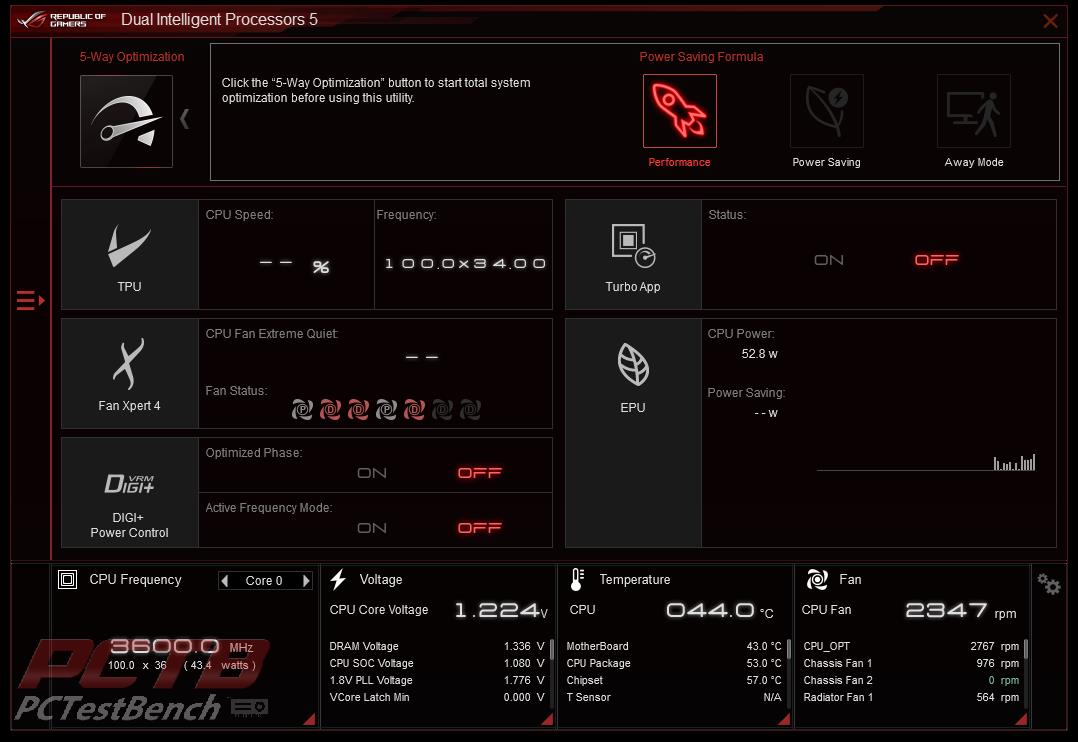
The homepage of ASUS’s Ai Suite 3 is the Dual Intelligent Processors 5 page that shows a system overview of voltages, temps, fan speeds, and settings.
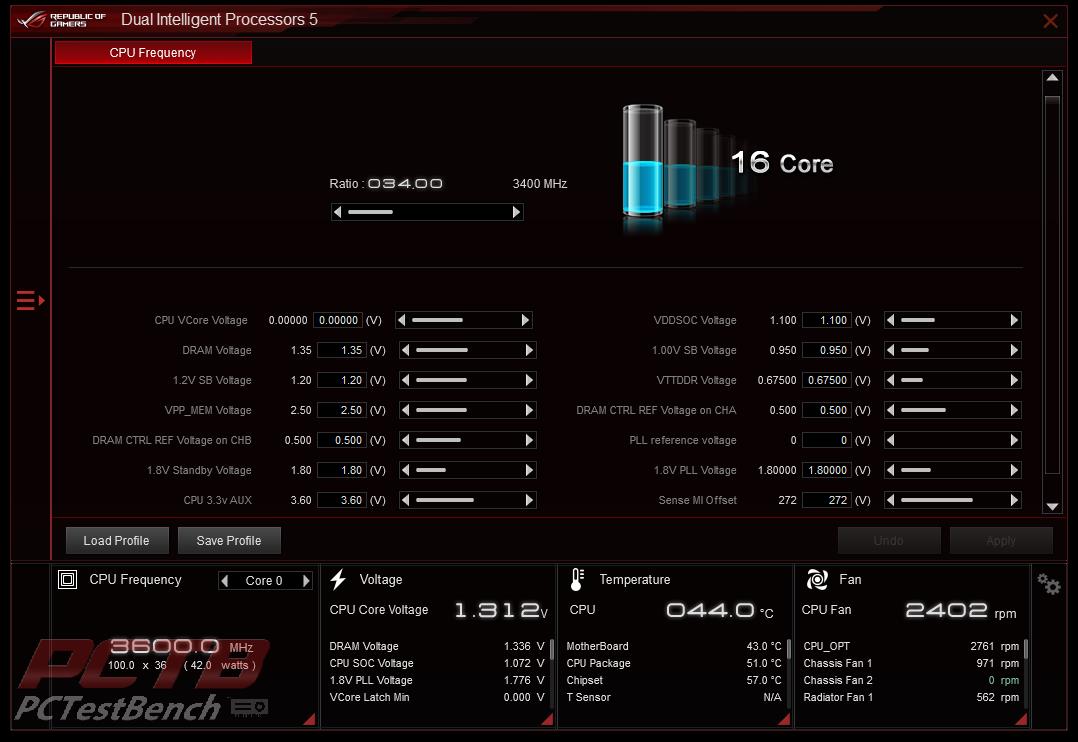
The TPU page gives access to many of the clock settings in the system for direct control, as well as the ability to save and load profiles.
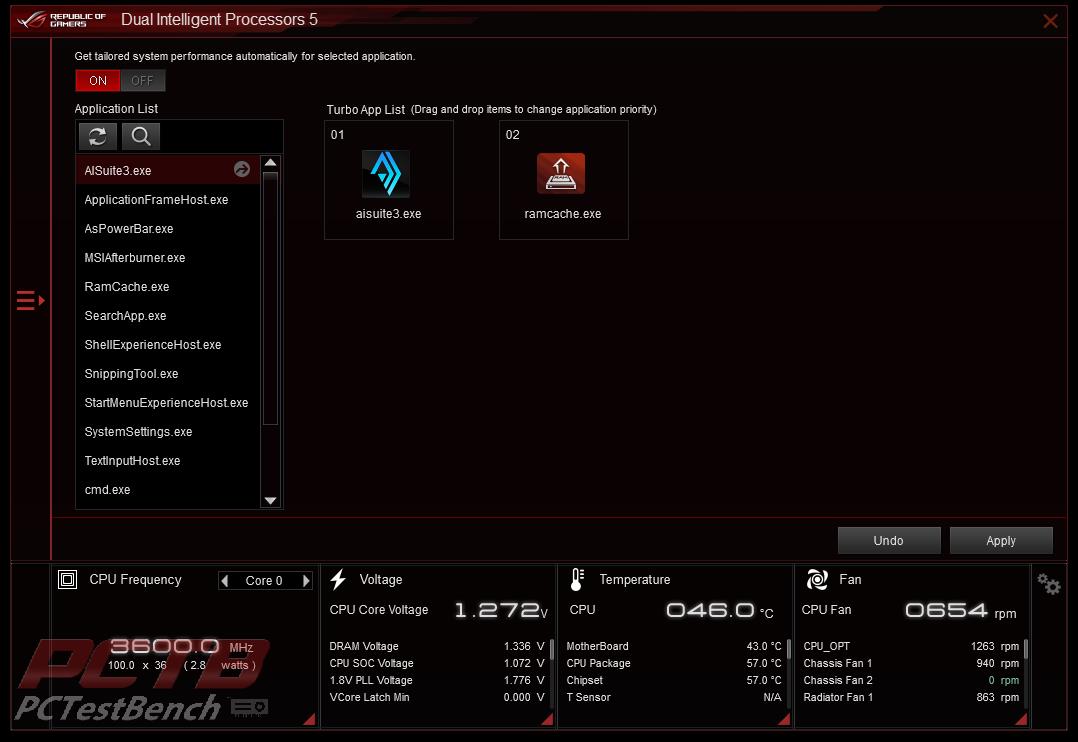
The Turbo App allows you to manually prioritize your needed applications.
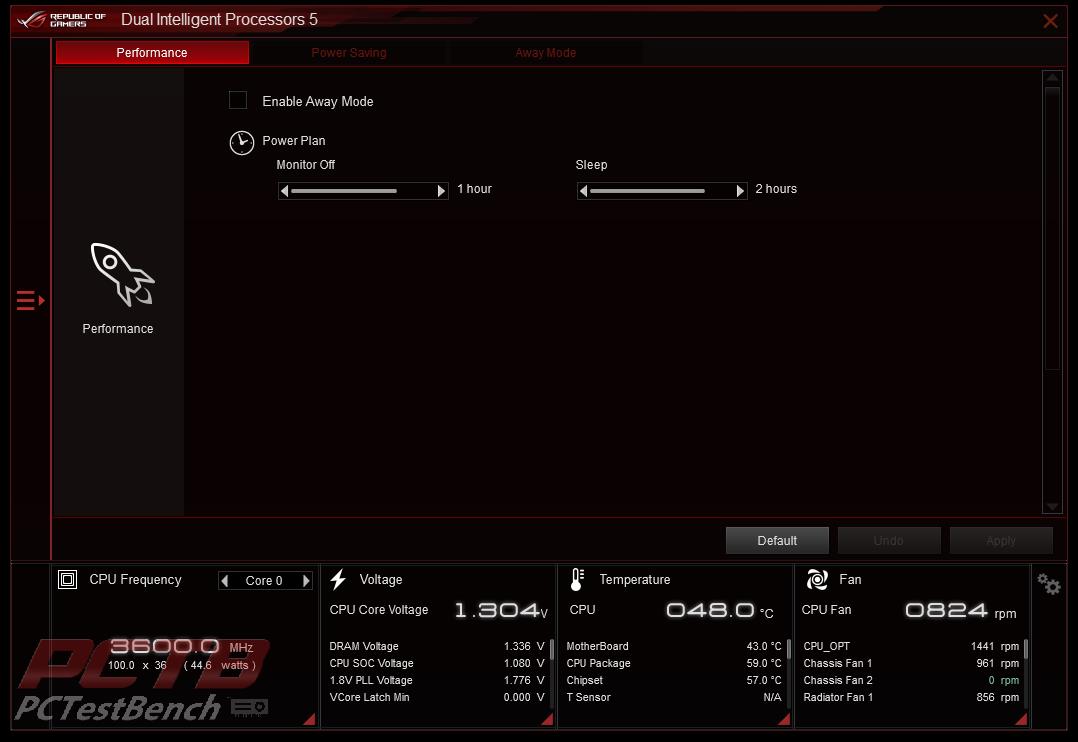
EPU allows you to adjust power and efficiency settings as well as switch your power plan and adjust sleep timers.
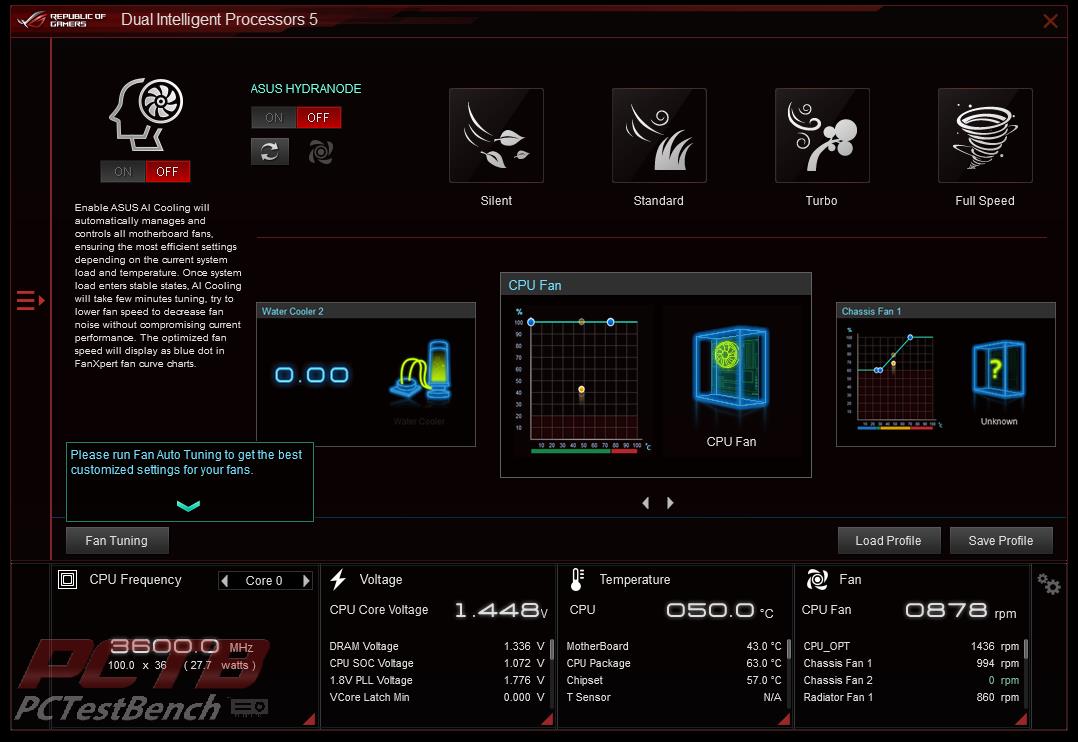
Fan Xpert 4 lets you pick between cooling profiles, activate automatic fan tuning, and manually adjust fans, including HydraNode connected fans if equipped.
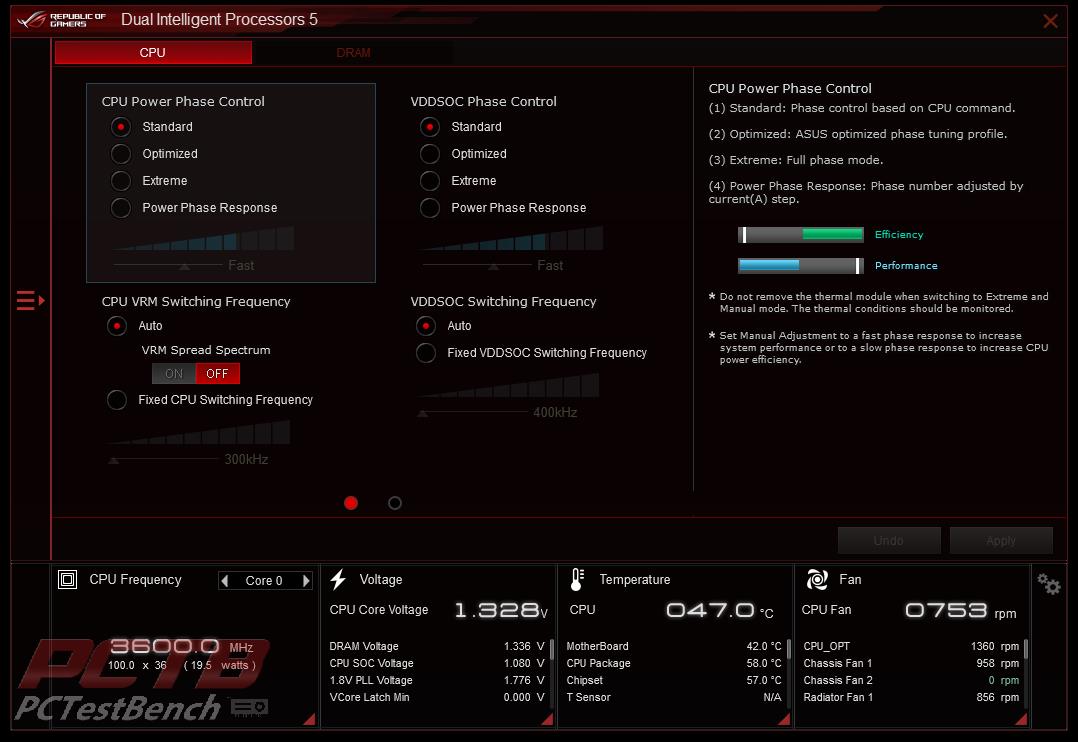
Digi+ Power Control allows you to adjust VRM switching frequency, phase control profiles and balance your power delivery system as you need between better efficiency and better overclocking performance.
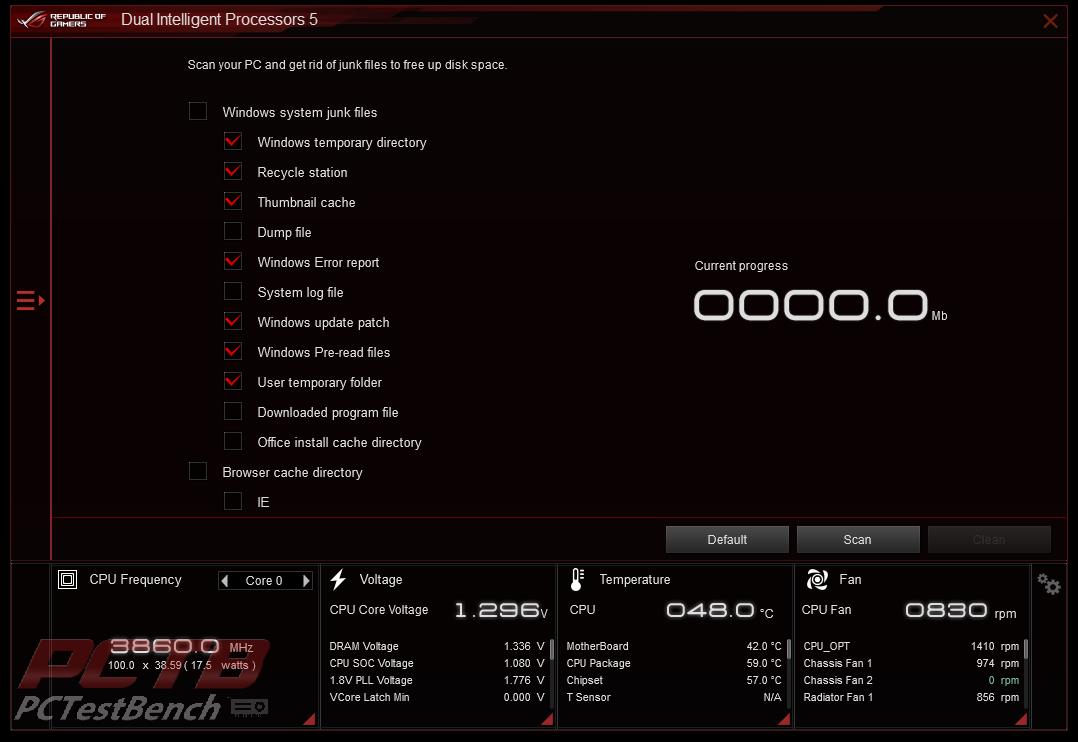
PC Cleaner will let you blast away all those years’ worth of junk on your machine that could be slowing it down like temporary files, Recycle bin contents, and even leftover junk from windows update.
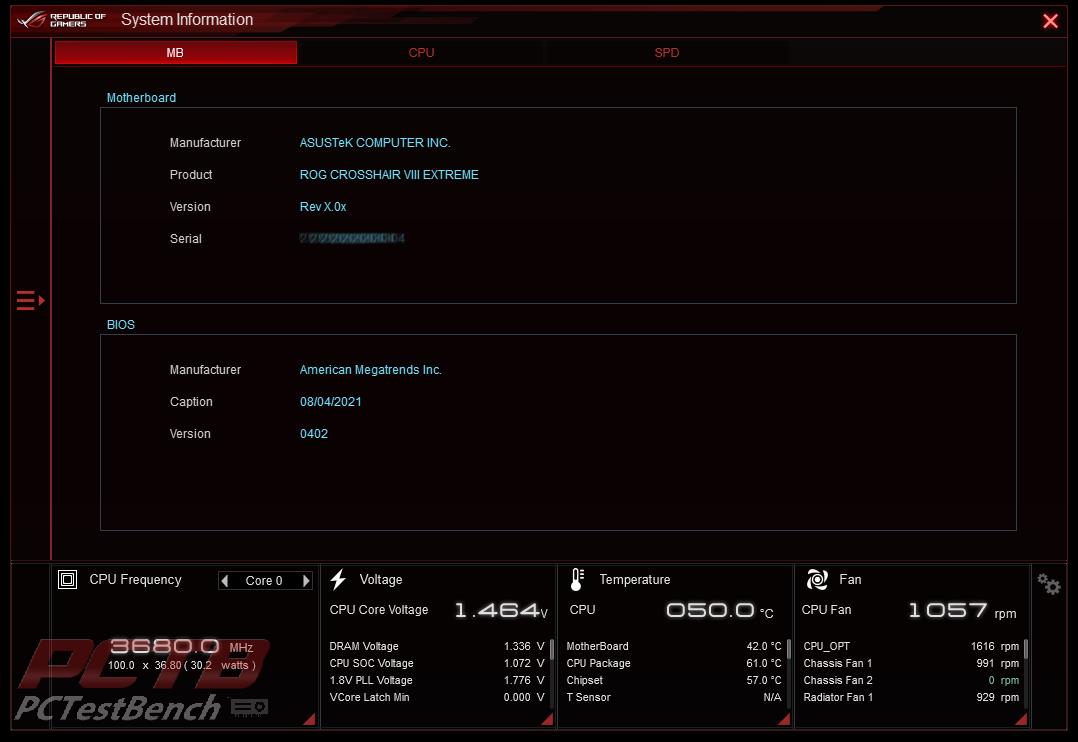
System Information will give you a detailed look at your motherboard, CPU, and Ram.
ASUS RAMCACHE III
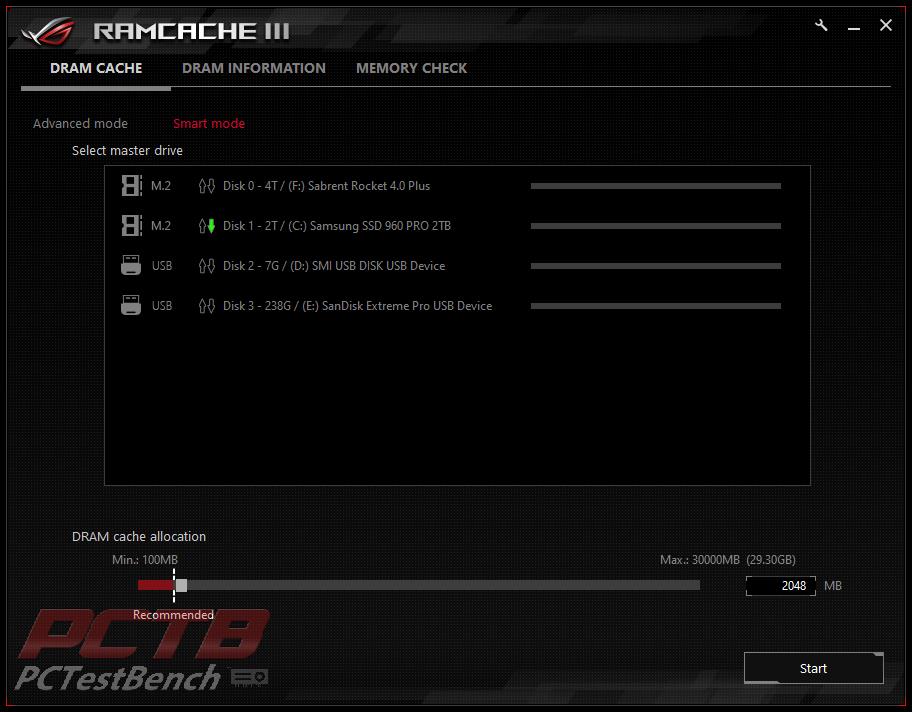
RAMCACHE III provides an extremely easy way to use spare system memory to cache disk access for a huge boost in speed. you can select which disks you want to boost (like your massive Hard Drive full of games?) and how much ram you want to allocate towards it.
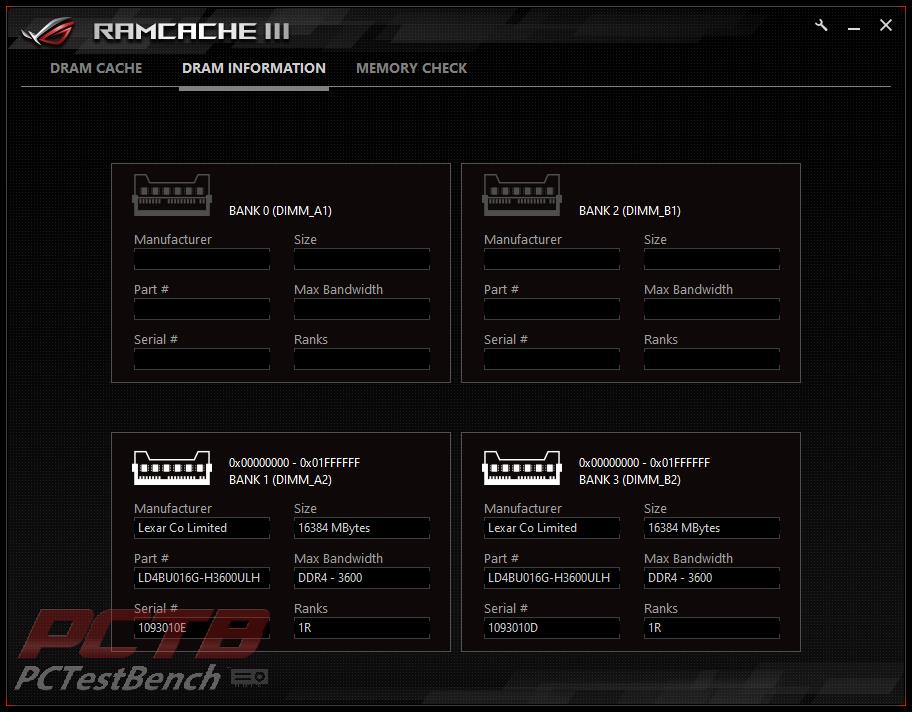
You can check out details on your installed ram as well as test it from within the program as well.
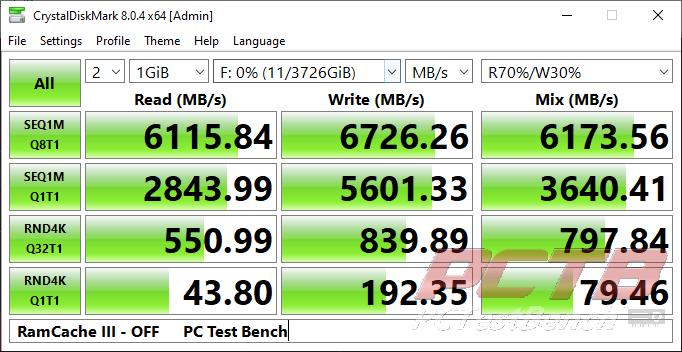
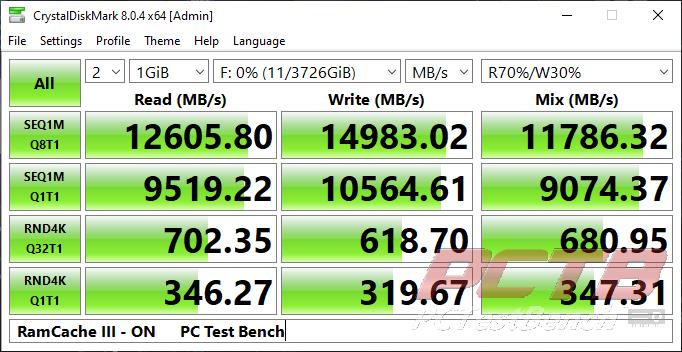
We tested a Sabrent 4TB Rocket 4 Plus SSD which is already extremely fast and you can see the results. Sequential transfers were around twice as fast while low queue depth random’s, which make up the bulk of daily activity, were boosted even more.
ROG GameFirst VI
GameFirst VI is an integrated network tool, designed for ASUS ROG products for network optimization. It can effectively reduce network delay, minimize in-game lag, and also create the best network environment for players.
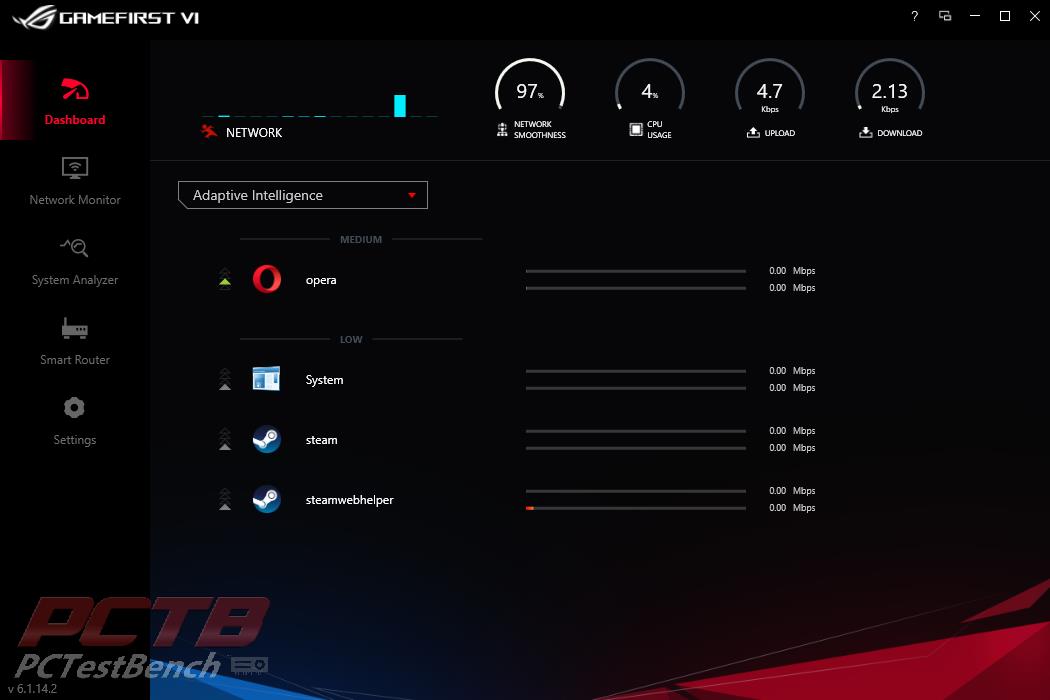
The GameFirst dashboard shows you what all is utilizing your internet connection as well as total bandwidth used both ways, CPU usage, and overall network stability or smoothness rating.
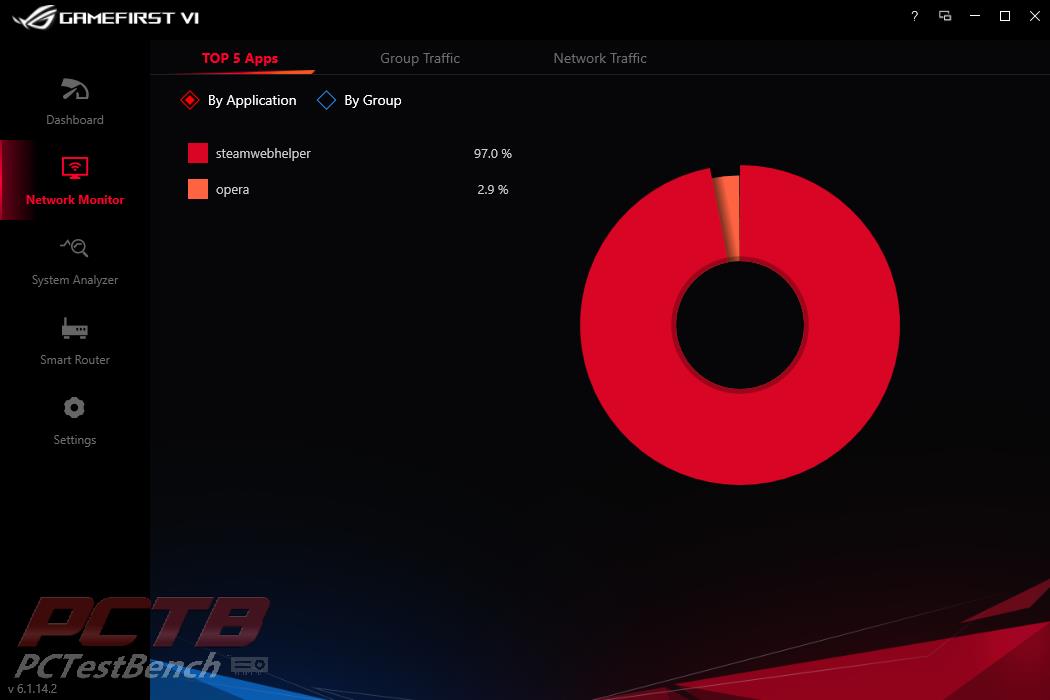
The Network monitor puts everything on an easy-to-see graph. Here we opened Steam while having an Opera browser tab open.
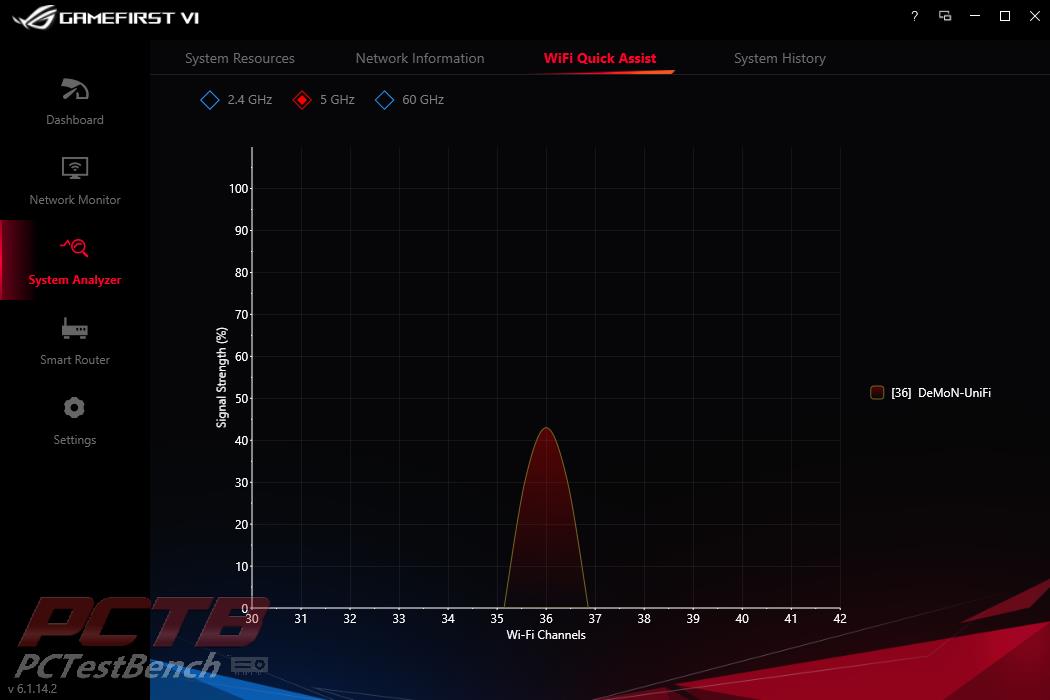
System Analyzer has several tools, one of which is seeing what WiFi channels are occupied so that you can set your own wireless up with the least interference. Thankfully, I don’t have close neighbors so only my own WiFi is visible. Signal strength shows a bit lower since no antennas were connected to the rear I/O during this.
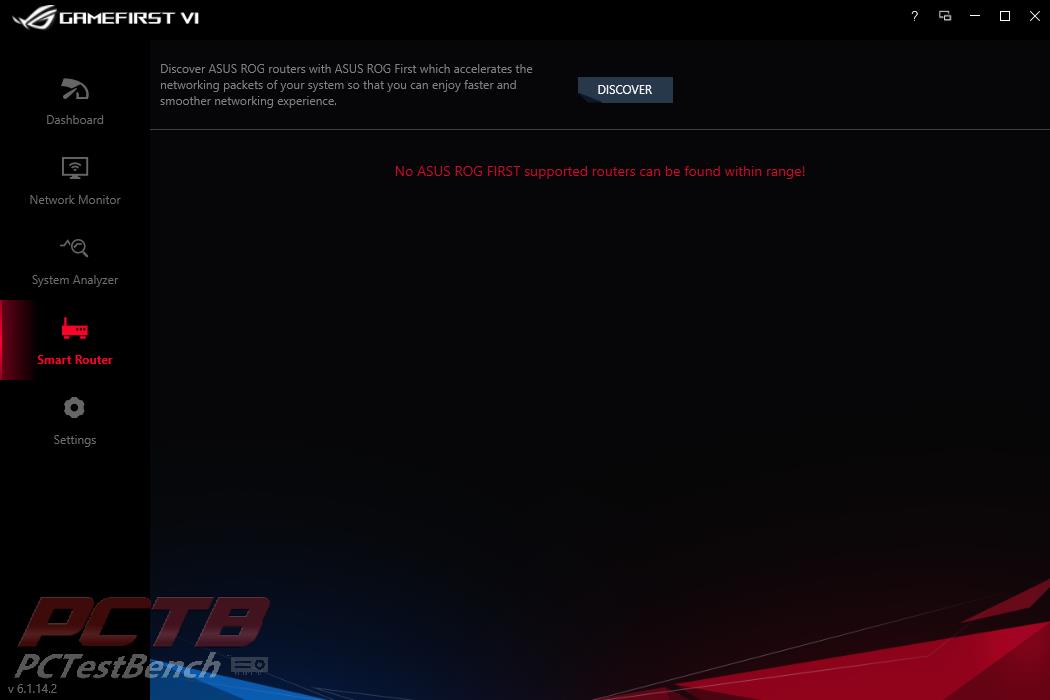
If you are using an ASUS Router, the GameFirst software can integrate with it for even better performance and traffic prioritization.
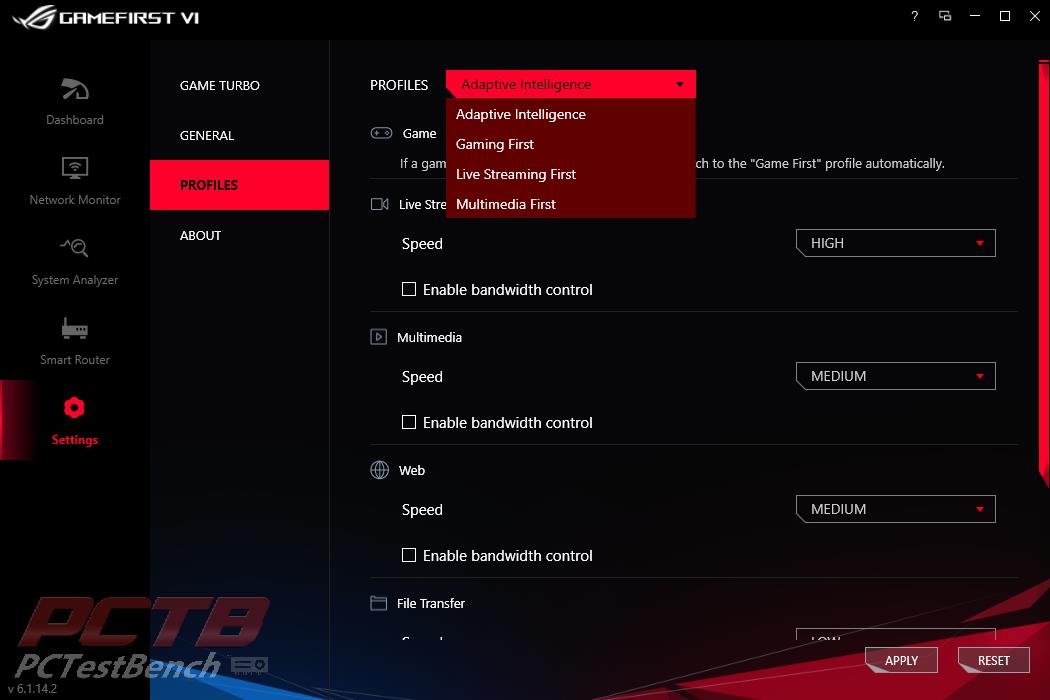
Finally, you can set profiles per traffic type. This allows you to do things like prioritize or limit certain traffic types depending on your own needs.
Performance Testing
Test Platform:
CPU – AMD Ryzen 9 3900X
Mobo – ASUS ROG Crosshair VIII Extreme
RAM – 32GB (4x8GB) HyperX Fury RGB 3200MHz C16
GPU – Nvidia RTX 2080 Founders Edition
SSD – Samsung 960 Pro 2TB
PSU – Thermaltake Toughpower Grand RGB Gold 750W
Chassis – Open BenchTable
Cooling – Fractal Lumen S28 (set to manual 100%)
All testing is performed at default settings except for enabling XMP (via D.O.C.P.) (Profile 1: 3200MHz 16-18-18-38 1.35V). We tested several different ram kits and CPUs throughout the review until this point, but the above loadout is used for all testing from here on to give an apples-to-apples comparison to other boards that were tested with the same hardware.
General Performance Testing
PCMark 10
PCMark 10 is the complete benchmark for the modern office. It is the ideal test for organizations that are evaluating PCs for a workforce with a range of performance needs. The tests in this benchmark cover a wide range of activities from everyday productivity tasks to demanding work with digital media content.
PCMark 10 uses a modular approach to build relevant benchmark tests around common end-user scenarios.
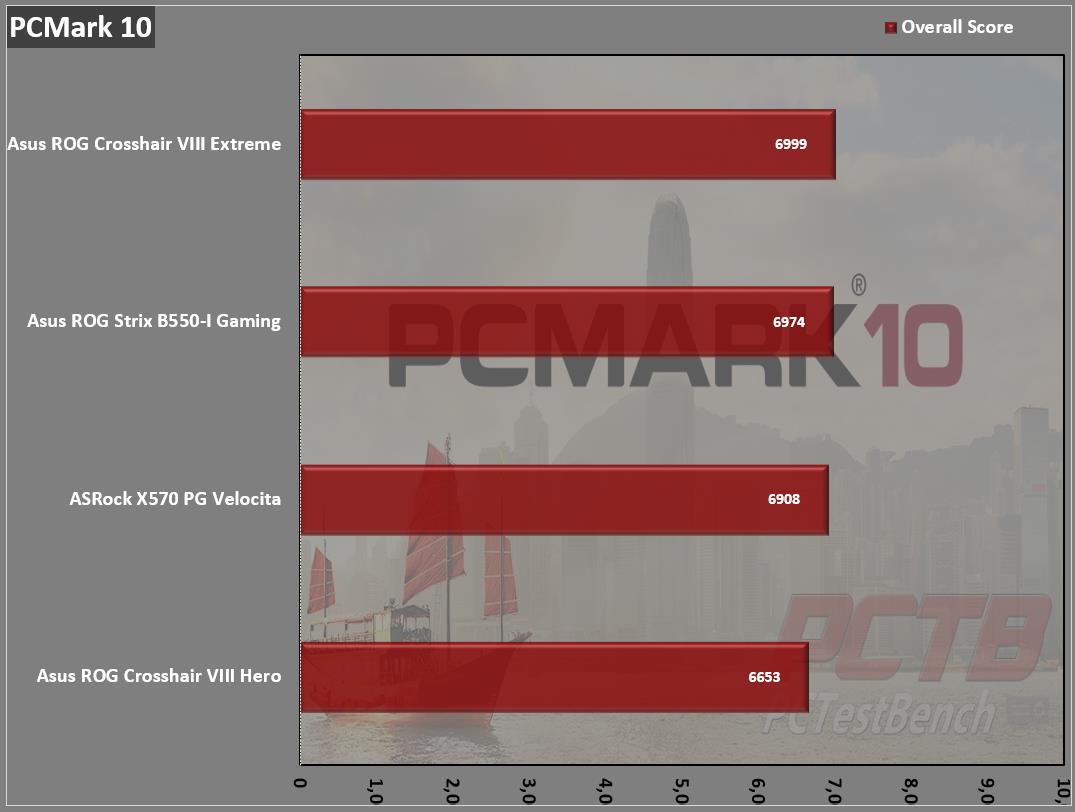
ASUS’s ROG Crosshair VIII Extreme does quite well in overall productivity tasks, but let’s face it, you didn’t consider buying the Extreme for video conferencing and spreadsheets, did you?
WebXPRT 2015
WebXPRT 2013 uses scenarios created to mirror the tasks you do every day to compare the performance of almost any Web-enabled device. It contains four HTML5- and JavaScript-based workloads: Photo Effects, Face Detect, Stocks Dashboard, and Offline Notes. WebXPRT is run with the latest stable release version of Google Chrome browser, in this case, Version 61.
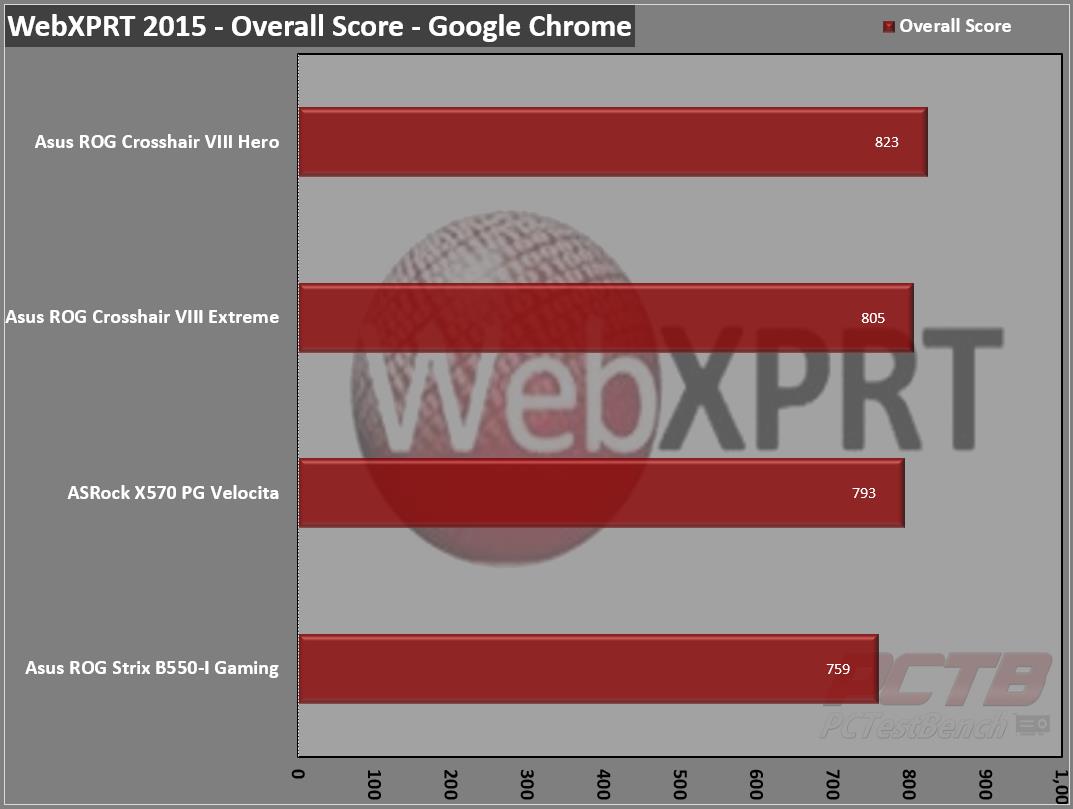
Our browser-based test does decently with a score of 805.
CPU Performance Testing
Super PI Modded 1.5
“In August 1995, the calculation of pi up to 4,294,960,000 decimal digits was succeeded by using a supercomputer at the University of Tokyo. The program was written by D.Takahashi in collaboration with Dr.Y.Kanada at the computer center. This record should be the current world record. (Details are shown in the windows help.) This record-breaking program was ported to personal computer environments such as Windows NT and Windows 95. In order to calculate 33.55 million digits, it takes within 3 days with a Pentium 90 MHz, 40 MB main memory, and 340 MB available storage.”
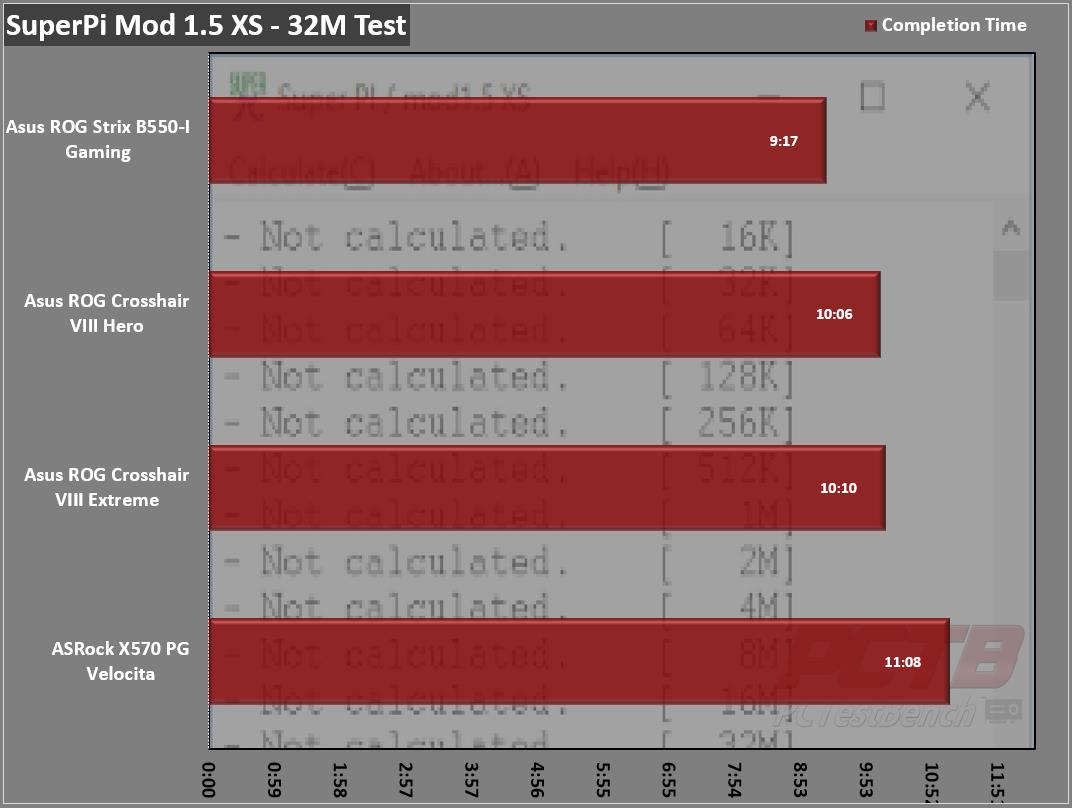
SuperPi completes its run in 10 minutes and 10 seconds, pretty typical for this CPU.
CINEBENCH R20
Cinebench is a real-world cross-platform test suite that evaluates your computer’s hardware capabilities. Improvements to Cinebench Release 20 reflect the overall advancements to CPU and rendering technology in recent years, providing a more accurate measurement of Cinema 4D’s ability to take advantage of multiple CPU cores and modern processor features available to the average user. Best of all: It’s free.
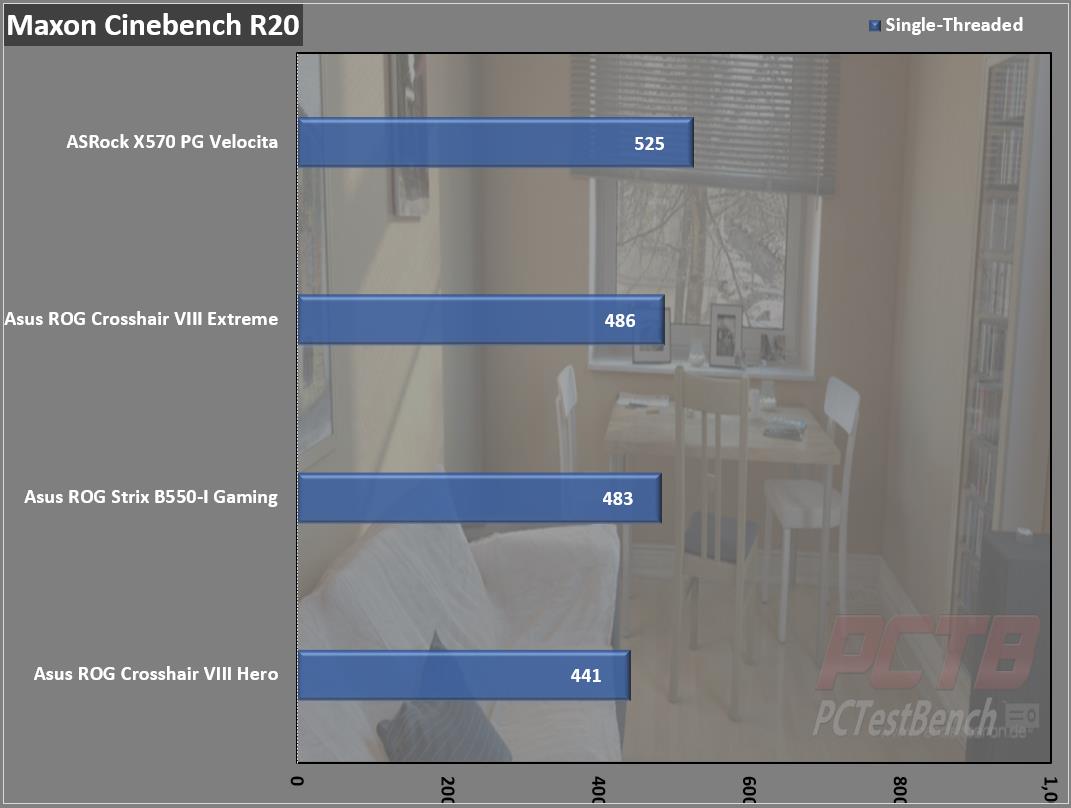
The Crosshair VIII Extreme manages a score of 486 on a single-threaded run.
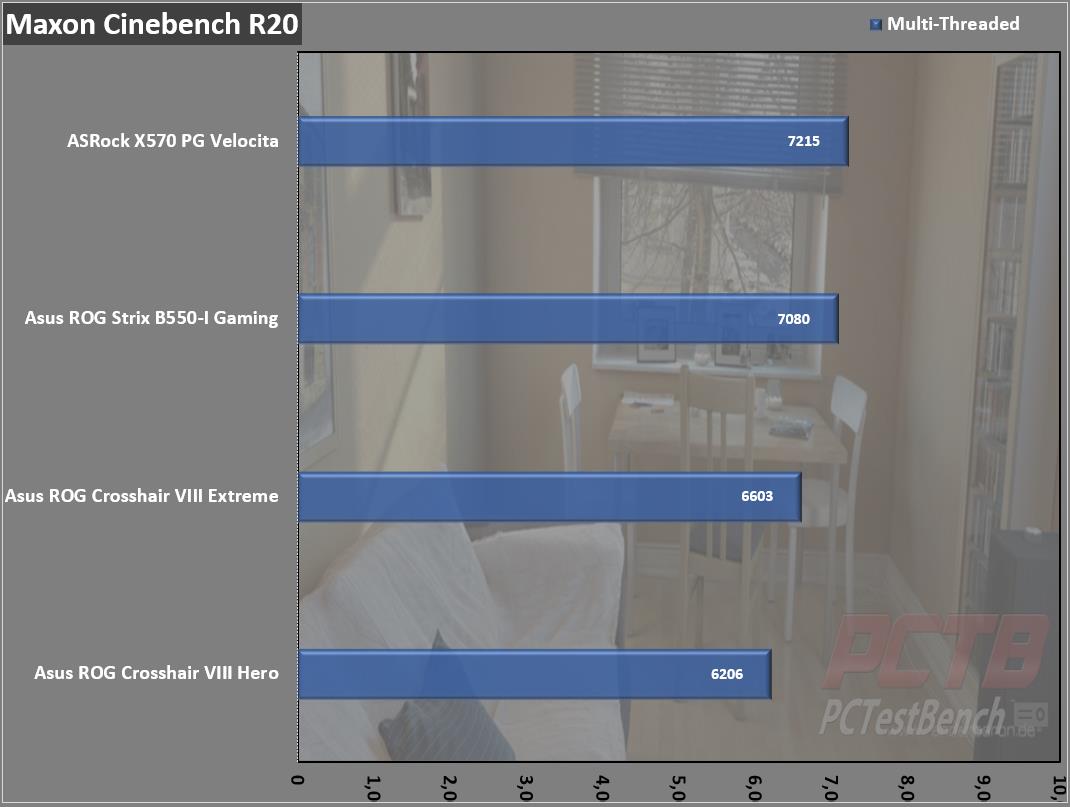
With all 12 cores engaged, we manage 6603 which is a bit lower than expected but not terrible.
Passmark Performance Test – CPU Mark
“Fast, easy to use, PC speed testing, and benchmarking. PassMark Performance Test ™ allows you to objectively benchmark a PC using a variety of different speed tests and compare the results to other computers.”
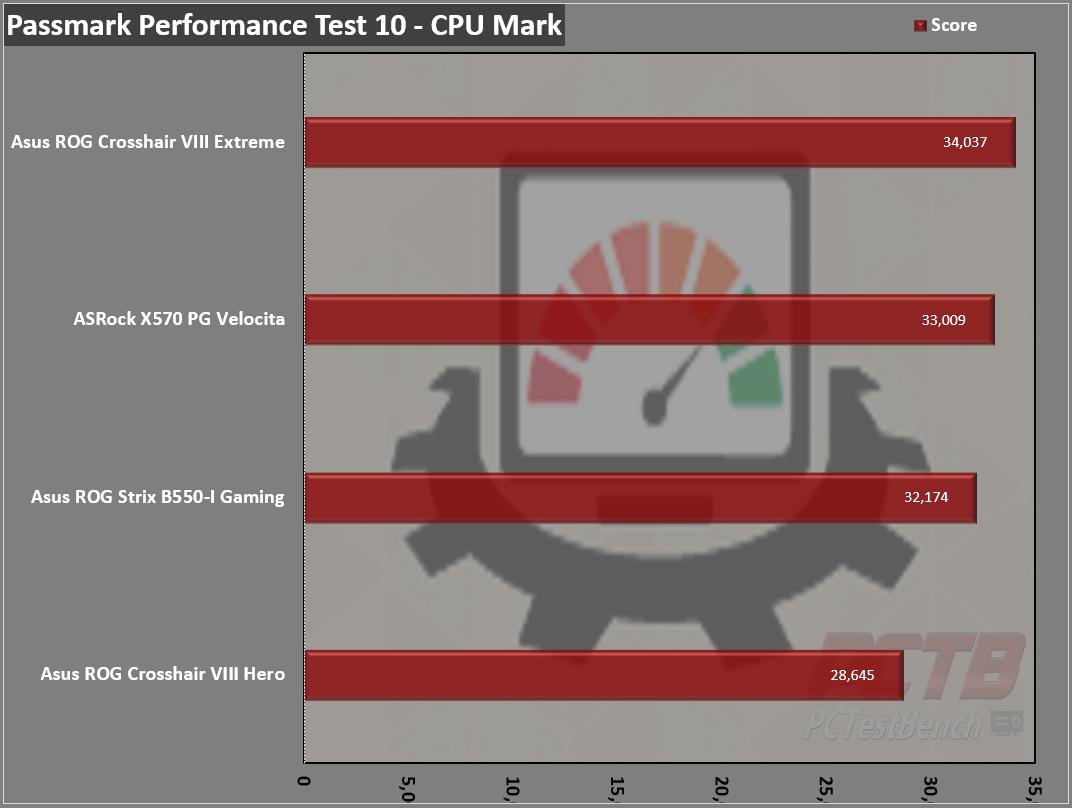
In Passmark, the Crosshair VIII Extreme easily redeems itself with our best score yet, a lead of more than 1000 points.
SiSoft Sandra – Cryptographic Bandwidth
“SiSoftware Sandra provides a robust package of diagnostic tools for testing your system and teasing out its problems–or potential headaches.”
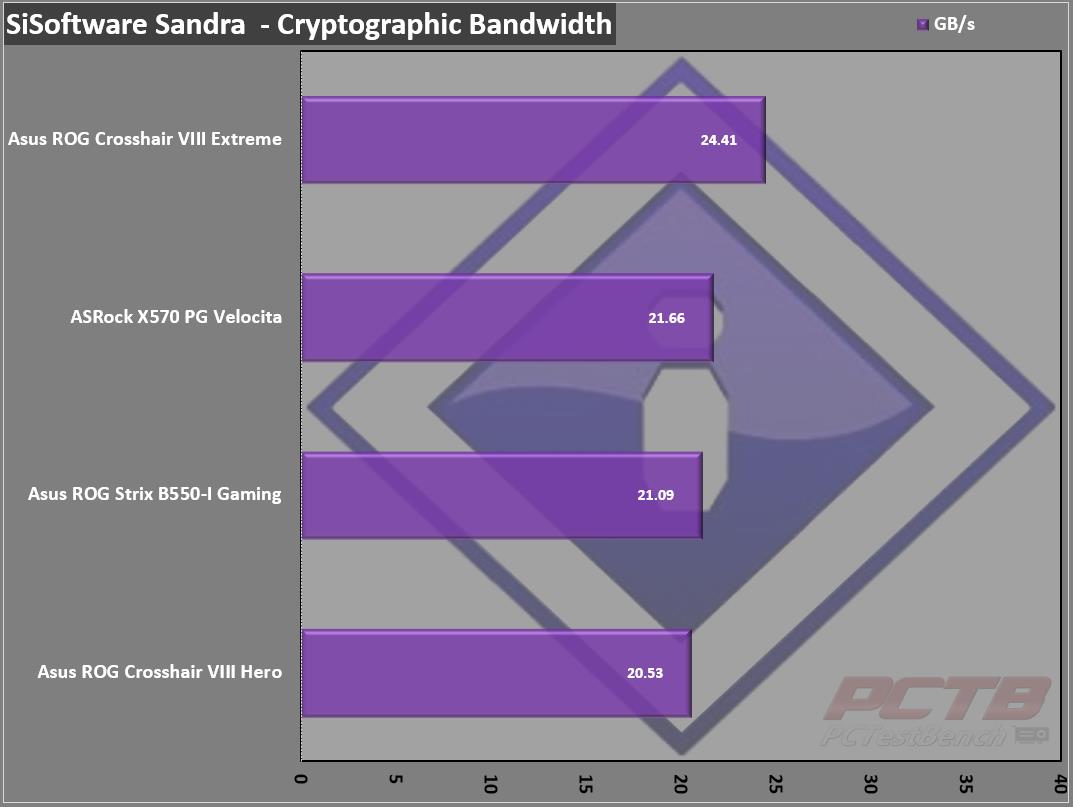
SiSoft’s Cryptographic bandwidth test also shows a strong lead with 24.41GB/s.
Black Hole 4.2
Let the beast run and benchmark your system in three different tests (Multithreaded, Single-threaded & 4-Threaded) that will test your CPU to the very limit, and score you among hundreds of other systems that have tested.
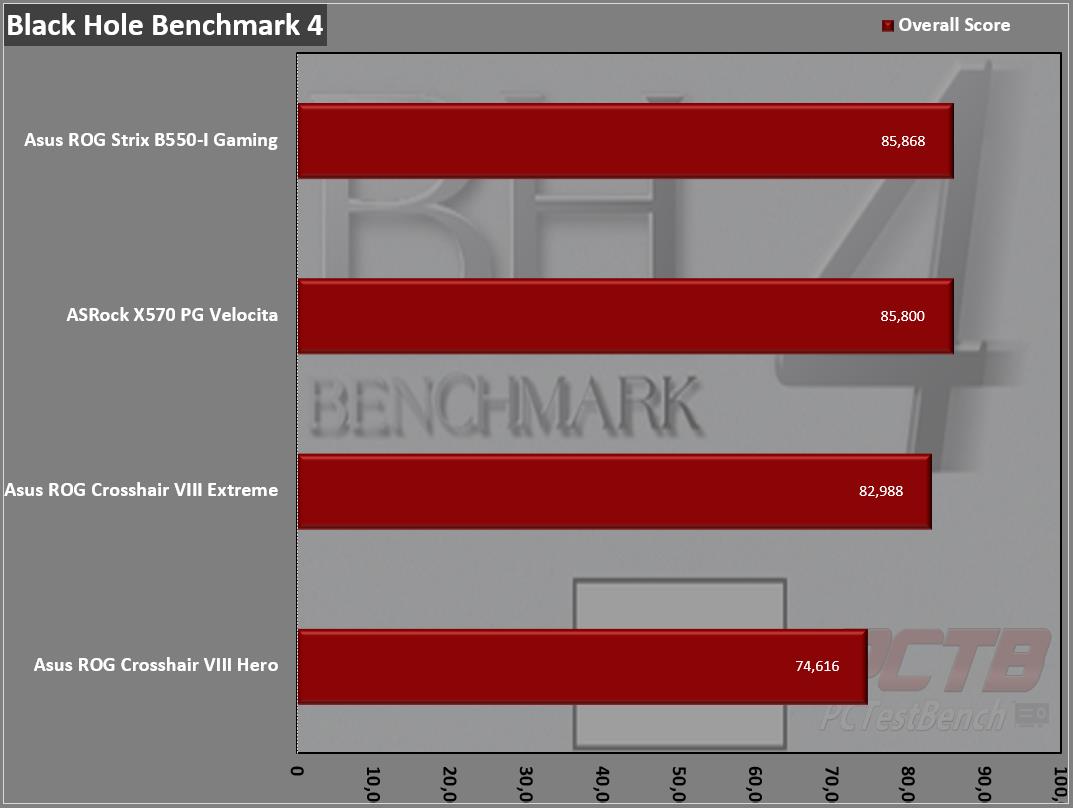
Blackhole swings back a bit the other way with the Crosshair VIII Extreme landing around 83k points total.
7-Zip
The benchmark shows a rating in MIPS (million instructions per second). The rating value is calculated from the measured speed, and it is normalized with the results of the Intel Core 2 CPU with a multi-threading option switched off. So, if you have a modern CPU from Intel or AMD, rating values in single-thread mode must be close to real CPU frequency. There are two tests, compression with the LZMA method and decompression with the LZMA method. Once the total passes reach 50, the score is taken
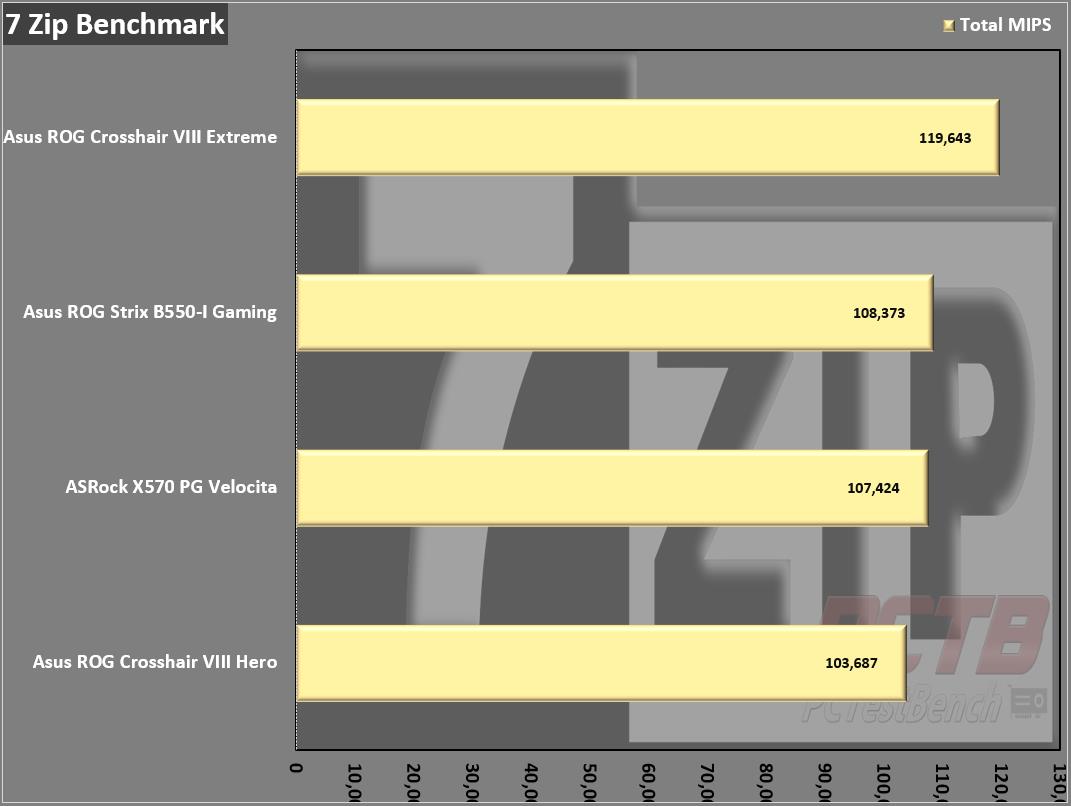
7zip jumps almost off the chart with nearly 120,000 MIPS, our best score by far.
Testing Continued
AIDA64 Engineer Edition
“FinalWire Ltd. today announced the immediate availability of AIDA64 Extreme Edition 1.50 software, a streamlined diagnostic and benchmarking tool for home users; and the immediate availability of AIDA64 Business Edition 1.50 software, an essential network management solution for small and medium scale enterprises.
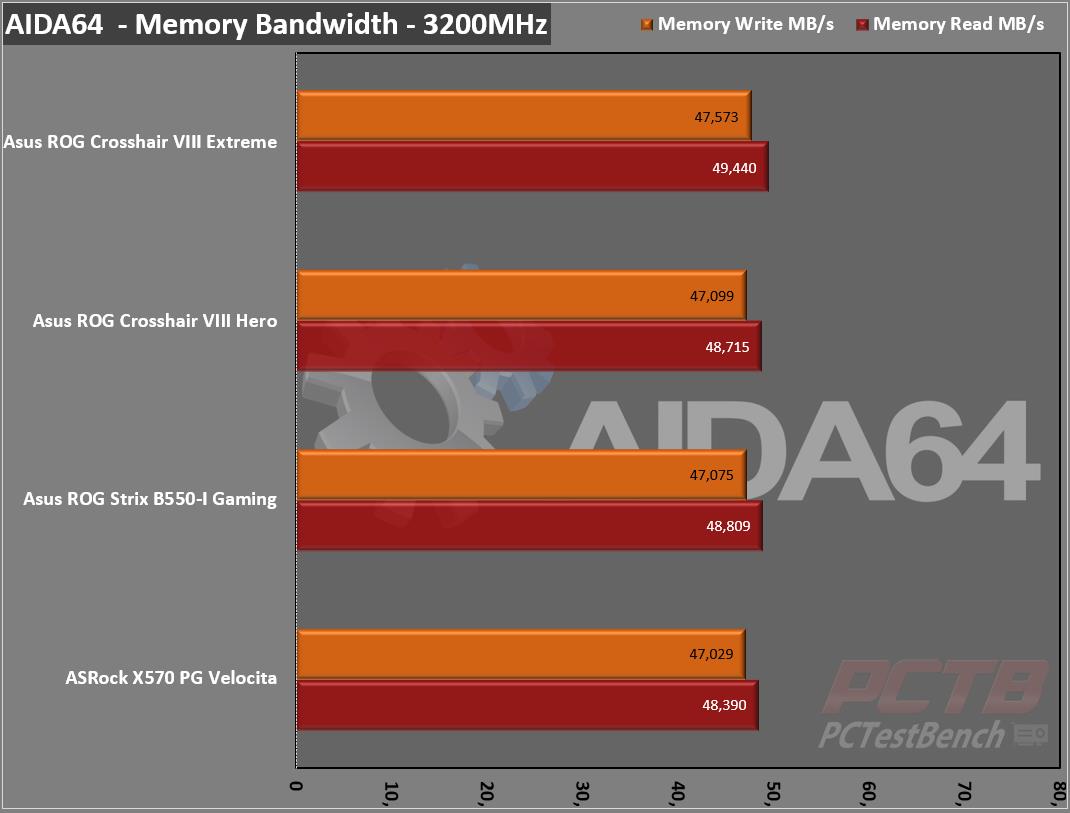
System memory bandwidth comes in right around where we expected with it just edging out other similar platforms.
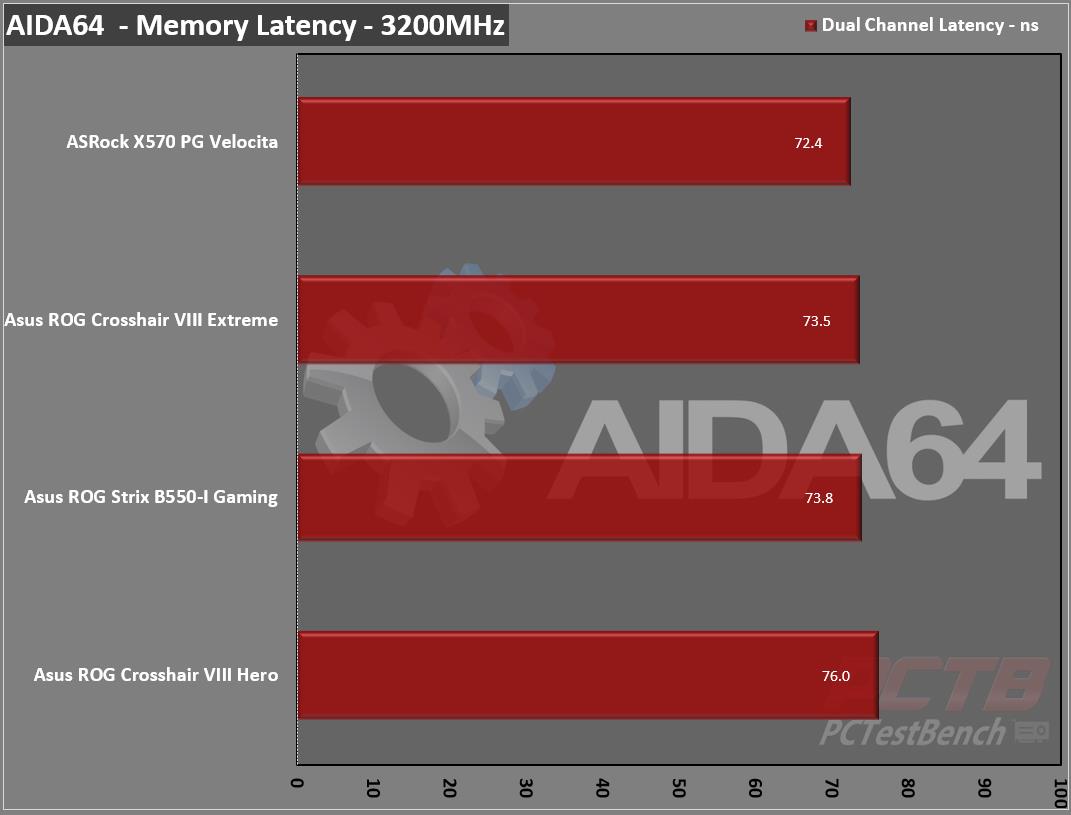
Overall latency can swing a bit based on how the XMP profile is applied as well as board training of tertiary timings not contained in the XMP profile.
Passmark Performance Test – Memory Mark – Threaded
“Fast, easy to use, PC speed testing, and benchmarking. PassMark Performance Test ™ allows you to objectively benchmark a PC using a variety of different speed tests and compare the results to other computers.”
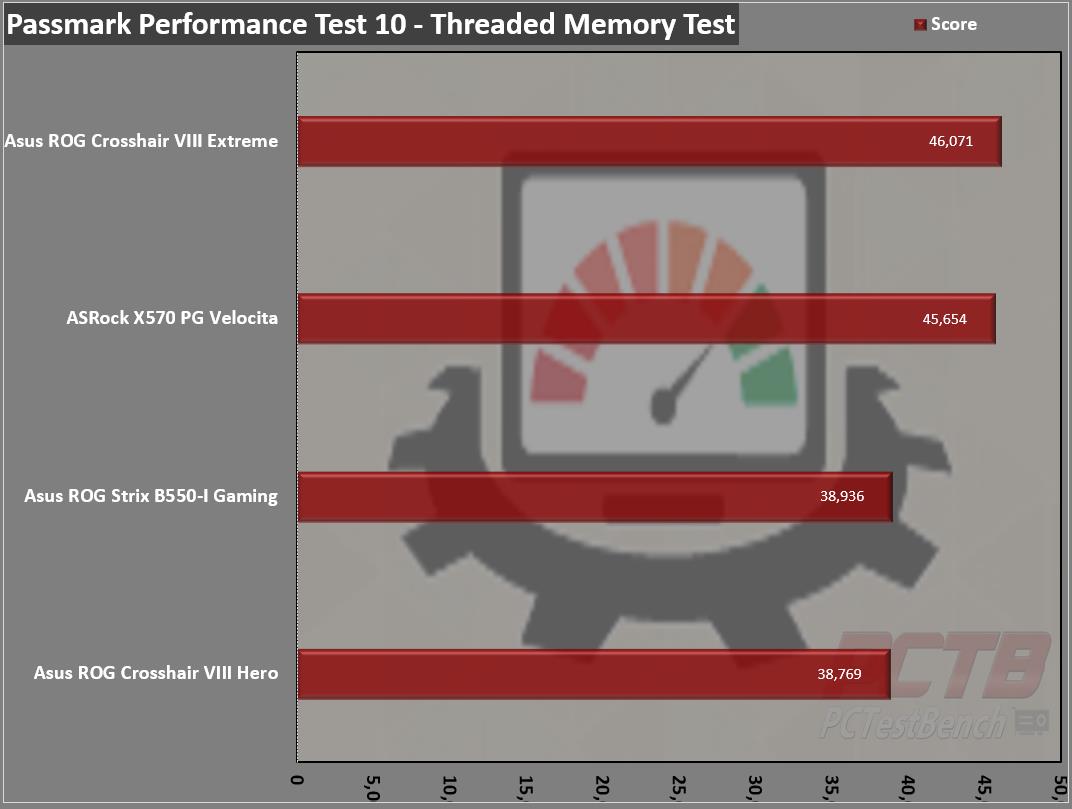
The Crosshair VIII Extreme does quite well in Passmark’s threaded memory test with our best score in this category.
SiSoft Sandra – Memory Bandwidth – Aggregate.
“SiSoftware Sandra provides a robust pack
age of diagnostic tools for testing your system and teasing out its problems–or potential headaches.”
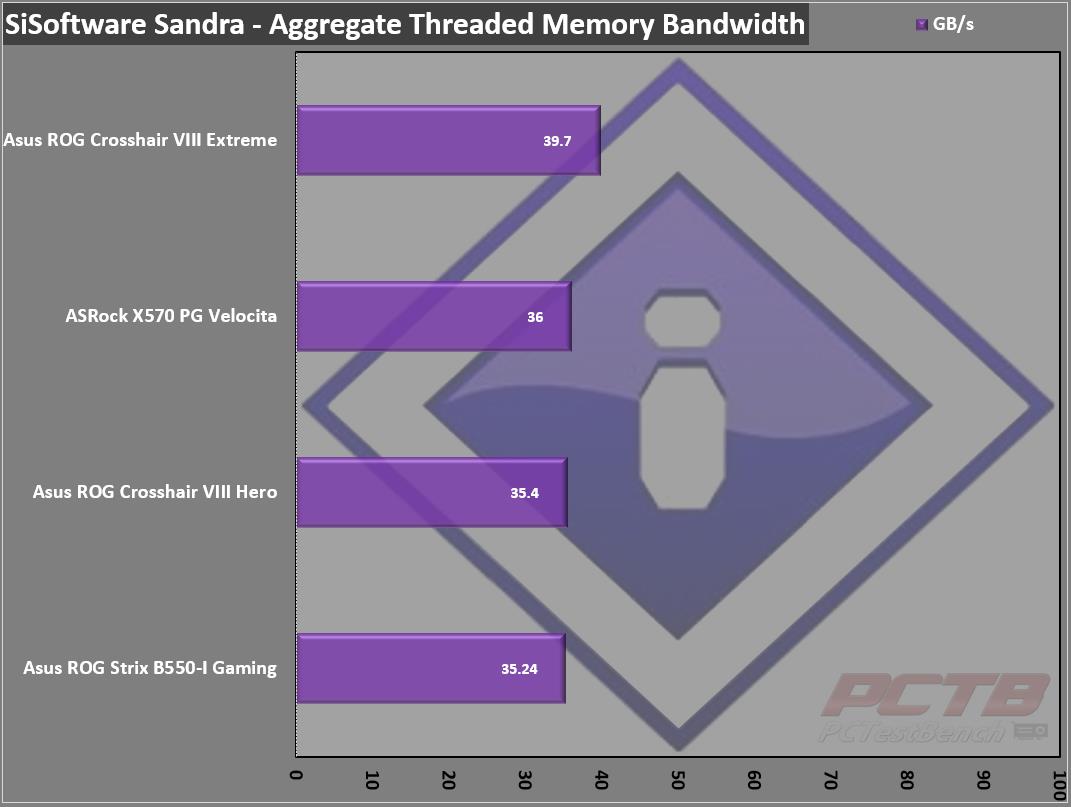
SiSoft’s aggregate memory bandwidth makes a strong showing on the Crosshair VIII Extreme with just under 40GB/s.
Synthetic Game Testing
3DMark – Fire Strike
“Fire Strike is a showcase DirectX 11 benchmark designed for today’s high-performance gaming PCs. It is our most ambitious and technical benchmark ever, featuring real-time graphics rendered with detail and complexity far beyond what is found in other benchmarks and games today”
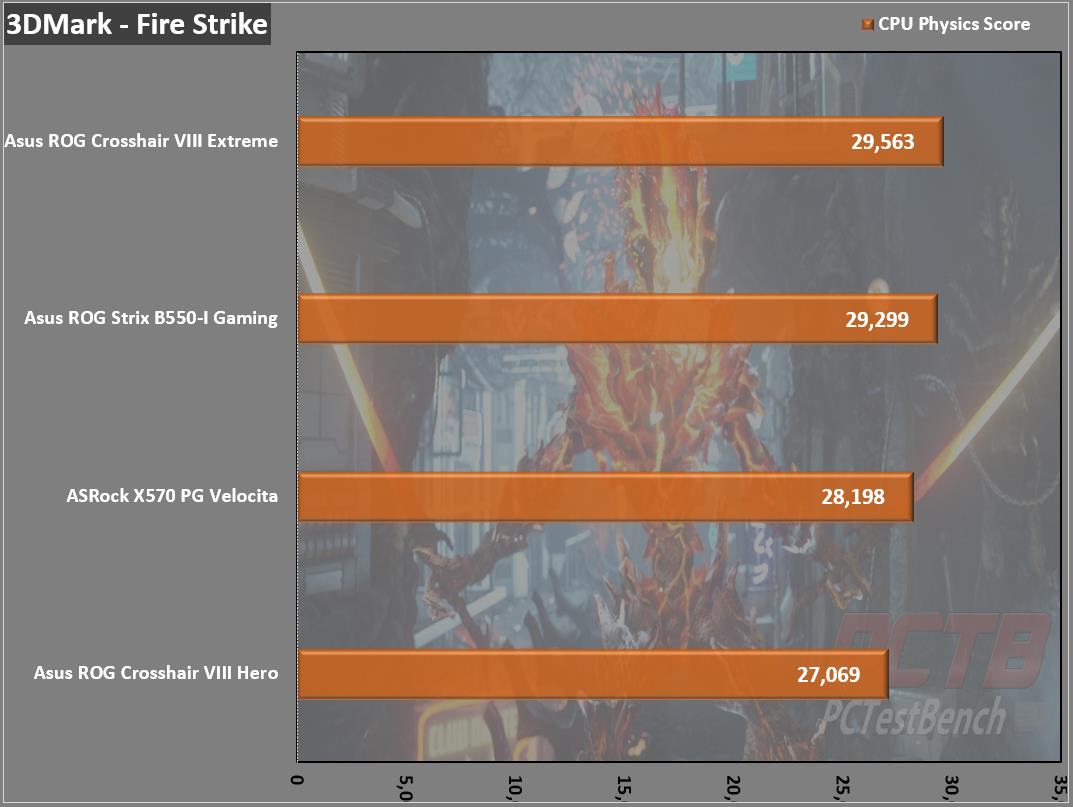
Firestrike’s CPU-based physics just slightly favors the Crosshair VIII Extreme with a score of 29,563. This is physics score only and not graphics or overall.
3DMark – Time Spy
“3Dmark Time Spy is a new DirectX 12 benchmark test for Windows 10 gaming PCs. Time Spay is one of the first DirectX 12 apps to be built “the right way” from the ground up to fully realize the performance gains that the new API offers. With DirectX 12 engine, which supports new API features like asynchronous compute, explicit multi-adapter, and multi-threading, Time Spy is the ideal test for benchmarking the latest graphics cards.
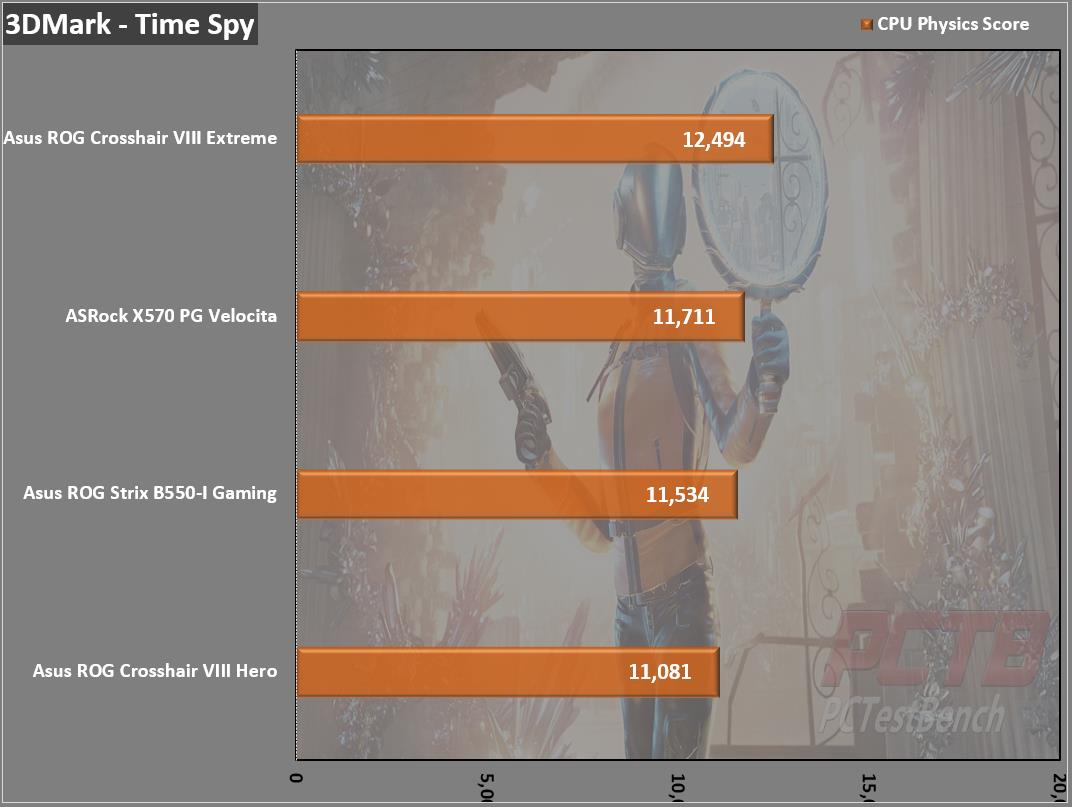
The Crosshair does just as well in Timespy.
Game Testing
Sid Meier’s Civilization VI
Originally created by legendary game designer Sid Meier, Civilization is a turn-based strategy game in which you attempt to build an empire to stand the test of time. Become Ruler of the World by establishing and leading a civilization from the Stone Age to the Information Age. Wage war, conduct diplomacy, advance your culture, and go head-to-head with history’s greatest leaders as you attempt to build the greatest civilization the world has ever known. Civilization VI offers new ways to engage with your world: cities now physically expand across the map, active research in technology and culture unlocks new potential, and competing leaders will pursue their own agendas based on their historical traits as you race for one of five ways to achieve victory in the game.
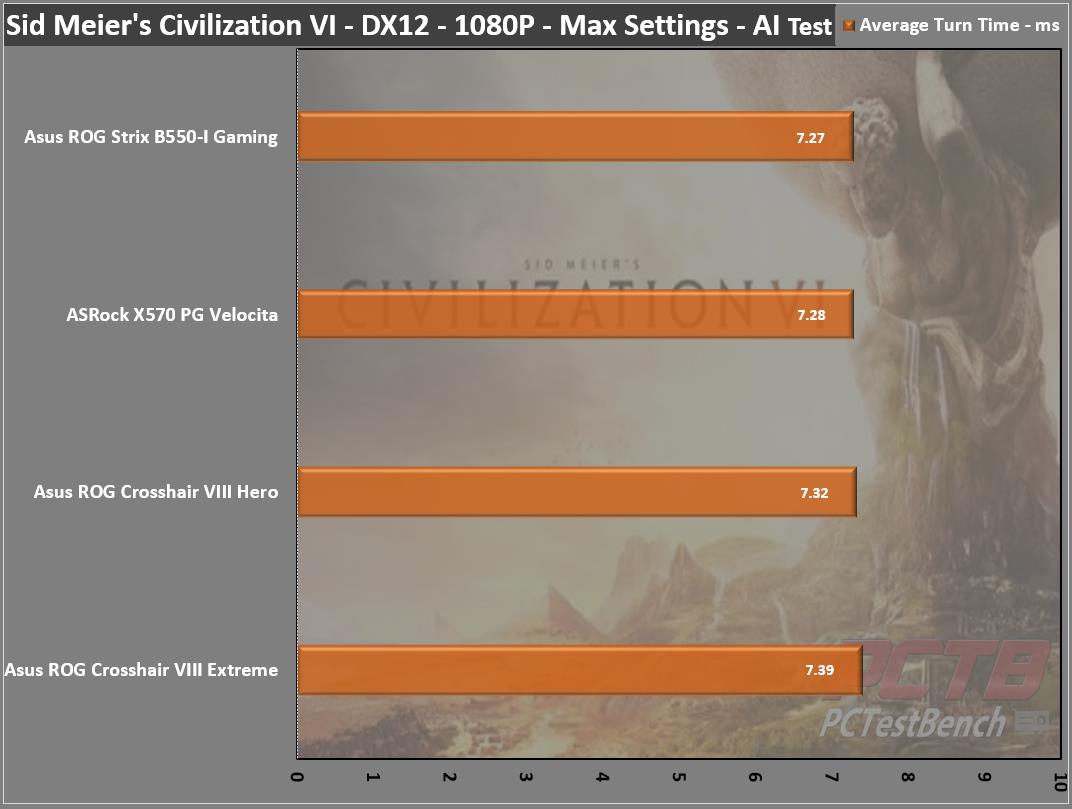
The average turn time on the Crosshair VIII Extreme comes in at 7.39ms, not our best score but right in line with expectations.
Far Cry 5
Anything can happen. Everything will. Welcome to Hope County, Montana, land of the free and the brave, but also home to a fanatical doomsday cult—known as The Project at Eden’s Gate—that is threatening the community’s freedom. Stand up to the cult’s leaders, Joseph Seed, and the Heralds, as you spark the fires of resistance that will liberate the besieged community.
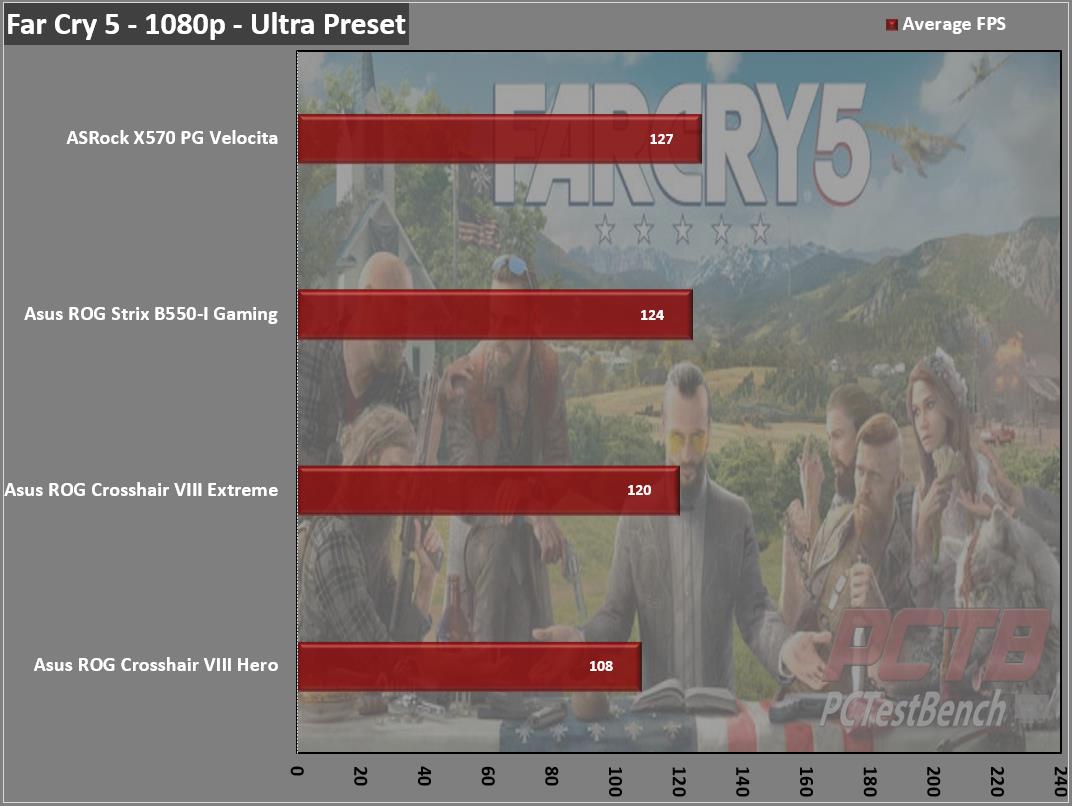
On Far Cry 5, the Crosshair VIII Extreme manages an average of 120 FPS.
Shadow of the Tomb Raider
Experience Lara Croft’s defining moment as she becomes the Tomb Raider. In Shadow of the Tomb Raider, Lara must master a deadly jungle, overcome terrifying tombs, and persevere through her darkest hour. As she races to save the world from a Maya apocalypse, Lara will ultimately be forged into the Tomb Raider she is destined to be.
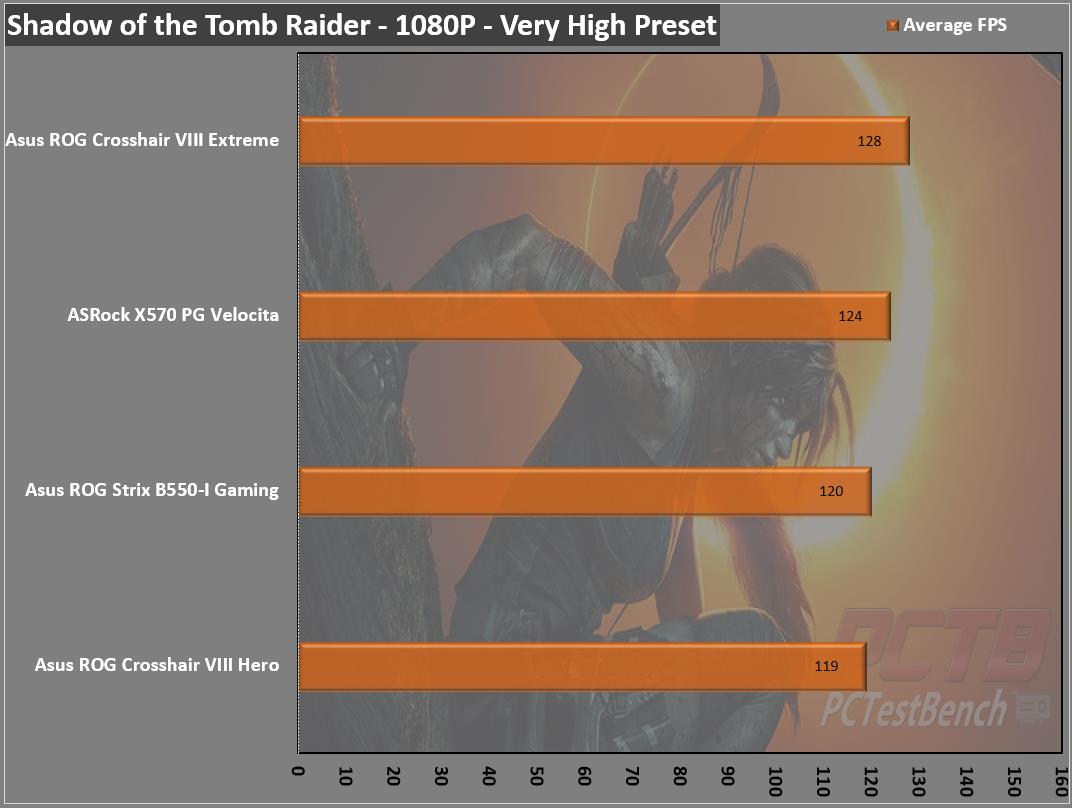
Shadow of the Tomb Raider does well with our best average of 128 FPS going to the Crosshair VIII Extreme.
Ashes of the Singularity
Planet by planet, a war is raging across the galaxy. The technological singularity has given humanity the power to expand further than they ever have before. Now, they compete with each other and their sentient artificial intelligence adversaries for control of newfound worlds.
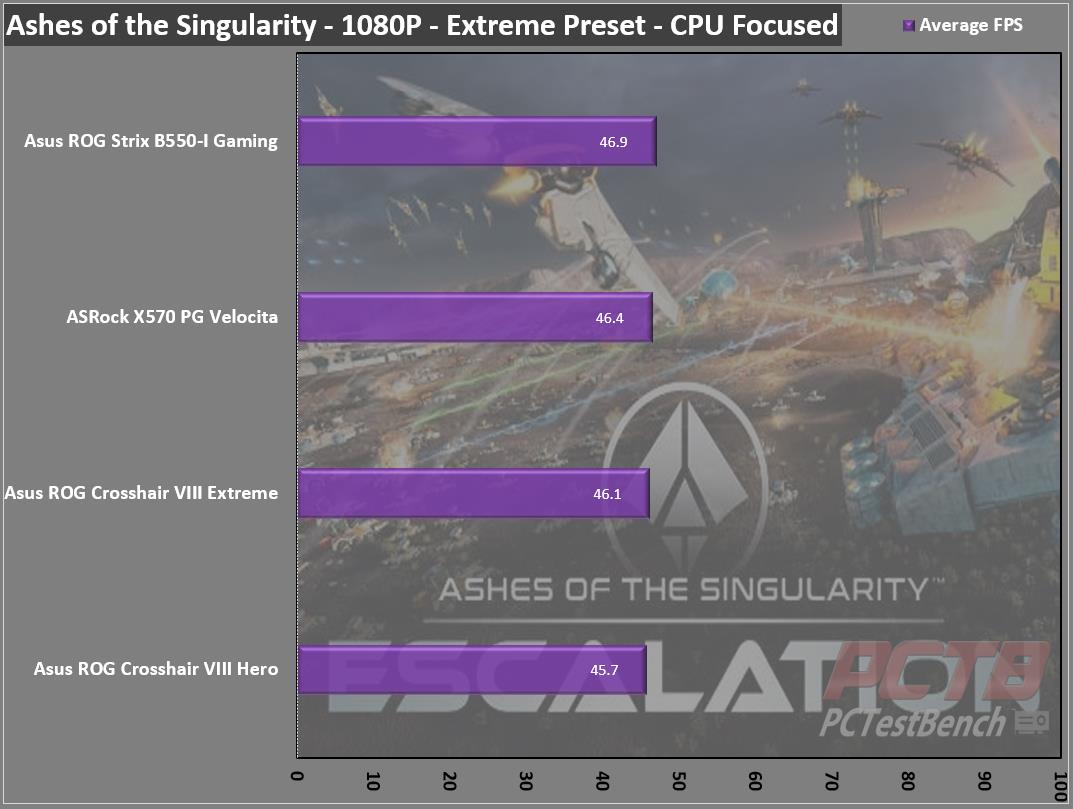
The Crosshair VIII Extreme manages 46.1 FPS in the CPU-focused test in AOTS, right where it should be.
Overclocking
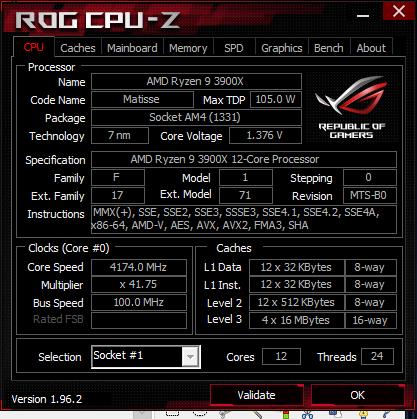
While AMD does a great job with its algorithms getting the most out of every chip, we like to see if there is any more left on the table.
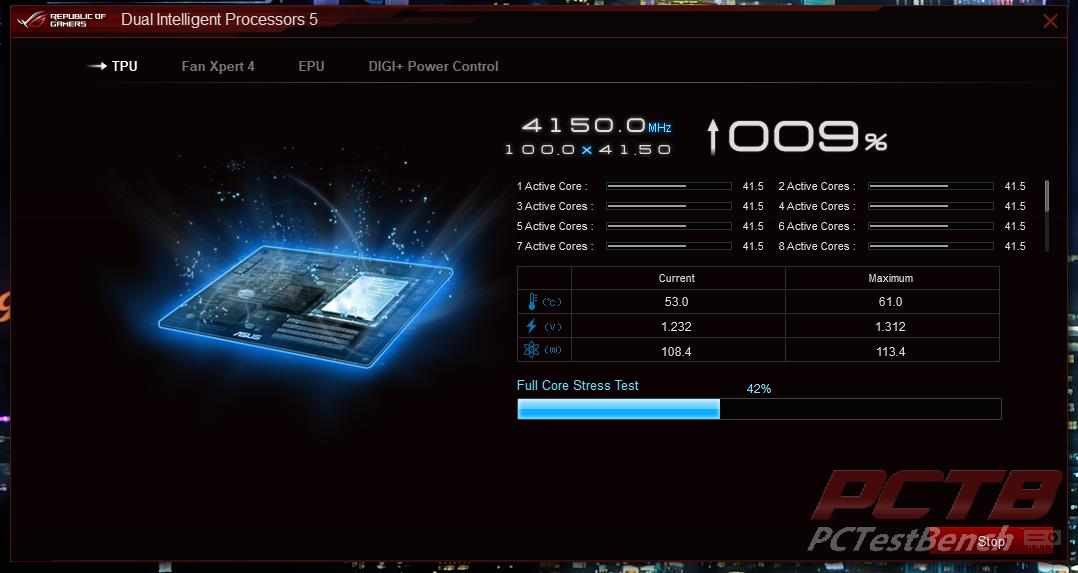
One of the first things we always do is to test any automatic overclocking tools. ASUS has done well with these for several generations now. After a reboot, the Ai Suite will start stepping the clock up a little bit at a time and then running a stress test.
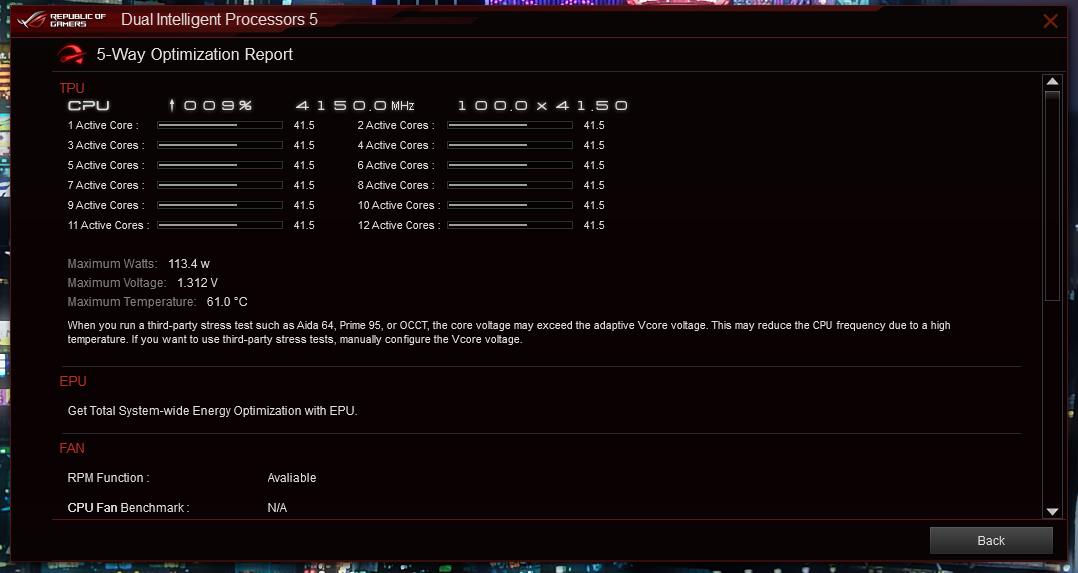
After a few reboots, we end up with a 9% boost in all-core clock speeds, up to 4.15GHz.
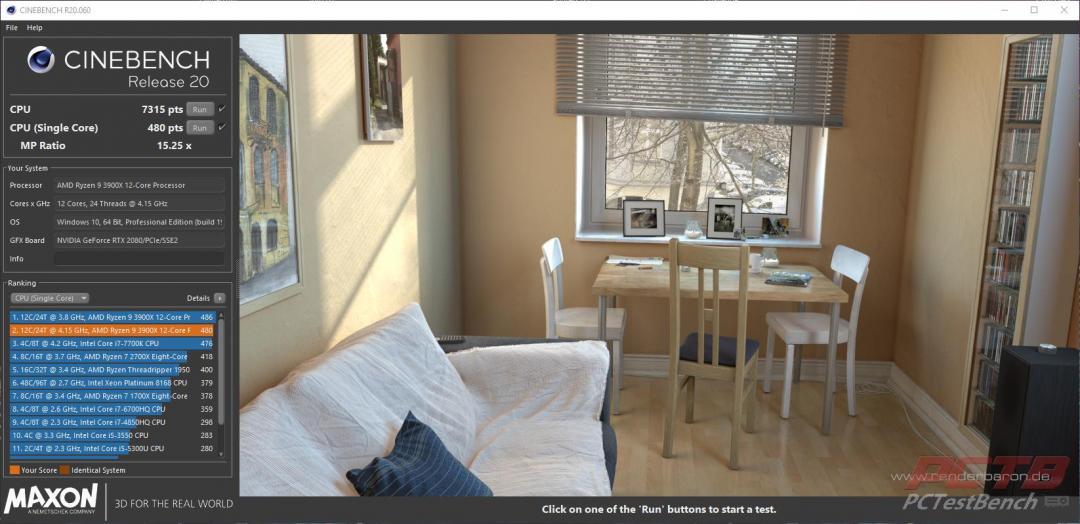
This gives us a significant boost in multi-core testing, from 6603 points to 7315 points. Single-core testing pretty much stays the same.
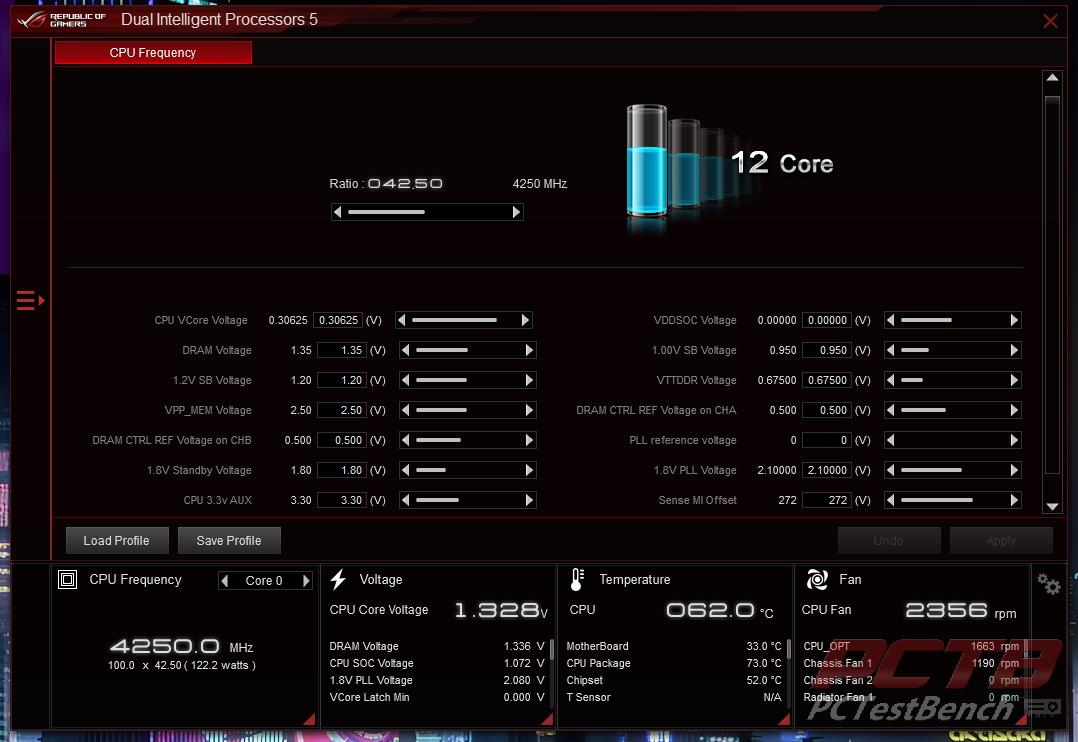
We can do a little manual overclocking right from the desktop as well. We ultimately ended up with 4.25GHz all core which is pretty good for our CPU sample.
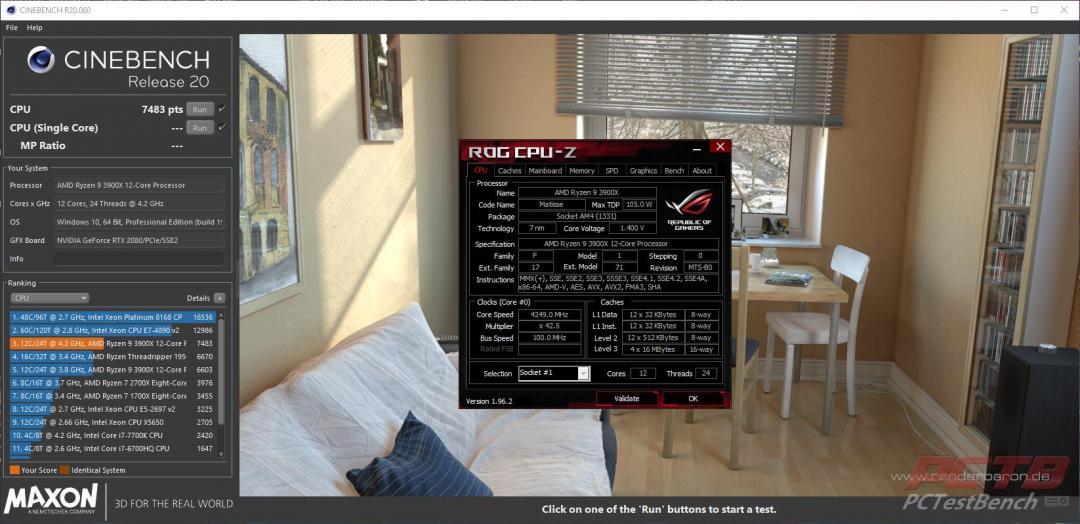
This gives us another decent jump in the score, up more than 13% from our stock run.
Final Thoughts & Conclusion
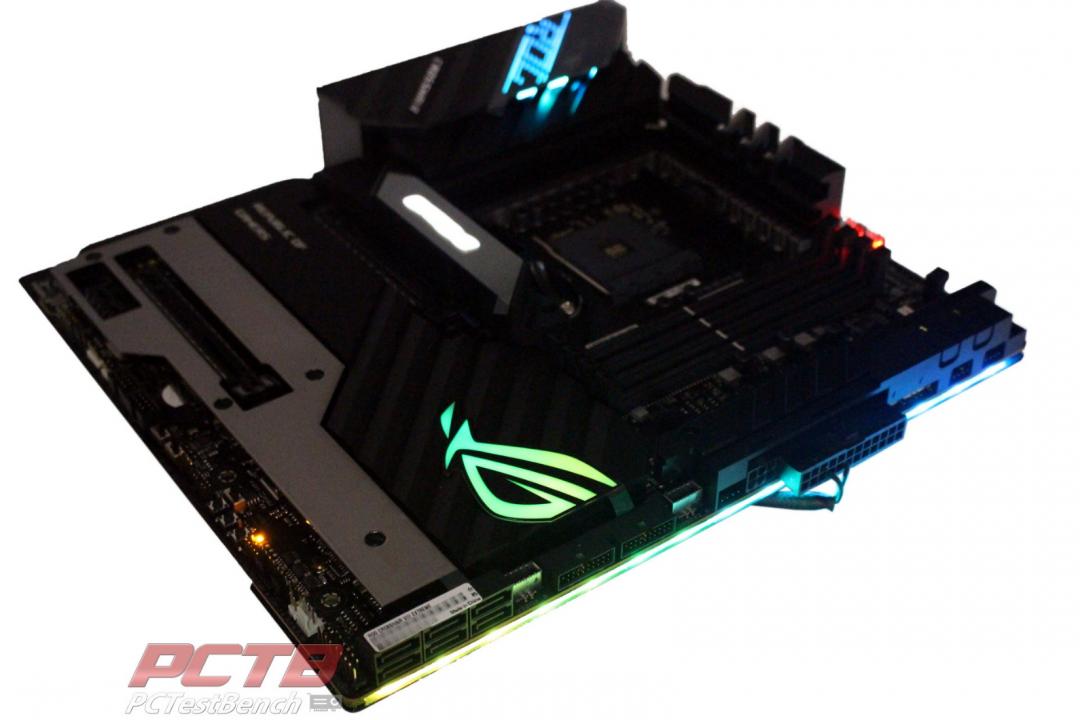
Final thoughts… that is a tough one. This is one of the most full-featured and all-inclusive motherboards ever created and is perfect for that dream build you’ve always wanted to create. We threw everything at the ROG Crosshair VIII Extreme the X570 platform possibly take, a Ryzen 9 5950X, 128GB of 3600Mhz memory, and an RTX 3090 and it didn’t even bat an eye. We checked several memory kits and multiple CPUs from the 3000 and 5000 series and it loved them all. Overclocking is easy, and out-of-the-box performance is predictable and strong. Obviously, aesthetics are subjective to each user, but premium looks and feel are unmatched with the amount of metal on this monster.
I think even the most well-connected enthusiast would be digging around to find something else to connect to the extreme because the amount and variety of I/O included is just crazy. The only downside is also one of its pros. The amount of metal coverage makes this board incredibly heavy. Hopefully, you plan on putting it in a well-built case, otherwise, It’s possible it could bend the motherboard tray under its own weight. If you go all out on a large water-cooled build, you’ll probably want a friend to help lift it, but that’s fine because you’ll want them to drool in envy anyway. If you want the envy-inducing, zero-compromise, ‘I don’t care what it costs’ type of build, the ROG Crosshair VIII Extreme should be the foundation of it.
Epic Job Asus!
 Rating 9/10